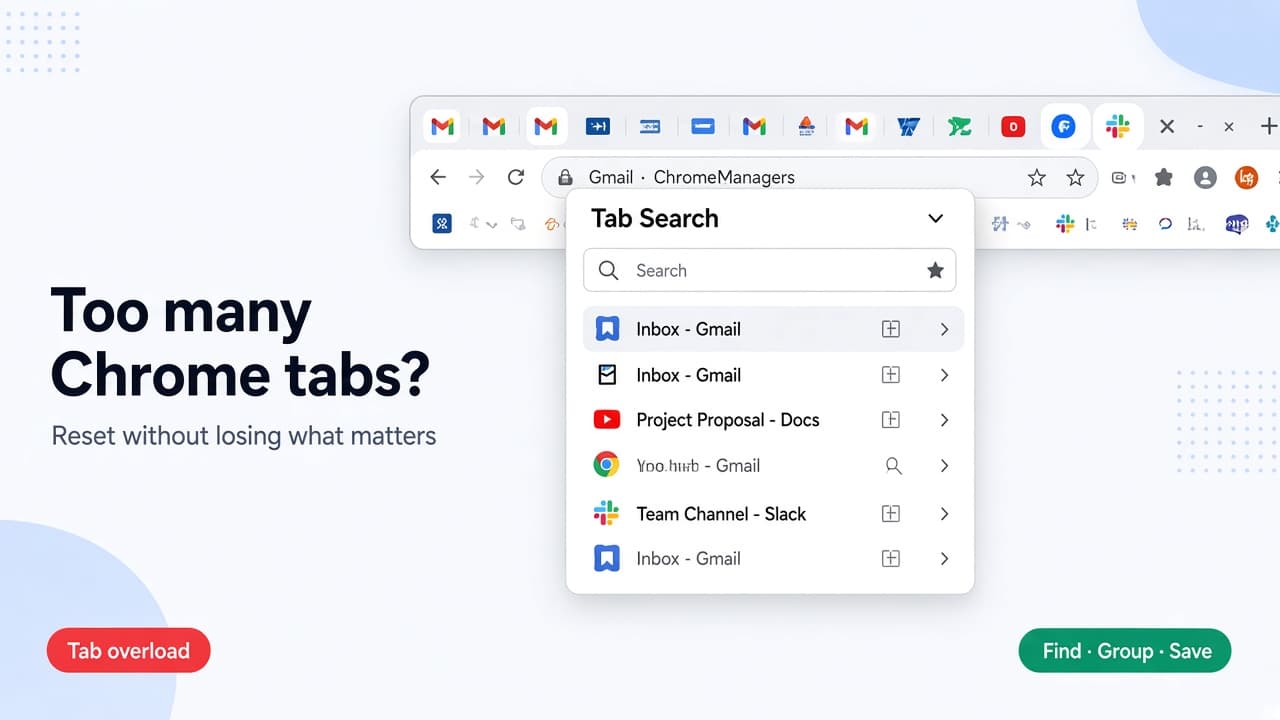
Having too many tabs open in Chrome quickly turns the tab bar into a mess. Before closing anything, decide what to keep open for active work, park pages you still need in a bookmark or board, and discard duplicates, dead ends, and finished reads. If you cannot remember where a page is, use Tab Search to find it by title, then make the same keep, park, or discard decision. Memory Saver can ease inactive tabs, but the reset comes from choosing what stays and closing the rest.
How many Chrome tabs are too many?
There is no universal number. What counts as too many depends on the pages you have open, the extensions running, and the device. Use the feel of the tab strip and the device as your signal, not a fixed count.
| Control | Use it to | It does not |
|---|---|---|
| Tab Search | Find a tab by title when the strip is only favicons | Decide what to keep |
| Multi-select | Close, group, move, or pin several tabs together | Save page content |
| Tab groups | Bundle and collapse the work you are in | Lower memory use or tab count by themselves |
| Pin | Keep a few all-day tabs at the edge of the strip | Store pages you will need later |
| Memory Saver | Free memory from inactive tabs | Close tabs or reset the strip |
| Bookmark or board | Park a keeper so the tab can close | Replace the triage decision |
Why Chrome tab hoarding fills the strip
Most tab overload is not laziness. Tabs stand in for jobs you have not parked elsewhere: read later, reply later, do not lose this link. Closing the whole window deletes that memory if nothing else holds it. A full wipe, or tab bankruptcy, often rebuilds the same strip by the next afternoon.
Chrome tab overload feels worse when every open page doubles as a reminder. The useful goal is not zero tabs. It is a smaller intentional set: active work you can still read, keepers stored somewhere findable, and noise gone.
How to deal with too many Chrome tabs: keep, park, discard
Before you touch Memory Saver or any extension, run a short triage. Walk the strip once and put each tab in one of three buckets. This is Chrome tab triage: keep active work, park the rest you still need, discard what you will not search for again.
This is not crash recovery, and it is not a plan to bookmark every open tab. Keep this article focused on triage. For a full session dump only, use the guide save all open tabs in Chrome.
Keep open: work you will touch in this sitting
Keep tabs for the task you are in right now: the doc, ticket, or sheet you are editing. If mail or calendar stay useful all day, those can stay too, ideally as pins. Everything else needs a next home or a close.
Park, then close: pages you still need
Anything with a future job gets a trusted home first: a bookmark, a board, or a short note that names where you put it. Then close the tab. Without that park step, “I might need this” keeps forever-open tabs alive.
Discard: duplicates, dead ends, and finished reads
If you would not search for it again, close it. Two copies of the same article, a finished checkout, a search results tab you already used: discard. No bookmark needed.
Example (one crowded research window): a draft doc, two identical posts, a finished order confirmation, a “watch later” video, and mail. Keep the draft and mail. Park the video. Discard both duplicates and the confirmation. The strip shortens without a wipe.
Find forgotten tabs with Chrome Tab Search
When the strip is only favicons, hunting by icon fails. Use Tab Search to find tabs by title words you remember, then close or keep them on purpose. Chrome Help documents address-bar search too: type @tabs, press Tab or Space, enter keywords, and pick the tab.

Open Tab Search with the keyboard
On Windows and Linux, press Ctrl + Shift + A. On Mac, press Command + Shift + A. You can also open Tab Search from the control on the tab strip. Chrome Help also documents address-bar search: type @tabs, press Tab or Space, enter keywords, and pick the tab. Search with page-title words, not the favicon. When search shows two tabs for the same article, treat the extras as discard candidates.
Close several tabs at once without touching groups you pinned
After you know what to discard, multi-select speeds cleanup without wiping a group you still need. Specific tabs: hold Ctrl on Windows or Linux, or Command on Mac, and click each tab. For a range, click the first tab, hold Shift, and click the last tab. Right-click the selection and choose Close, or group, move, or pin keepers. Leave pinned fixtures and collapsed project groups alone unless they are part of the decision.

- Specific tabs: hold Ctrl (Windows/Linux) or Command (Mac) and click each tab.
- For a range: click the first tab, hold Shift, and click the last tab.
- Right-click the selection and choose Close, or group, move, or pin keepers.
- Leave pinned fixtures and collapsed project groups alone unless they are part of the decision.
Keep active work readable with tab groups and pins
After discard and park decisions, make the keep-open set usable. Groups and pins organize what stays. They do not, by themselves, cut memory use or tab count. If Chrome offers vertical tabs under Appearance or the tab-strip menu, that layout can show more titles. The reset still depends on triage and closing.
Group the work you are actually in
Create one group per current project. Name it, pick a color, and collapse groups you are not in. Close a group when you may reopen the set later. Delete a group when it is obsolete. Ungroup when you want the tabs open without the group label. Use close when you may reopen the set later, delete when the group is obsolete, and collapse when you still need the tabs today but want less noise.
Pin the few tabs that stay all day
Right-click a tab and choose Pin. Pinned tabs shrink to the site icon at the edge of the strip. Pin mail, calendar, or the doc you write in all day. Keep the fixture list short; a long pin row is another crowded strip.
Chrome Memory Saver and too many tabs
If Chrome feels sluggish with many tabs open, turn on Memory Saver for performance relief. It is not the triage system. The count on the strip stays until you close tabs.

What Memory Saver changes
Open Settings, then Performance, and turn Memory Saver on. Chrome can deactivate tabs you are not using so active tabs run more smoothly. When you return to an inactive tab, it reloads.
- Moderate: inactive after a longer period.
- Balanced (recommended): inactive after an optimal period.
- Maximum: inactive after a shorter period.
Optional: turn on Inactive tabs appearance so inactive tabs show the icon inside a ring. Add sites to Always keep these sites active when mail, a live doc, or a call page should stay live. Chrome may also skip deactivating tabs with active audio or video, screen share, notifications, downloads, partially filled forms, pinned tabs, or connected devices. None of that removes tabs from the strip. Memory Saver frees memory from inactive tabs. It does not close them or reset the strip.
Energy Saver is a different setting
Energy Saver is under the same Performance settings, but it is a separate control. It reduces background work to extend battery when the device is unplugged or the battery is low. It is not Memory Saver, and it is not a tab cleanup.
Park important Chrome tabs, then close them
This is the step that makes a reset feel safe. Park Chrome tabs safely, then close them. If you cannot close a tab because you fear losing it, that fear is practical: the page still has no trusted home.
Save the page, not the whole window
For each keeper, save that specific page with Chrome’s star into a folder you can find, or send it to a board if you already use one. Give the bookmark a clear name if the default title is vague. Do not make bookmark-all-tabs your default reset. For parked bookmark cleanup, use organize Chrome bookmarks.
- Open the tab.
- Bookmark it with Chrome’s star into a folder you can find, or send it to a board if you already use one.
- Give the bookmark a clear name if the default title is vague.
Close only after you can find it again
Ask one check before you hit the X: Where will I open this from next time? If the answer is the bookmark folder, the board, or a note you just wrote, close the tab. If the answer is “I will remember somehow,” it is not ready. That is why you cannot close Chrome tabs when the fear of losing them still has nowhere else to go.
Stop using Chrome tabs as a to-do list
Chrome’s built-in bookmark is enough for many keepers. If open tabs are still acting as your to-do list, such as reminders, next steps, and reading piles, those loops need a home after the tab closes.
Boardmarks is our Chrome extension for that next step. It is optional after the built-ins above, not a replacement for Tab Search, groups, pins, or Memory Saver. Local-first by default.
Explore the product through Boardmarks features.
Save pages to visual bookmark boards with the bookmark manager.
Use the New Tab workspace to keep later tasks out of the tab strip.
Quick Save keepers onto a visual board
Use Quick Save to put a keeper on a visual board, with one board per project or reading pile. The card stays after the tab closes. For an approach that avoids nested folders, try organize Chrome bookmarks without folders.

Move the open loop to New Tab
Tasks, habits, notes, and reminders on the New Tab page can hold “do this later.” The tab does not have to stay open to remind you. To shape that start page further, try customize the Chrome New Tab page.
Manage too many Chrome tabs with a short cleanup pass
A light end-of-day or weekly pass beats another full wipe. Reuse the same three buckets, just smaller.
- Open Tab Search and clear obvious duplicates.
- Discard dead ends and finished reads with multi-select.
- Park anything that still has a next step, then close those tabs.
- Collapse groups you are not in. Keep pins limited to true fixtures.
If you close something by accident, Chrome’s reopen shortcut, Ctrl or Command + Shift + T, can bring a recent tab or window back. For the full path, see how to restore a closed Chrome tab.
FAQ
- How do I deal with too many tabs open in Chrome?
- Sort every tab into keep open, park then close, or discard. Use Tab Search to find forgotten pages by title, multi-select to close discard tabs in batches, and park keepers with a bookmark or board before you close them. Do not start by closing the window.
- Does Memory Saver close my Chrome tabs?
- No. It can free memory from inactive tabs and may show them as inactive, with an icon inside a ring when that appearance setting is on. The tabs stay on the strip until you close them. Levels are Moderate, Balanced, and Maximum under Settings, then Performance.
- What is the keyboard shortcut for Tab Search in Chrome?
- Use Ctrl + Shift + A on Windows and Linux. Use Command + Shift + A on Mac. You can also open Tab Search from the tab strip control, or type @tabs in the address bar, then search.
- Do Chrome tab groups reduce memory usage?
- No. Groups label, color, and collapse tabs so active work stays readable. They do not lower memory use or tab count by themselves. Memory Saver is the performance control. Closing tabs is what lowers the count.
- How can I close Chrome tabs without losing important pages?
- Save the specific pages you still need with a Chrome bookmark or a board, confirm you can find them again, then close those tabs. That selective park is the safe reset. For saving every open tab at once, use the full session dump guide instead of this triage guide.
Chrome New Tab extension
Organize bookmarks, todos, and habits on every New Tab.
- Visual bookmark boards
- Todos, habits, notes, reminders
- Local-first by default
Free trial · no card required