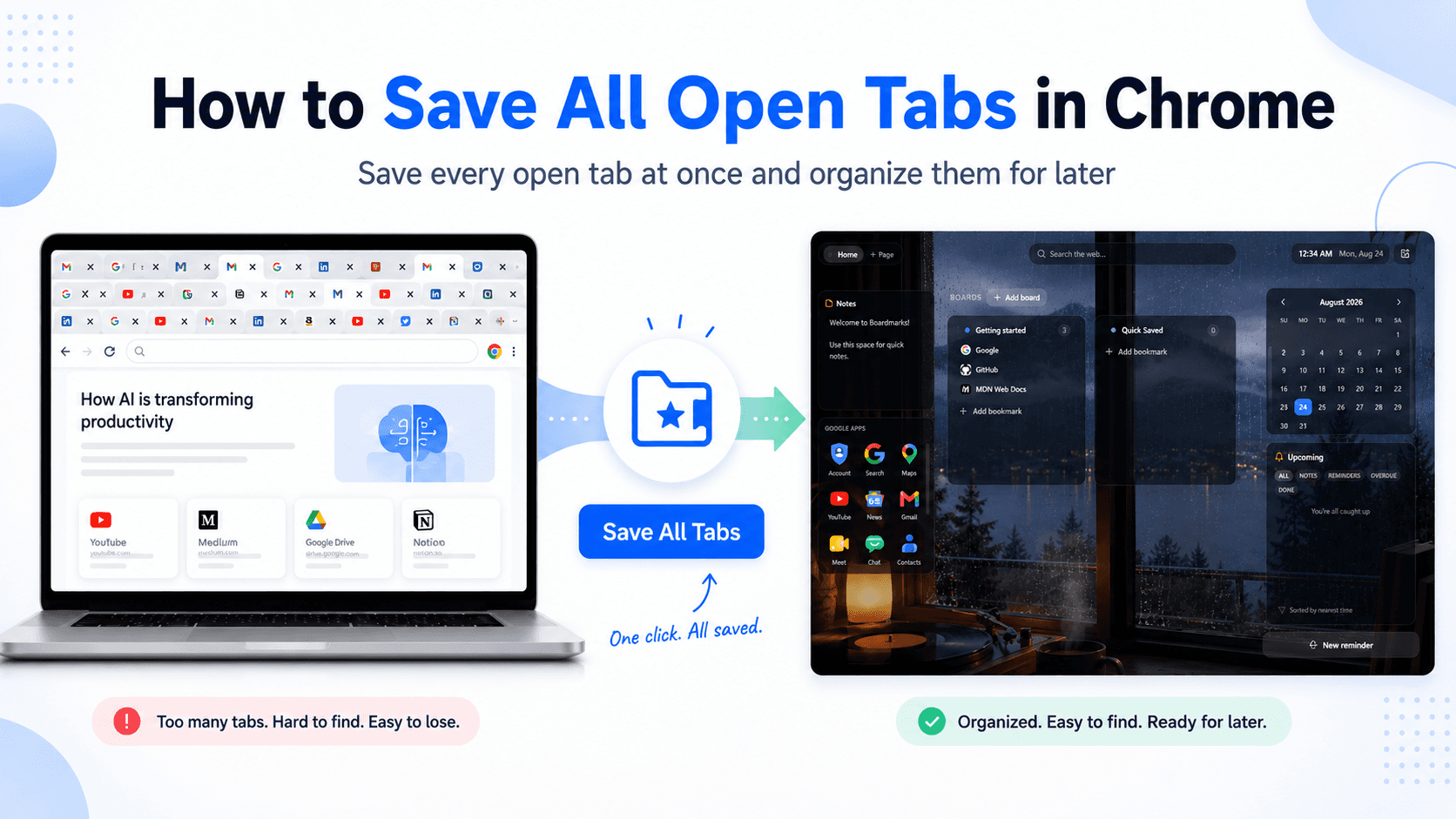
If you have dozens of Chrome tabs open and want to close your browser without losing them, you can save all open tabs at once instead of bookmarking each page individually.
Chrome has a built-in option for saving every open tab into a bookmark folder. You can also use a visual bookmark manager like Boardmarks if you want to organize saved tabs into boards and find them more easily later.
The 3 Easy Ways to Save Chrome Tabs
This guide covers three practical approaches:
- Method 1 — Bookmark all tabs: Chrome's built-in way to save every tab in the current window into one folder.
- Method 2 — Chrome tab groups: organize tabs you are actively using without turning every page into a long-term bookmark.
- Method 3 — Boardmarks: save open tabs into visual boards on your New Tab page when you manage many projects or research sessions.
A simple rule of thumb:
- A few websites → use bookmarks
- A temporary browsing session → use tab groups
- Lots of saved sites and projects → use a bookmark manager
Which Method Should You Use?
| Method | Best for | Main limitation |
|---|---|---|
| Chrome bookmarks | Saving websites long-term | Large folders can become messy |
| Bookmark all tabs | Saving an entire window quickly | Still creates traditional bookmarks |
| Chrome tab groups | Organizing your current session | Mainly designed for active tabs |
| Session restore | Returning after restarting Chrome | Not ideal for permanent organization |
| Bookmark manager | Managing many sites and projects | Requires an additional tool |
Quick Answer: How Do I Save All Open Tabs in Chrome?
To save all open tabs in Google Chrome:
- Right-click an empty area of the Chrome tab bar.
- Select Bookmark all tabs.
- Choose or create a bookmark folder.
- Give the folder a name.
- Click Save.
Chrome will save every tab currently open in that browser window.
If you regularly save groups of tabs, you can also use Boardmarks to save all your open tabs directly into a visual bookmark workspace.
How to Bookmark All Open Tabs in Chrome (Method 1)
Chrome includes a built-in feature that lets you bookmark an entire window at once.
Step 1: Open the tabs you want to save
Keep all the websites you want to save open in the same Chrome window.
For example, you might have tabs open for:
- Research
- Work documents
- YouTube videos
- Shopping
- Articles to read later
- Project resources
Step 2: Right-click the tab bar
Right-click the empty space beside your open Chrome tabs.
Step 3: Select “Bookmark all tabs”
Choose Bookmark all tabs from the menu.
You can also use the keyboard shortcut:
Windows/Linux: Ctrl + Shift + D
Mac: Command + Shift + D
Step 4: Create a folder
Chrome will ask where you want to save the tabs.
Create a new folder with a useful name such as:
- Project Research
- Monday Work
- Design Inspiration
- Read Later
- Client Resources
Click Save.
Every open tab in that Chrome window will now be stored inside the folder.
What Happens When You Bookmark All Tabs in Chrome?
Chrome saves the URL and title of every open page as a normal bookmark.
Your websites do not remain open in the background.
This means you can safely close the tabs and reopen the saved websites later from your bookmarks.
This is particularly useful when you want to:
- Reduce the number of open tabs
- Restart Chrome
- Restart your computer
- Continue research later
- Save a work session
- Free browser memory
- Organize websites for a project
How Do I Reopen All Saved Tabs?
If you saved your tabs inside a Chrome bookmark folder:
- Open Chrome.
- Open the bookmarks menu or bookmarks bar.
- Find the folder containing your saved tabs.
- Right-click the folder.
- Choose Open all or Open all in new window.
Chrome will reopen every bookmarked website.
Be careful if the folder contains a very large number of pages because opening dozens of websites simultaneously can use significant memory.
A Better Way to Save Multiple Chrome Tabs
Chrome's built-in Bookmark all tabs feature works well, but it has one limitation:
Everything is stored inside traditional bookmark folders.
As your collection grows, you may end up with folders inside folders and hundreds of bookmarks that become difficult to navigate.
An alternative is to organize saved tabs visually.
Save Chrome Tabs With Tab Groups (Method 2)
Chrome tab groups let you organize related open tabs without bookmarking every page.
- Right-click a tab.
- Select Add tab to new group.
- Name the group (for example Work, Research, or Shopping).
- Drag other related tabs into the same group.
Tab groups are helpful while you are actively working. Bookmarks and bookmark managers are usually better when you want to store websites for days or weeks.
Save All Open Tabs With Boardmarks (Method 3)
Boardmarks is a Chrome New Tab productivity and bookmark manager that lets you save your current tab or multiple open tabs into visual boards.
Instead of putting everything into a long bookmark folder, you can organize websites based on how you actually use them.
For example:
Work Board
Save:
- Gmail
- Project dashboard
- Documentation
- Analytics
- Client portals
Research Board
Save:
- Articles
- Google searches
- Documentation
- Reddit discussions
- Reference websites
Design Inspiration Board
Save:
- Dribbble
- Behance
- Figma resources
- Fonts
- Color tools
This makes your saved websites easier to scan and reopen.
How to Save All Open Tabs With Boardmarks
After installing Boardmarks:
- Open the websites you want to save.
- Click the Boardmarks extension icon in your Chrome toolbar.
- Choose the option to save all open tabs.
- Select where you want the bookmarks to be stored.
- Open your New Tab page whenever you want to access them again.
Your saved websites can then be organized visually instead of being buried inside Chrome bookmark folders.
Chrome Bookmark All Tabs vs Boardmarks
Both methods save websites, but they are designed for slightly different workflows.
| Feature | Chrome Bookmark All Tabs | Boardmarks |
|---|---|---|
| Save multiple tabs | Yes | Yes |
| Save current tab | Yes | Yes |
| Traditional bookmark folders | Yes | Not the main workflow |
| Visual pages & boards | No | Yes |
| Access from New Tab | Limited | Yes |
| Drag-and-drop organization | Limited | Yes |
| Tasks and todos | No | Yes |
| Notes | No | Yes |
| Habit tracking | No | Yes |
| Reminders | No | Yes |
If you only occasionally need to save a browser session, Chrome's built-in bookmarks may be enough.
If you regularly collect websites for work, research, projects, or everyday browsing, visual organization can make large bookmark collections easier to manage.
How Do I Save My Chrome Tabs Before Closing Chrome?
The safest method is to bookmark the tabs before closing the browser.
Use:
Ctrl + Shift + D on Windows or Linux
or
Command + Shift + D on Mac.
This creates a folder containing all tabs in the current window.
Another option is to save the tabs into a dedicated bookmark manager such as Boardmarks before closing them.
Can Chrome Automatically Restore My Open Tabs?
Yes.
Chrome can reopen tabs from your previous browsing session.
Go to:
Chrome Settings → On startup → Continue where you left off
When enabled, Chrome attempts to reopen the pages that were open when you previously closed the browser.
However, this is different from saving tabs as bookmarks.
Restore tabs
Designed to continue your previous browsing session.
Save tabs
Creates permanent bookmarks that you can organize and reopen whenever you want.
For important research or project links, saving the tabs is generally safer than relying only on session restoration.
How to Restore Recently Closed Chrome Tabs
If you close a tab before saving it, Chrome can usually bring it back without digging through History.
Windows/Linux: Ctrl + Shift + T
Mac: Command + Shift + T
Press the shortcut repeatedly to reopen multiple recently closed tabs. For older pages, open Chrome's History menu and select the site you need.
This is useful for accidental closures, but it is not a replacement for intentionally saving important tabs before you close Chrome.
How to Organize Saved Chrome Tabs
Saving tabs is only half the job. Organize bookmarks by purpose so they stay easy to find.
Work
- Gmail
- Project dashboards
- Client portals
- Analytics
- Documentation
Development
- GitHub
- Stack Overflow
- Framework docs
- API references
Research
- Articles
- Competitors
- Reports
- Inspiration
Personal
- Shopping
- Travel
- Entertainment
- Finance
Grouping by how you use websites is usually easier to maintain than deeply nested bookmark folders.
Should You Keep Hundreds of Chrome Tabs Open?
Usually, no. Dozens of open tabs make it harder to find what you are actually working on, even when Chrome manages memory better than it used to.
If a tab is not something you need right now: save it → organize it → close it. Your browser stays cleaner and the page remains available when you need it again.
Can I Save 50 or 100 Chrome Tabs at Once?
Yes.
Chrome's Bookmark all tabs command can save a large number of open tabs in one operation.
You do not need to bookmark each website separately.
However, saving 100 bookmarks and opening 100 bookmarks are different things.
Saving them generally isn't a problem, but reopening all 100 simultaneously can consume substantial RAM and CPU resources.
A better approach is to divide large collections into categories or boards and open only the websites you currently need.
How Can I Save Chrome Tabs Without Keeping Them Open?
Bookmark them.
Once a webpage has been bookmarked, the browser tab does not need to remain open.
For example, if you have 30 research tabs:
- Save the 30 tabs.
- Verify they appear in your bookmark folder or Boardmarks workspace.
- Close the original tabs.
- Reopen individual websites whenever you need them.
This helps keep Chrome cleaner without losing your research.
Does Saving Tabs Reduce Chrome Memory Usage?
Saving a tab by itself doesn't reduce memory usage.
Closing the tab after saving it does.
Every active website can consume browser memory and other resources. If you save pages as bookmarks and then close unnecessary tabs, Chrome has fewer active pages to maintain.
This can be particularly helpful if you frequently keep dozens of websites open.
What's the Difference Between Tabs, Bookmarks and Tab Groups?
These features solve different problems.
Chrome tabs
Tabs are websites currently open in your browser.
Best for:
- Websites you are using right now
Chrome tab groups
Tab groups organize currently open tabs.
Best for:
- Separating active work into categories
Chrome bookmarks
Bookmarks permanently store website addresses.
Best for:
- Websites you want to revisit later
Visual bookmark boards
Visual boards organize saved websites into sections that are easier to scan.
Best for:
- Research
- Projects
- Frequently used apps
- Long-term collections
- Personal workflows
What Is the Best Way to Manage Too Many Chrome Tabs?
If you constantly have dozens of tabs open, saving them is only part of the solution.
A better workflow is:
- Keep only currently active websites open.
- Save useful websites immediately.
- Group related bookmarks by project or purpose.
- Close pages you no longer need.
- Reopen saved websites only when required.
Instead of treating browser tabs as a permanent storage system, treat tabs as your active workspace and bookmarks as your saved workspace.
This makes it much easier to avoid tab overload.
Frequently Asked Questions
- Can I save all open tabs in Chrome at once?
- Yes. Right-click the Chrome tab bar and choose Bookmark all tabs, or press Ctrl + Shift + D on Windows/Linux or Command + Shift + D on Mac.
- What is the shortcut to save all tabs in Chrome?
- Use Ctrl + Shift + D on Windows and Linux. On Mac, use Command + Shift + D.
- Where does Chrome save all bookmarked tabs?
- Chrome places them inside the bookmark folder you select when using Bookmark all tabs.
- Can I reopen all bookmarked tabs at once?
- Yes. Right-click the bookmark folder and select Open all or Open all in new window.
- Can I save Chrome tabs without an extension?
- Yes. Chrome includes its own Bookmark all tabs feature, so an extension is not required.
- Can I save all Chrome tabs before restarting my computer?
- Yes. Bookmark all open tabs first, then close Chrome or restart your computer. Your bookmarks will remain available afterward.
- Can Boardmarks save all my open tabs?
- Yes. Boardmarks lets you save open tabs into your bookmark workspace and organize the websites into visual boards.
- Does bookmarking tabs keep them running?
- No. A bookmark stores the webpage address. After saving the bookmark, you can close the original tab.
- Is there a limit to how many tabs I can bookmark?
- Chrome can store a large number of bookmarks. The more important concern is organization and avoiding reopening an extremely large number of pages simultaneously.
- Should I use tab groups or bookmarks?
- Use tab groups for websites you're actively working with. Use bookmarks when you want to save websites for later.
- How do I restore a tab I accidentally closed?
- Press Ctrl + Shift + T on Windows/Linux or Command + Shift + T on Mac. Repeat the shortcut to reopen multiple recently closed tabs, or open Chrome History to find older pages.
- Is bookmarking tabs better than leaving them open?
- For pages you do not need right now, usually yes. Save important websites, organize them, close the tabs, and reopen only what you need.
Save Your Tabs Without Losing Your Workspace
You don't need to keep 30, 50, or 100 Chrome tabs open just because you might need them again.
For a quick solution, use Chrome's Bookmark all tabs feature.
For a more organized workflow, Boardmarks lets you save your websites into visual boards and access them directly from your New Tab page alongside tools such as todos, notes, habits, and reminders.
Save the websites you need, close the tabs you don't, and keep your browser workspace organized.
Add Boardmarks to Chrome — FreeChrome New Tab extension
Organize bookmarks, todos, and habits on every New Tab.
- Visual bookmark boards
- Todos, habits, notes, reminders
- Local-first by default
7-day free trial. No card required.