Tools · Image compressor
Image compressor
Tell us the size you need and we will get your photo there. Type 200 KB, or 1 MB, or whatever number the form in front of you is asking for, and you will get a file that fits. It will never come out bigger than your number.
Everything runs inside this tab. Your image is not uploaded to us, not copied to a server, and not stored anywhere. It stays on your device the whole time.
- ✓Free, no sign up
- ✓Nothing is uploaded
- ✓JPG or WebP
- ✓Size in KB or MB
- ✓No watermark
- ✓No limits
We compress to this size or smaller, never larger than what you enter.
Output format
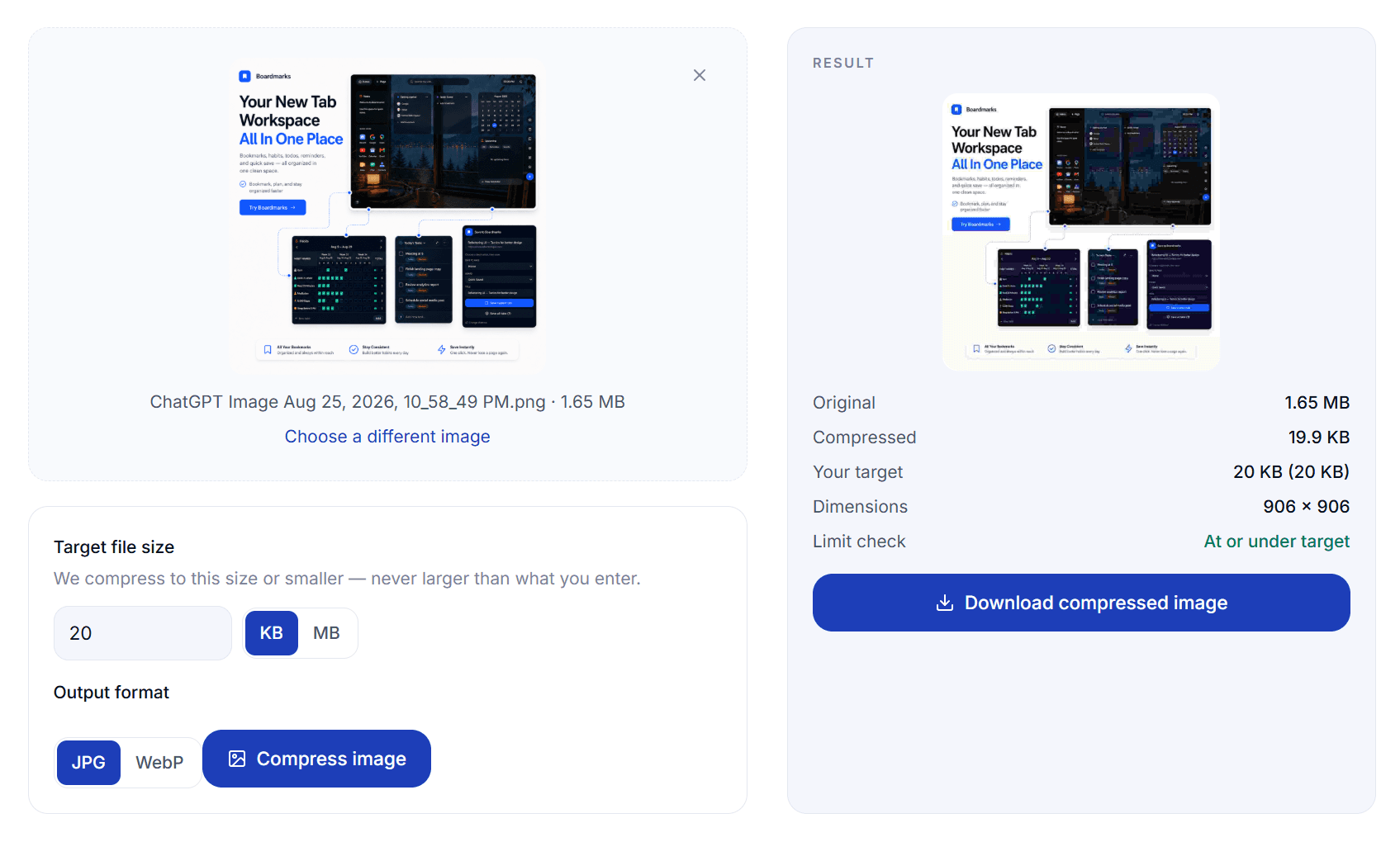
Here is what you get back
This is a real run. A 1.65 MB screenshot went in, a 20 KB target was set, and 19.9 KB came out. Before you download anything you can see the original size, the new size, the dimensions, and a check confirming the file is inside your limit.
We never see your images
Most compressors work by sending your photo to a server, squeezing it there, and sending it back. Even the good ones hold onto your file for a day or two before deleting it. That is fine for a holiday snap. It is not fine for a passport scan, a signed contract, a salary slip or a photo of your kid.
This tool does not work that way. There is no upload step at all. Your browser reads the file straight off your disk, redraws it on a canvas, re-encodes it at the size you asked for, and hands it back to you. We have no server in the loop, which means there is no copy of your photo for us to keep, sell, leak or get subpoenaed for.
One useful side effect: re-encoding drops the metadata that cameras and phones bake into photos. GPS coordinates, camera model, timestamps, all of it goes. If you are about to post a picture publicly, that alone is worth running it through here.
If you want to test the claim, open your browser devtools, switch to the Network tab, and compress something. You will not see a single request leave the page.
How to compress a photo to a specific KB or MB size
Four steps, under a minute, nothing to install.
- 1Add your image. Drag it onto the box or click to browse. JPG, PNG, WebP and GIF all work. You will see a preview and the original file size right away.
- 2Type the size you need. Enter a number and pick KB or MB. If a form told you "maximum 100 KB", type 100. Do not go lower than you have to, because every KB you give up is quality you lose for nothing.
- 3Pick JPG or WebP, then compress. Most people should leave it on JPG. The work takes a second or two, a bit longer for very large photos.
- 4Check the numbers and download. The result panel shows what you started with, what you ended up with, and whether it fits. The download is named with a -compressed suffix so it will not overwrite your original.
What size should you actually pick?
If a form gave you a number, use that number. If nobody told you, here is what usually works.
| Use case | Try this size | Notes |
|---|---|---|
| Passport or visa portal | 20 to 200 KB | Follow the exact number in the instructions. These portals reject silently. |
| Job application photo | 100 to 500 KB | JPG is safest with older hiring systems. |
| Email attachment | Under 1 MB | Keeps the whole thread light if people keep replying with it attached. |
| Website hero image | 150 to 300 KB | Use WebP here. Your page speed score will thank you. |
| Product photo | 80 to 200 KB | Small enough to load fast, big enough to zoom into. |
| Blog or article image | 60 to 150 KB | Nobody pinch zooms a blog image. Keep it light. |
| Profile picture or avatar | 30 to 100 KB | It gets displayed small anyway. |
How the compression works
Ask most tools to compress a photo and you get a quality slider. You drag it to 70%, you get a file, and you find out afterwards how big it is. If it is still too big you drag again. If it is way too small you drag back. That guessing game is the thing we wanted to remove.
When you press Compress, the tool runs a binary search over the quality range. It encodes the image at the midpoint, measures the result, and then halves the range in whichever direction it needs to go. After about a dozen passes it has found the highest quality setting that still lands under your number.
Sometimes quality alone is not enough. If you ask for 15 KB from a 12 megapixel photo, there is no quality setting low enough to get there while keeping every pixel. In that case the tool redraws the image at 85% of its current size and runs the quality search again, repeating until the file fits. This is why the result panel reports dimensions as well as file size.
All of it uses the Canvas API that ships with every modern browser, so there is no library to download and no server call to wait for.
JPG or WebP: which one should you pick
Short version: JPG if someone else is going to receive the file, WebP if it is going on a website you control.
WebP is the better format on paper. It generally produces files around a quarter to a third smaller than JPG at the same visual quality, which matters a lot when your target is under 100 KB. At that end of the scale the difference between the two formats is the difference between a photo that looks fine and one that looks like it went through a fax machine.
The catch is acceptance. Government portals, older applicant tracking systems, some printing services and a fair number of internal company tools still only take JPG or PNG. If a WebP upload fails you often get no explanation at all, just a form that refuses to submit. So when the file is leaving your hands and going into somebody else's system, use JPG and save yourself the debugging.
Why people end up here
Almost everyone arrives because something rejected their photo. These are the usual suspects.
A form said the file was too big
Visa portals, tax sites, bank KYC uploads and university applications all cap photo size, usually somewhere between 20 KB and 200 KB. Type their exact number in and the problem goes away.
Email bounced the attachment
Corporate mail gateways are stricter than the limits they advertise. Getting each photo under 1 MB keeps a thread with a few images well inside anyone’s limit.
The website got slow
A 4 MB hero image is the single most common reason a page feels sluggish on mobile. Bringing images down to a few hundred KB usually fixes it without touching any code.
WhatsApp keeps ruining photos
Messaging apps re-compress anything over their threshold with settings you cannot see or control. Compress it yourself first and you decide how it looks.
A client asked for a size cap
Agencies and marketplaces often specify both dimensions and a maximum file size. Resize first in your editor, then bring it here to hit the size number.
Storage is filling up
A folder of a few hundred phone photos can be several gigabytes. Compressing the ones you only keep for reference frees up a surprising amount of space.
Getting a better looking result
- →Do not overshoot downwards. If the limit is 500 KB, aim for 480 KB, not 100 KB. People compress far harder than they need to and then wonder why the photo looks rough.
- →Crop before you compress. If you need a face photo at 20 KB, crop to the face first. Every pixel of background you cut is space the compressor can spend on the part that matters.
- →Screenshots and text need more room. Photos of people and landscapes compress beautifully. Screenshots, charts and anything with small text fall apart much faster. Give them a higher target.
- →Always work from the original. Compressing an already compressed file stacks the damage. Go back to the file straight off the camera rather than re-squeezing yesterday’s result.
- →Keep the original. The download gets a new filename on purpose. Once detail is compressed away there is no way to bring it back, so hold onto the file you started with.
Questions people ask
- Can I compress my images for free?
- Yes. There is no cost, no account, and no sign up. You can compress as many images as you like, one after another, and there is no cap on how large the file you start with can be.
- Do you upload or store my images?
- No. The compression happens inside your own browser tab using the Canvas API that is already built into Chrome, Safari, Firefox and Edge. Your file is read from your disk, processed in memory, and saved back to your disk. It is never sent to us or to anyone else.
- How do I compress an image to an exact size like 20 KB?
- Drop your image in, type 20 in the size box, leave the unit on KB, then press Compress. The tool keeps testing quality levels until it finds the best looking version that still fits inside 20 KB. You will see the final size before you download, so there are no surprises.
- Can I set the target in MB instead of KB?
- Yes, just tap the MB button next to the size box. If you need a photo under 1.5 MB for an email, type 1.5 and pick MB. Decimals work fine.
- Will the result ever come out bigger than the size I asked for?
- No. Most compressors let you pick a quality percentage and you find out the size afterwards. Here you pick the size, and we work backwards to fit it. The file is checked one more time before the download button appears.
- What file types can I use?
- You can bring in JPG, PNG, WebP and GIF files. You can save the result as either JPG or WebP.
- Should I save as JPG or WebP?
- WebP gives you a smaller file at the same visual quality, so it is the better pick when your target is tight or when the image is going on a website. Go with JPG when you are uploading to a government portal, a job site or an older system, because those often reject anything that is not a JPG or PNG.
- Why did my image come out smaller in width and height?
- That only happens when your target is very tight for the photo you started with. A 4 MB photo simply cannot hold all of its detail inside 15 KB, no matter how far the quality drops. When quality alone is not enough, we shrink the dimensions a step at a time until it fits. The result panel always shows you the final width and height.
- Does compressing an image reduce its quality?
- A little, yes. JPG and WebP are lossy formats, so making the file smaller means throwing away detail your eye is unlikely to notice. At normal targets such as 200 KB to 500 KB the change is usually invisible. Push down to 10 or 20 KB and you will start to see softness, especially around text and sharp edges.
- Does the tool remove EXIF and location data?
- Yes. When the image is redrawn and re-encoded in your browser, camera info, GPS coordinates and other metadata are dropped. That is handy if you are posting a photo publicly and do not want the location attached to it.
- Does it work on phones?
- Yes. It runs in mobile Safari and Chrome the same way it runs on a laptop. Tap the upload area, pick a photo from your camera roll, set the size and compress.
- Can I use it offline?
- Once this page has loaded, yes. Nothing about the compression needs a connection, so it keeps working even if your wifi drops.
More from Boardmarks
Chrome New Tab extension
Organize bookmarks, todos, and habits on every New Tab.
- Visual bookmark boards
- Todos, habits, notes, reminders
- Local-first by default
7-day free trial. No card required.