Save all tabs
Save All Open Tabs in Chrome — Without Losing the Session
Need to save all open tabs in Chrome for later? Boardmarks lets you bookmark the current tab or every open tab into visual boards from the toolbar popup — then close the window with confidence.
7-day free trial · No card required
The tab pile problem
It starts innocently — you open a few tabs for research, then a few more for comparison, then a few more while waiting for something to load. Before long you have 30 tabs open, Chrome is using 2 GB of RAM, and closing any of them feels risky because you might need that page later. Most people let the pile grow rather than lose the links. Boardmarks solves this at the source: save all open tabs into boards in one click, then close the window clean.
How Boardmarks saves Chrome tabs
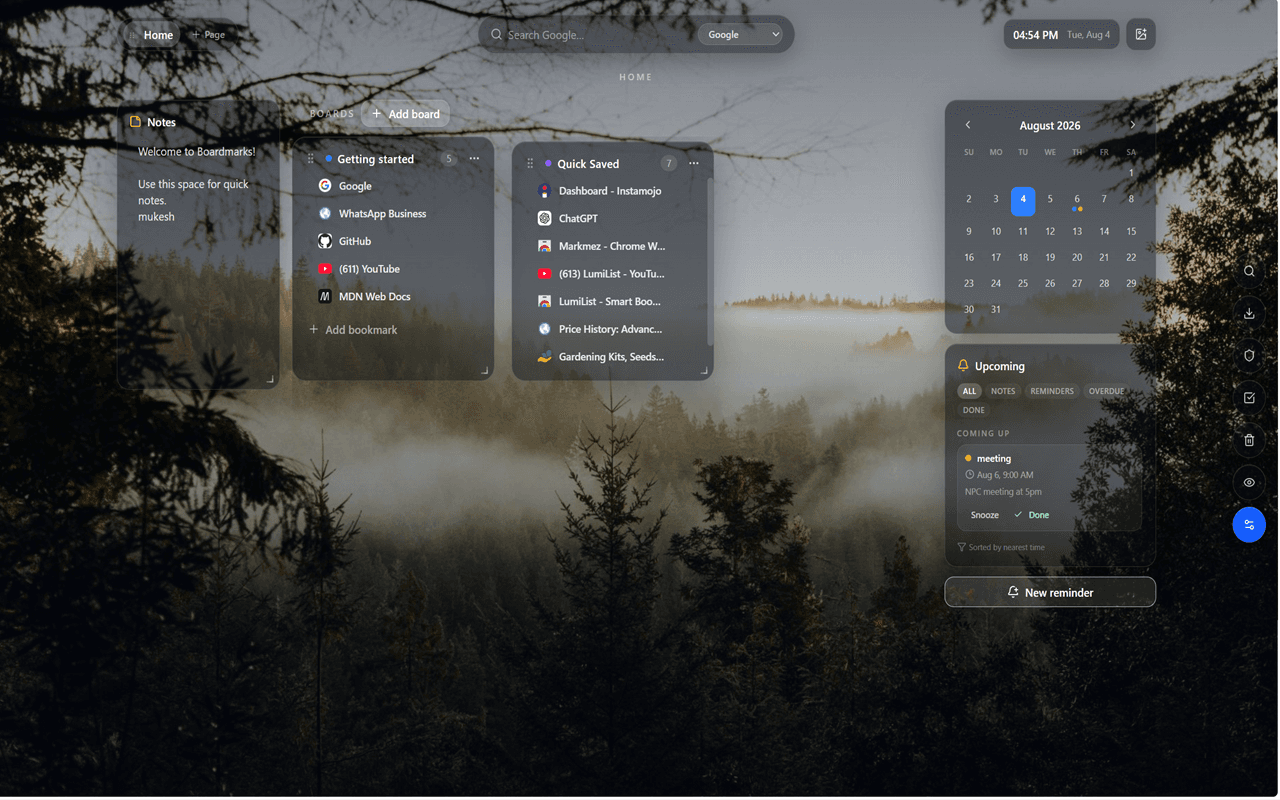
Open the Boardmarks extension popup from the Chrome toolbar. Choose to save the active tab or all open tabs in the current window. Links land on boards in your visual bookmark manager so you can reopen the set later from your New Tab. The Quick Save board is designed for fast, unsorted additions — capture everything now, organize into labeled boards later when you have time.
Unlike Chrome's built-in "Bookmark all tabs" which saves links into a dated folder in the bookmark bar, Boardmarks saves tabs onto visual boards you can see, rearrange, and add context to. The saved session becomes a named board you can return to — not a buried folder you forget exists.
When save-all-tabs helps
- Research sessions — save 20 tabs of articles, comparisons, or documentation before ending the session without reading them all.
- Shopping comparisons — save product tabs to a board so you can return and compare later without rebrowsing.
- End-of-day cleanup — close all tabs with confidence before shutting down. Tomorrow you pick up from the board.
- Switching machines — save your working session on one computer, access the boards on another.
- Reducing Chrome memory usage — close tabs you are not actively using, knowing the links are safely on boards.
- Project handoffs — save all relevant tabs for a project into a named board to share context with a colleague.
Quick Save vs. targeted boards
Boardmarks gives you two saving strategies. Quick Save is designed for speed — it captures a tab immediately without asking where it goes. This is the right choice when you are in the middle of something and do not want to stop to pick a board. Later, from your New Tab, you can drag Quick Save bookmarks to the right board, rename them, or delete the ones you no longer need.
Targeted board saving is for when you know what project a set of tabs belongs to. From the popup you can select a specific board so the tabs land exactly where they should — ready to use without any reorganizing.
Organizing saved tabs into boards
After saving, boards on your New Tab bookmark manager hold the links as visual cards. You can rename boards by project — "Client Proposal Research," "Apartment Hunt," "Side Project Reading" — then rearrange, resize, and color them so the most-used ones are always in view. Each board is a persistent working set that is there when you need it and out of the way when you do not.
Save tabs, then stay productive
After you save tabs, continue on the same New Tab with todos, notes, and reminders — the reason Boardmarks is a Chrome New Tab productivity extension, not only a tab saver. A typical end-of-day flow: save all open tabs to boards, add a todo for the most important follow-up, write a scratch note with tomorrow's priority, then close everything and step away knowing no work is lost.
Local-first tab storage
Saved tabs become bookmarks stored in Chrome local storage by default. Your browsing sessions stay on your device — Boardmarks does not send your URLs to a server during normal use. Optional cloud backup is available for Pro users after Google sign-in for licensing, so your boards are recoverable if you reset Chrome or switch profiles.
Frequently asked questions
- Can Boardmarks save all open tabs in Chrome?
- Yes. From the Boardmarks toolbar popup you can save the current tab or all open tabs into boards.
- Where do saved tabs go?
- Tabs are saved as bookmarks on visual boards in your New Tab workspace, including Quick Save for fast capture.
- Is this the same as Chrome's built-in bookmark all tabs?
- Chrome can bookmark all tabs into a folder. Boardmarks saves them into visual boards on your New Tab so the session stays visible next to todos and notes.
- Can I reopen saved tabs later?
- Yes. Saved tabs become bookmarks on your boards. Open your New Tab, find the board, and click any link to reopen it.
- Does saving tabs delete them from Chrome?
- No. Saving tabs captures the URLs as bookmarks. You can then close the tabs manually once your links are safely on boards.
Ready to try Boardmarks?
Install from the Chrome Web Store and start with a free 7-day trial. Pricing details are on our pricing page.
Add Boardmarks to Chrome — Free