Notes
Chrome New Tab Notes You Actually Open
Boardmarks brings Chrome New Tab notes into your start page — scratch notes for quick thoughts and calendar notes tied to specific days, next to boards and todos.
7-day free trial · No card required
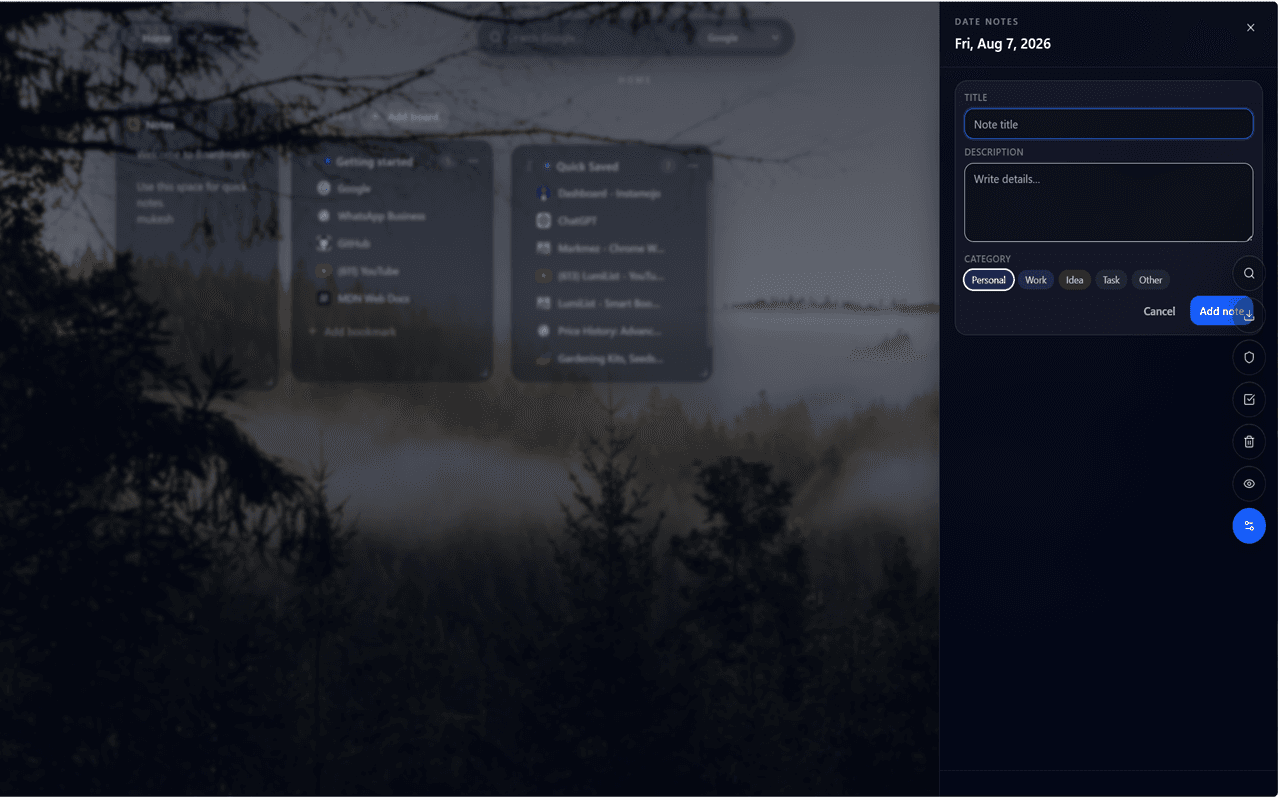
Two kinds of notes for two kinds of thinking
Boardmarks gives you two note types built for different situations. Scratch notes are a persistent freeform area — the digital equivalent of a sticky note on your monitor. Open them any time to jot a quick thought, paste a snippet you'll need later, or keep a running list of things to follow up on. Calendar notes attach to specific dates on the built-in calendar, so a note about a Thursday meeting, a quarterly review, or a deadline stays anchored to the day it matters.
Keeping both types in one workspace means you do not have to decide upfront whether an idea is "urgent now" or "important on a specific day" — you capture it immediately and organise it once.
Scratch notes for fast capture
The scratch note panel opens from your New Tab in one click. There is no title field, no category picker, and no save button to hunt for — just a text area that saves as you type. Use it for:
- Quick thoughts before they slip away mid-browsing
- Copy-paste staging area when switching between tabs
- Short action lists that don't need a full task system
- URLs, logins, or reference text you need for the next hour
- Draft text before pasting into an email or document
Because the scratch note is always one click from your New Tab, it replaces the habit of opening a blank document or a new tab just to type a sentence.
Calendar notes for scheduled context
Click any date on the Boardmarks calendar to add a titled note for that day. Calendar notes support categories — personal, work, idea, task, or other — and show a quick preview in the calendar view so the title and topic are visible without opening the full note. This is useful for:
- Meeting prep notes written before the meeting day
- Deadline reminders with context about the project
- Journaling or daily reviews tied to each date
- Birthday, anniversary, or event notes with details attached
- Study notes for exam dates or presentation days
Unlike a separate notes app, calendar notes appear next to your reminders and todos in the same New Tab workspace — no switching apps to check what you wrote.
Notes next to bookmarks and tasks
Notes live beside your visual bookmark manager and New Tab todo list, so research links and follow-ups stay connected. A common workflow: save a set of research tabs to a bookmark board, add a scratch note with key takeaways, and create a todo for the action item. Everything is on one page — not scattered across three apps.
Students, freelancers, and knowledge workers find this combination particularly useful because the research material, the notes about it, and the resulting actions all live on the same surface they open every time they start a new browser tab.
Privacy-first note storage
Notes are stored in Chrome local storage by default, which means they stay on your device and do not pass through Boardmarks servers during normal use. Optional cloud backup is available after Google sign-in for Pro licensing — it is not required for note-taking itself. If you work in shared spaces or screen-share frequently, Privacy Mode blurs note content along with bookmarks and boards until you turn it off.
When to use a reminder instead
If you need a timed alert, use Chrome reminders with optional recurrence. Notes hold context; reminders push you to act at a specific time. A good pattern is to write the details in a calendar note for the relevant date, then add a reminder that fires an alert on the morning of that day. You get the context of the note and the nudge of the timed alert — without needing two separate apps.
Part of a complete New Tab workspace
Notes are one piece of a larger system. Boardmarks also includes todos with Today and Upcoming views, a daily habit tracker, timed reminders with recurrence, and a visual Chrome bookmark manager. All of it opens from your Chrome New Tab — the page you already open dozens of times a day — so adopting the note habit costs no extra friction.
Frequently asked questions
- Can I take notes on my Chrome New Tab?
- Yes. Boardmarks includes scratch notes and calendar notes you can open from your New Tab workspace.
- What are calendar notes?
- Click a date on the calendar to add titled notes with categories and quick previews for that day.
- Do notes sync across devices?
- Notes are stored in Chrome local storage by default. Optional manual cloud backup is available after signing in with Google for Pro licensing.
- Are notes private?
- Yes. Notes stay on your device by default. Enable Privacy Mode in settings to blur notes and boards when someone is nearby.
- How many notes can I create?
- There is no set note limit. Scratch notes are best for quick, frequently changed thoughts. Calendar notes attach to specific dates for scheduled context.
Ready to try Boardmarks?
Install from the Chrome Web Store and start with a free 7-day trial. Pricing details are on our pricing page.
Add Boardmarks to Chrome — Free