Reminders
Chrome Reminders You See on Every New Tab
Boardmarks works as a Chrome reminder extension built into your New Tab — timed alerts with priority and optional repeats, not buried in a separate to-do site.
7-day free trial · No card required
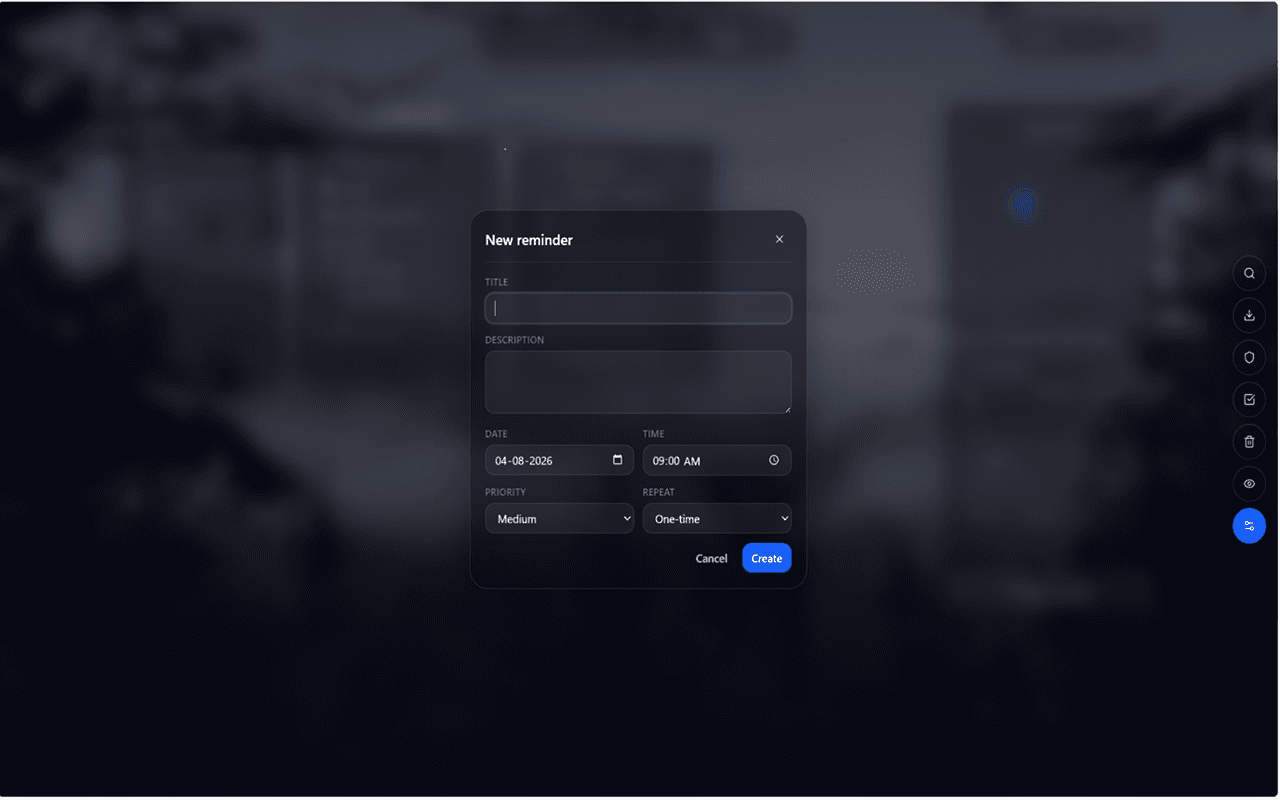
Reminders with time, priority, and recurrence
Create reminders with a specific date, time, and priority level. Optionally repeat daily, weekly, or monthly for routines that need a consistent nudge — bill payments, daily standups, weekly retrospectives, or monthly reviews. Each reminder can carry a title and description, so when the alert fires you have enough context to act without hunting for notes elsewhere.
Priority levels — low, medium, and high — let you signal how urgently a reminder needs attention. High-priority reminders appear with visual emphasis so they don't blend into background tasks in a busy workday.
Why reminders on the New Tab work
Most reminder systems rely on push notifications, which are easy to dismiss and forget. A New Tab reminder is different: it appears on the page you already open every time you start browsing — dozens of times a day. The reminder does not compete with notifications from email, Slack, or other apps. It is right there when you are already looking at the screen and deciding what to do next.
Sticky due alerts take this further. When a reminder passes its due time, the alert stays visible on your New Tab until you snooze it or mark it done. That persistence means a missed alert does not disappear silently — it keeps surfacing until you handle it.
Sticky due alerts
When a reminder is due, a clear strip can stay on your New Tab until you act. This is intentional design: a deadline that fires and vanishes is too easy to miss. With a sticky due alert, the reminder is visible every time you open a tab until you either snooze it to a later time or mark it complete. Pair that with todos for list work and reminders for hard deadlines.
Best uses for Chrome reminders
Reminders work especially well for commitments with a fixed time. Common uses:
- Bills and payments — set a monthly reminder two days before the due date so you never pay a late fee.
- Recurring meetings — a weekly reminder on Monday morning to review your agenda keeps meetings intentional.
- Project deadlines — high-priority reminders for submission dates or client delivery milestones.
- Follow-ups — set a reminder to follow up on an email or proposal you sent three days ago.
- Personal events — birthdays, anniversaries, or renewal dates paired with a calendar note for context.
Reminders and notes: context plus urgency
Reminders and calendar notes complement each other. A calendar note holds the full context — meeting agenda, project brief, or background reading — while a reminder fires an alert at the right time. Set the reminder to fire on the morning of the event, and when you see the alert you can immediately open the calendar note for everything you need. No hunting across apps or trying to remember which document has the details.
Reminders in a full workspace
Reminders sit with notes, habits, todos, and a New Tab productivity workspace — so alerts appear where you already look. There is no separate reminder app to install and remember to open. Everything is on one Chrome New Tab, which you open naturally every time you start a browsing session.
Privacy-first reminder storage
All reminders are stored in Chrome local storage by default. Reminder data does not pass through external servers during normal use. If you enable optional cloud backup after Google sign-in for Pro licensing, your reminders are included in that backup. Privacy Mode is available for shared screens or public spaces — it blurs workspace content including reminder titles and descriptions until you turn it off.
Frequently asked questions
- Is Boardmarks a Chrome reminder extension?
- Yes. Boardmarks includes reminders with date, time, priority, and optional daily, weekly, or monthly recurrence on your New Tab.
- What happens when a reminder is due?
- A sticky due alert can stay on your New Tab until you snooze or complete it, so time-sensitive items are hard to miss.
- Can reminders repeat on a schedule?
- Yes. Choose daily, weekly, or monthly recurrence when creating a reminder. Recurring reminders are useful for bills, standups, weekly reviews, and regular check-ins.
- What priority levels are available?
- Reminders have priority levels — low, medium, and high — so urgent alerts look and feel different from routine ones.
- How is a reminder different from a todo?
- Todos are list items you manage manually. Reminders fire an alert at a specific date and time. Use both: a todo for the work, a reminder for the deadline.
Ready to try Boardmarks?
Install from the Chrome Web Store and start with a free 7-day trial. Pricing details are on our pricing page.
Add Boardmarks to Chrome — Free