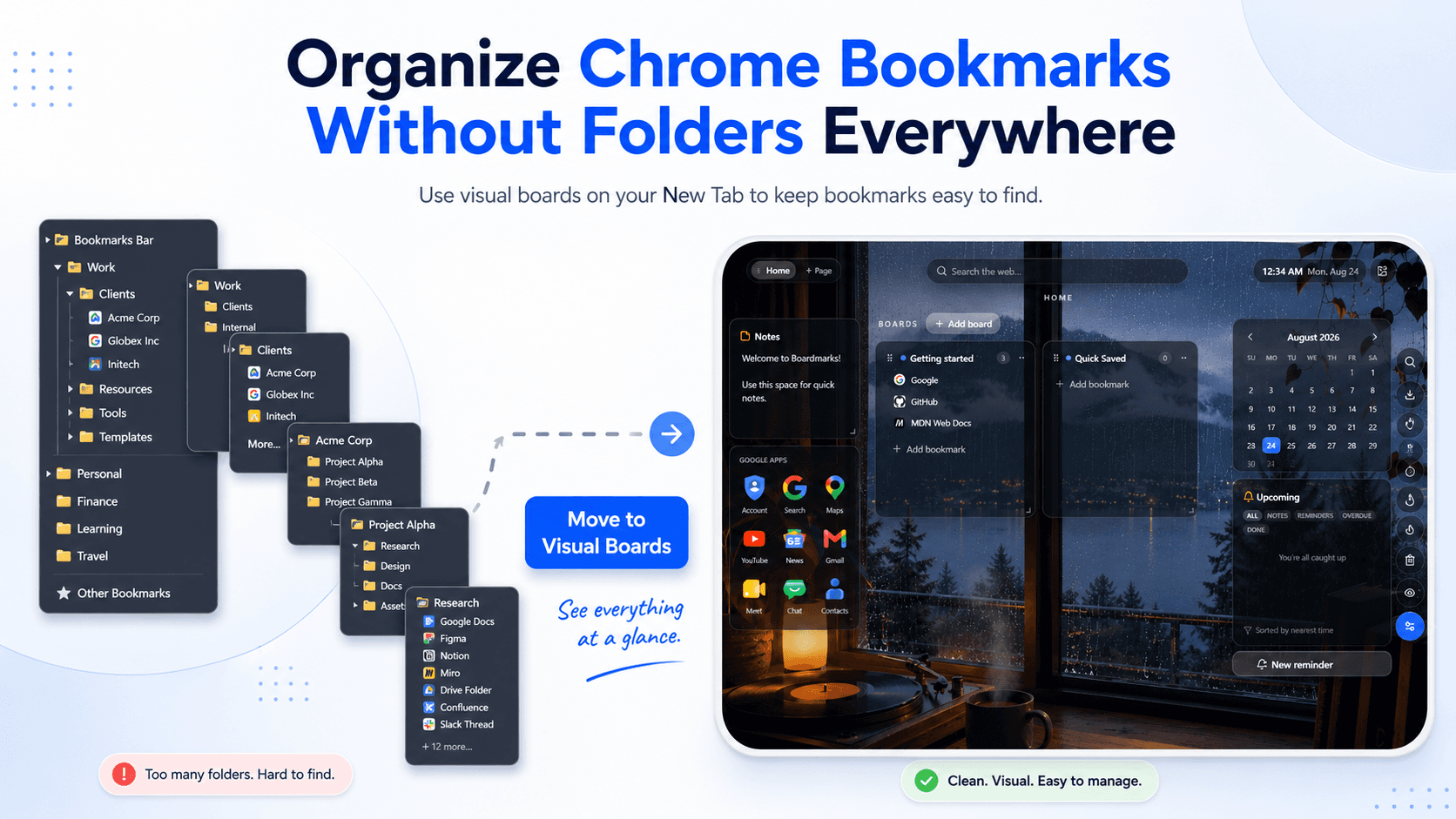
If your Chrome bookmark folders are starting to look like:
Work → Clients → Project → Research → Tools → Useful
you are probably spending more time searching for bookmarks than using them.
Chrome's built-in bookmark system works well when you only save a small number of websites. But once you collect hundreds of links for work, research, shopping, learning, projects, or everyday tools, deep folders quickly become difficult to manage.
The good news is that you don't need to keep creating more folders.
A better approach is to organize Chrome bookmarks visually, keep frequently used websites visible, and save groups of related tabs together.
This guide shows you how.
Why Chrome Bookmark Folders Become Hard to Manage
Chrome bookmarks are traditionally organized using folders.
For example:
- Work
- Personal
- Learning
- Shopping
- Tools
That works initially.
The problem starts when each folder needs another folder inside it.
You might eventually have something like:
Work → Marketing → Competitors → Research → August
The bookmark technically has a place, but finding it later becomes difficult.
You need to remember:
- which folder you used
- what you named the folder
- whether the link was saved under work or personal
- how deeply it was nested
The more bookmarks you save, the more mental effort this requires.
A bookmark system should make websites easier to access—not create another filing system you have to maintain.
1. Organize Bookmarks by Project or Purpose
Instead of creating many nested folders, start with larger categories based on how you actually use websites.
For example:
Work
Keep links such as:
- project dashboards
- analytics tools
- client websites
- documentation
- company tools
Learning
Store:
- courses
- tutorials
- documentation
- useful YouTube channels
- reference websites
Personal
Keep:
- banking
- shopping
- travel
- entertainment
- frequently visited services
Current Projects
This is particularly useful.
Instead of permanently organizing every bookmark into a complicated hierarchy, create temporary groups for whatever you are actively working on.
When the project finishes, archive or remove the group.
This keeps your bookmark system connected to your real workflow.
2. Use Visual Boards Instead of Deep Folder Trees
Folders hide bookmarks.
Visual boards keep them visible.
A visual bookmark manager lets you place related websites into separate boards and see those boards directly when you open your browser.
For example, your New Tab could contain:
Daily Tools
Gmail · Google Drive · Calendar · Slack · GitHub
Boardmarks Project
Website · Chrome Web Store · Analytics · Search Console · Design files
Research
Competitors · Articles · SEO tools · Reference pages
Instead of opening multiple folders, you can immediately see the websites you need.
Boardmarks uses this approach directly inside Chrome's New Tab.
You can organize bookmarks into Pages and Boards, move bookmarks between boards, and keep important collections visible whenever you open a new tab.
3. Keep Only Your Most Important Links on the Bookmark Bar
Your bookmark bar should not become another storage area.
Use it for websites you open constantly.
For example:
- Gmail
- Calendar
- Drive
- project dashboard
Everything else can live inside your bookmark manager.
A good rule is:
Bookmark bar = websites you use every day
Bookmark manager = everything you want to organize and find later
This keeps Chrome cleaner while still making your important websites easy to access.
4. Save All Open Tabs When Research Gets Out of Control
One of the main reasons people end up with dozens of Chrome tabs open is simple:
“I might need this later.”
Closing the tab feels risky, so it stays open.
Eventually you have 20, 40 or even 100 tabs.
Instead of leaving them open, save the entire session.
For example, imagine you are researching:
Best productivity Chrome extensions
You might open:
- competitor websites
- Chrome Web Store listings
- Reddit discussions
- blog posts
- YouTube videos
- pricing pages
Rather than bookmarking every page individually, save all the tabs into one collection such as:
Productivity Extension Research
Then close the tabs.
Your browser becomes cleaner, and the research remains organized.
Boardmarks includes a Save All Tabs option so you can turn an entire browsing session into an organized board.
5. Create Separate Spaces for Different Parts of Your Life
Trying to keep everything on one screen creates the same problem as having one giant bookmark folder.
Use separate spaces instead.
For example:
Work Page
- projects
- clients
- development tools
- marketing
- analytics
Personal Page
- shopping
- banking
- entertainment
- travel
Learning Page
- courses
- tutorials
- documentation
- books
- research
With Boardmarks, Pages can contain multiple Boards, allowing you to separate completely different workflows without creating long folder trees.
6. Give Bookmark Groups Clear Names
Avoid vague categories such as:
- Misc
- Other
- Useful
- Stuff
- Links
They become dumping grounds.
Use names that explain exactly what the links are for.
Instead of:
Tools
use:
SEO Tools
Instead of:
Work
use:
Boardmarks Marketing
Instead of:
Research
use:
Chrome Extension Competitor Research
Specific names make finding bookmarks much easier later.
7. Remove Bookmarks You No Longer Need
Most bookmark collections become messy because nothing is ever removed.
Every few months, review your bookmarks.
Delete:
- websites you no longer use
- duplicate bookmarks
- outdated articles
- finished project resources
- expired tools
- links you saved but never opened
You don't need to organize everything forever.
Sometimes deleting a bookmark is the best form of organization.
8. Turn Saved Links Into Actions
Another common problem is creating a giant “Read Later” folder.
You save article after article but rarely return to them.
Instead, connect important links to something you intend to do.
For example:
Bookmark: SEO guide
Todo: Review SEO guide tomorrow
Or:
Bookmark: competitor pricing page
Note: Compare pricing before next release
Boardmarks combines bookmarks with todos, notes, habits and reminders on the same New Tab workspace.
That means a saved website can become part of your actual workflow instead of disappearing into another folder.
9. Import Existing Chrome Bookmarks Instead of Starting Again
You don't need to manually recreate your bookmark collection when moving to a visual bookmark manager.
Import your existing Chrome bookmarks first.
Then reorganize them gradually.
Start with the links you use most.
You could create:
- Daily
- Work
- Current Project
- Learning
- Personal
Move your most useful bookmarks into those groups first.
You can deal with older bookmarks later.
This makes switching systems much easier.
10. Build a Bookmark System You Can Understand at a Glance
The goal isn't to create the perfect bookmark hierarchy.
The goal is to make your important websites easy to find.
A good system should answer these questions quickly:
- Where is the website I need?
- What was I working on?
- Which links belong to this project?
- Can I close these tabs without losing them?
If you need to click through five folders before finding something, the organization system is working against you.
Visual boards are useful because they reduce the amount of information you need to remember.
You can simply look at your workspace.
Chrome Folders vs Visual Bookmark Boards
| Chrome Bookmark Folders | Visual Bookmark Boards |
|---|---|
| Links are hidden inside folders | Important links stay visible |
| Can require multiple nested levels | Organize around visible projects/topics |
| Good for basic storage | Better for active workflows |
| Separate from your New Tab | Available whenever you open a New Tab |
| Individual links usually saved manually | Sessions can be saved together |
| Mostly bookmark-focused | Can work alongside tasks, notes and reminders |
Chrome's bookmark manager isn't bad.
It's simply designed primarily for storing bookmarks.
If you use your browser heavily for work, study or research, you may benefit from a system designed around how you actually use those links every day.
A Simple Bookmark Organization Setup
If you want a system you can start using immediately, try this:
Page 1 — Daily
Boards:
- Daily Tools
- Communication
- Frequently Used
Page 2 — Work
Boards:
- Current Projects
- Research
- Tools
- Clients
Page 3 — Personal
Boards:
- Shopping
- Finance
- Entertainment
- Travel
Page 4 — Learning
Boards:
- Courses
- Tutorials
- Documentation
- Read Later
You don't have to use this exact structure.
The important part is keeping categories broad enough that you don't end up rebuilding another complicated folder hierarchy.
Frequently Asked Questions
- What is the best way to organize Chrome bookmarks?
- For small collections, Chrome folders are usually enough. For larger collections, organizing bookmarks by project, purpose or workflow is often easier than creating deeply nested folders.
- Can I organize Chrome bookmarks visually?
- Yes. Visual bookmark managers allow you to display links as boards, cards or collections instead of keeping everything inside folder trees.
- How do I organize hundreds of Chrome bookmarks?
- Start by separating bookmarks into a few broad categories, remove duplicates and outdated links, then organize your most frequently used websites first. Avoid trying to perfectly categorize hundreds of bookmarks at once.
- How can I save all my open Chrome tabs?
- Boardmarks lets you save a group of currently open tabs together so you can close the browser session without losing the websites you were using.
- Should I stop using the Chrome bookmark bar?
- Not necessarily. The bookmark bar is useful for a small number of websites you use constantly. Use a larger bookmark manager for everything else.
- What is a visual bookmark manager?
- A visual bookmark manager organizes saved websites into visible boards, cards or collections instead of relying entirely on traditional nested folders.
Make Your Chrome Bookmarks Easier to Use
You don't need more folders.
You need a bookmark system that makes important websites easy to see and easy to return to.
Boardmarks turns Chrome's New Tab into a visual workspace where you can organize bookmarks into boards, save open tabs, manage todos, track habits, keep notes and set reminders.
Add Boardmarks to Chrome and turn your next New Tab into an organized workspace.
Add Boardmarks to Chrome — FreeChrome New Tab extension
Organize bookmarks, todos, and habits on every New Tab.
- Visual bookmark boards
- Todos, habits, notes, reminders
- Local-first by default
7-day free trial. No card required.