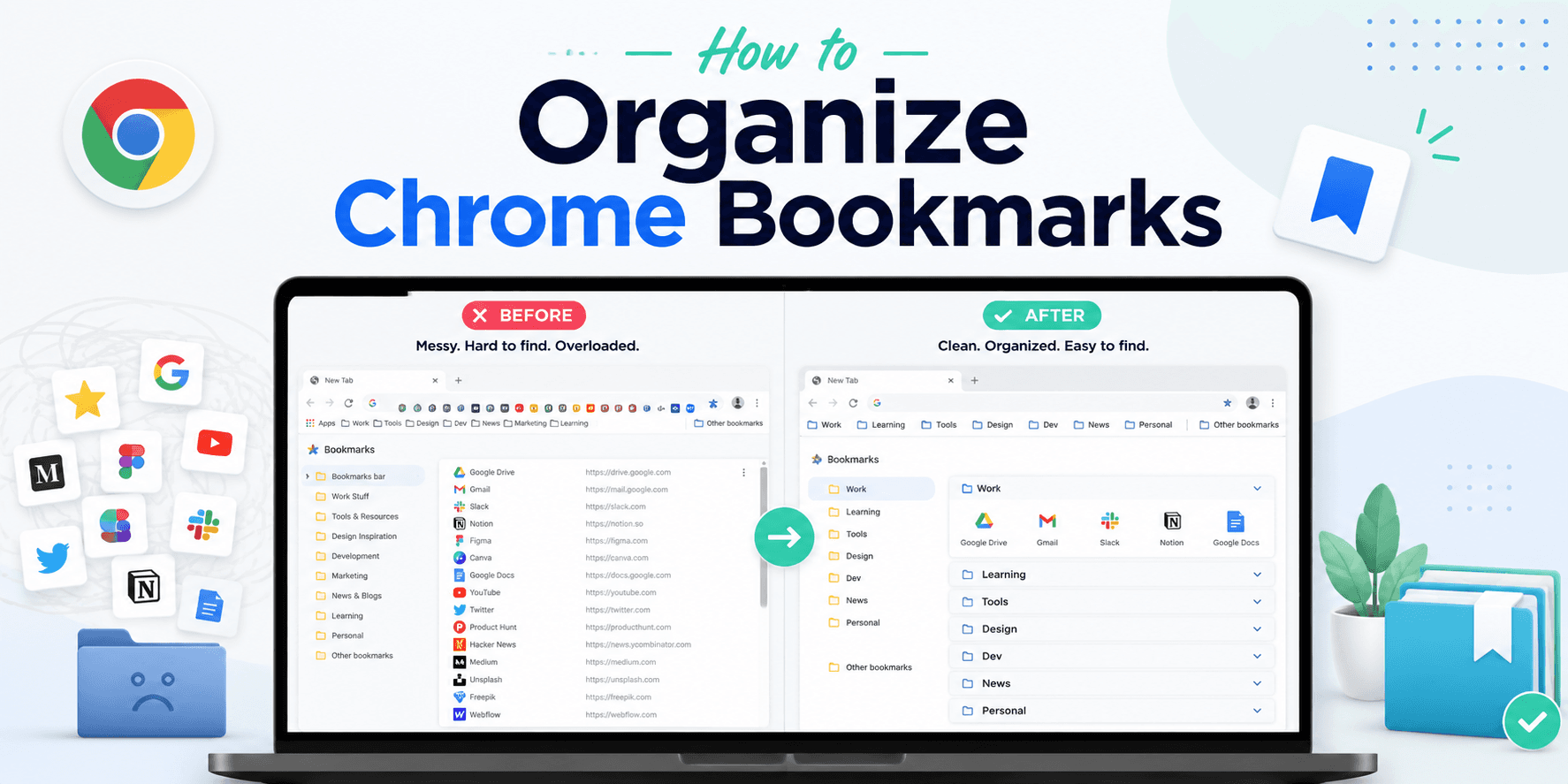
If your Chrome bookmarks have turned into a long list of random links, duplicate folders, and websites you can no longer find, you are not alone.
Chrome makes saving bookmarks easy, but organizing hundreds of them becomes difficult over time.
In this guide, you'll learn how to organize Chrome bookmarks, remove unnecessary links, create a better bookmark structure, and use a more visual system if Chrome's traditional folders feel too limiting.
Why You Should Organize Your Chrome Bookmarks
Bookmarks are supposed to save time.
But once you have dozens or hundreds of saved websites, finding the right bookmark can sometimes take longer than searching Google again.
A well-organized bookmark system can help you:
- Find frequently used websites faster
- Reduce duplicate bookmarks
- Keep work and personal links separate
- Avoid overcrowding your bookmarks bar
- Save research and resources properly
- Keep important websites easy to access
The goal is simple: when you need a website, you should know exactly where to find it.
1. Delete Bookmarks You No Longer Use
Before creating folders or reorganizing everything, start by removing unnecessary bookmarks.
Open Chrome and press:
Ctrl + Shift + O on Windows
or
Command + Option + B on Mac.
This opens the Chrome Bookmark Manager.
Look for:
- Old websites you no longer visit
- Duplicate bookmarks
- Broken links
- Temporary pages you saved months ago
- Websites that are already easy to find through Google
Removing unnecessary bookmarks makes the rest of the organization process much easier.
2. Create Simple Bookmark Folders
Chrome allows you to organize bookmarks into folders.
Instead of creating dozens of very specific folders, start with a few broad categories.
For example:
Work
Store websites related to your job, clients, tools, dashboards, and company resources.
Learning
Save tutorials, documentation, courses, articles, and research materials.
Tools
Keep frequently used online tools, calculators, AI tools, design tools, and productivity apps here.
Personal
Store shopping websites, entertainment, travel resources, banking pages, and personal links.
Read Later
Use this folder for articles or resources you want to revisit.
Try to keep your folder structure simple.
Too many folders can create the same problem as having too many bookmarks.
3. Keep Your Bookmarks Bar Minimal
The Chrome bookmarks bar is most useful when it contains only websites you open frequently.
Instead of placing everything there, keep around 5–15 important bookmarks.
Examples could include:
- Gmail
- Google Drive
- Calendar
- Project management tools
- Analytics dashboards
- Frequently used work apps
You can also shorten bookmark names.
For example:
Instead of:
Google Analytics – Web Analytics Platform
Use:
Analytics
Shorter names allow more bookmarks to fit in the bookmarks bar.
4. Use Subfolders Carefully
Subfolders can help when you have many bookmarks, but they can also become difficult to navigate.
For example:
Work → Development → React → Tutorials
This structure might look organized, but after a few months you may forget where you saved something.
A better structure could be:
Development
Then keep React, JavaScript, GitHub, APIs, and documentation inside the same folder.
Try to avoid going more than two folder levels deep.
5. Organize Bookmarks by Activity Instead of Website Type
One useful approach is organizing bookmarks based on what you are trying to accomplish.
Instead of creating folders such as:
- News
- Blogs
- Videos
- Tools
You could create:
- Daily Work
- Research
- Marketing
- Development
- Content Creation
- Learning
This makes it easier to find websites based on the task you are currently working on.
6. Create a Temporary Bookmark Folder
Many bookmark collections become messy because users save links they only need temporarily.
Create a folder called:
Temporary
or
Check Later
Whenever you are unsure where a bookmark belongs, save it there.
Once every few weeks, review the folder and either:
- Delete the bookmark
- Move it to a permanent category
- Keep it for later
This prevents random bookmarks from spreading across your browser.
7. Use Search Instead of Browsing Through Every Folder
Chrome Bookmark Manager includes a search option.
If you remember part of a website name or page title, searching can be much faster than opening several folders.
For large bookmark collections, search should become part of your workflow.
However, Chrome bookmark search becomes less helpful when bookmark titles are unclear.
When saving important pages, consider renaming them with meaningful titles.
For example:
Instead of:
Documentation
Use:
Stripe Payment API Documentation
This makes bookmarks much easier to find later.
8. Save All Open Tabs When Researching
If you regularly open many tabs while researching, you do not need to bookmark every tab individually.
Chrome allows you to save multiple tabs into a folder.
Right-click a tab and choose:
Bookmark all tabs
Chrome will create a bookmark folder containing your currently open tabs.
This can be useful for:
- Research sessions
- Client projects
- Travel planning
- Product comparisons
- Learning resources
You can rename the folder based on the project.
For example:
SEO Research – August 2026
You can also use Boardmarks Quick Save to capture the current tab or every open tab into visual boards from the toolbar popup.
9. Regularly Clean Your Chrome Bookmarks
Bookmark organization is not something you do only once.
Your bookmark collection will naturally become messy again as you save more websites.
A simple routine is to review your bookmarks once every month.
During the cleanup:
- Remove bookmarks you no longer use
- Delete duplicates
- Move misplaced bookmarks
- Rename unclear bookmark titles
- Clean your temporary folder
Even a five-minute cleanup can keep your bookmarks manageable.
10. Consider a Visual Bookmark Manager
Chrome's default bookmark manager works well for basic organization, but it still relies heavily on folders and text lists.
If you manage a large number of bookmarks, a visual bookmark manager can make browsing easier.
Instead of remembering which folder contains a website, you can organize links into visual pages and boards.
For example, you could create pages such as:
Work
with boards for:
- Development
- Marketing
- Analytics
- Client Tools
And another page called:
Personal
with boards for:
- Shopping
- Travel
- Entertainment
- Learning
This provides a dashboard-style system rather than a deeply nested folder structure.
Organize Chrome Bookmarks Visually With Boardmarks
Boardmarks is a Chrome New Tab productivity extension designed to make bookmark organization more visual.
Instead of navigating through long bookmark folders, you can organize websites into Pages and Boards directly from your Chrome New Tab.
For example:
Page: Work
Boards:
- Development
- Marketing
- AI Tools
- Analytics
- Client Projects
Each website can be saved as a visual bookmark that is easier to recognize and open.
Boardmarks also allows you to keep other productivity tools alongside your bookmarks, including todos, habits, notes, reminders, and quick links.
This can be useful if your New Tab page is already the place where you start your daily work.
Learn more on the visual bookmark manager page.
Chrome Bookmarks vs Visual Bookmark Organization
Chrome's default bookmark system is suitable when you only have a small number of bookmarks.
But as your collection grows, folders can become harder to manage.
A visual system can make sense when you:
- Save hundreds of websites
- Frequently switch between projects
- Use many web apps every day
- Want faster access to commonly used websites
- Prefer dashboards instead of folder menus
The best system depends on how many bookmarks you manage and how frequently you use them.
Frequently Asked Questions
- What is the best way to organize Chrome bookmarks?
- Start by deleting unused bookmarks, then create a few broad folders such as Work, Learning, Tools, Personal, and Read Later. Avoid creating too many nested folders.
- How do I organize hundreds of Chrome bookmarks?
- For large bookmark collections, combine folders with Chrome bookmark search and regularly remove duplicates. You can also use a visual bookmark manager to organize links into pages and boards.
- How do I clean up my Chrome bookmarks?
- Open Chrome Bookmark Manager using Ctrl + Shift + O on Windows or Command + Option + B on Mac. Remove unused bookmarks, duplicates, and outdated links.
- Can I organize Chrome bookmarks without folders?
- Yes. Visual bookmark managers such as Boardmarks allow you to organize bookmarks into pages and boards instead of relying entirely on traditional folders.
- How do I organize bookmarks on the Chrome bookmarks bar?
- Keep only frequently used websites on the bookmarks bar. Shorten bookmark names and move less frequently used websites into folders or a bookmark manager.
- Can I save all my open Chrome tabs as bookmarks?
- Yes. Right-click a Chrome tab and select Bookmark all tabs to save your current tabs inside a bookmark folder.
Final Thoughts
Learning how to organize Chrome bookmarks does not require a complicated system.
Start by cleaning unnecessary bookmarks, create a few meaningful categories, keep your bookmarks bar minimal, and review your saved links regularly.
If traditional Chrome folders become difficult to manage, switching to a visual system can make organizing and accessing your bookmarks much easier.
A good bookmark system should ultimately do one thing: help you reach the websites you need without wasting time searching for them.
Add Boardmarks to Chrome and organize bookmarks on a visual New Tab workspace.
Add Boardmarks to Chrome — FreeChrome New Tab extension
Organize bookmarks, todos, and habits on every New Tab.
- Visual bookmark boards
- Todos, habits, notes, reminders
- Local-first by default
7-day free trial. No card required.