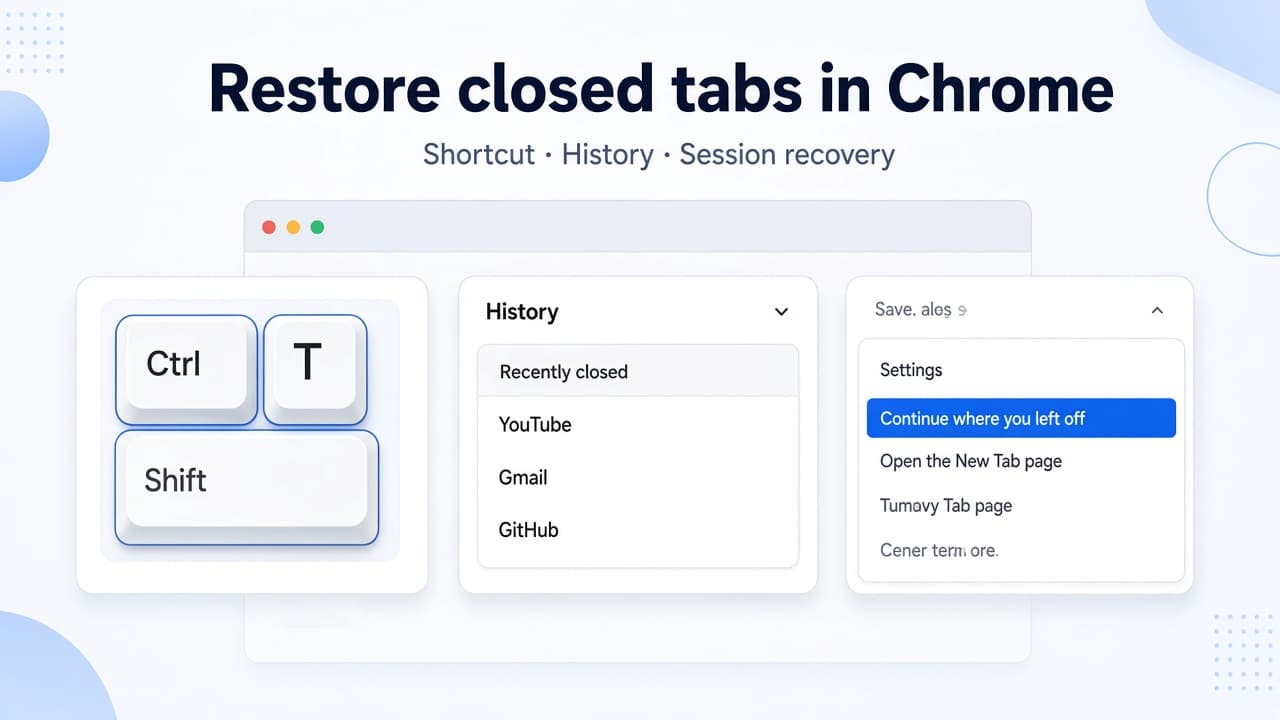
Need to know how to restore closed tabs in Chrome after closing the wrong one, shutting a whole window by accident, or reopening after a crash to an empty strip? On desktop Chrome, start by reopening the closed tab with Ctrl + Shift + T (Windows and Linux) or Command + Shift + T (Mac). Press it again to walk back through recently closed tabs and windows. When you need a specific page instead of the last one closed, open History → Recently closed, then search full History if the entry is gone. After a crash, reopen Chrome and use that same shortcut right away. For quieter restarts later, set On startup to Continue where you left off.
This post is about recovery after a close or crash. It is not a proactive dump of every tab so you can reopen later. That job lives in save all open tabs in Chrome. Steps below follow Google Chrome Help and Google’s own restore tip where cited. Scope is English Chrome on desktop (Windows, Mac, Linux). Mobile menus differ.
Reopen a closed tab in Chrome with Ctrl + Shift + T (or Mac Command + Shift + T)
- Windows, Linux, ChromeOS: Ctrl + Shift + T
- Mac: Command + Shift + T

Google’s manage tabs and keyboard shortcuts pages treat this as the primary undo.
Windows, Linux, and ChromeOS: Ctrl + Shift + T
Mac: Command + Shift + T
Each press reopens previously closed tabs in the order they were closed. Keep pressing to go farther back. The same shortcut can bring back a whole closed window, not only a single tab.
Hit it the moment you notice the mistake. After a crash or unexpected quit, use it as soon as Chrome is open again. Google’s crash troubleshooting tip matches that advice: restart Chrome, then use Ctrl/Command + Shift + T to bring tabs back.
Two hard limits: Incognito tabs never land here, and Chrome cannot invent pages you already cleared from History. If nothing reopens, move to the History menu.
Restore closed tabs from Chrome History → Recently closed
When you know which page you want and do not want to step one by one:
1. Open Chrome, you need at least one window.
2. Click More (⋮) in the top right.
3. Hover over History.
4. Under Recently closed, click the page you want. If you closed a multi-tab window, choose the window entry. Google’s Keyword post describes this as Restore Window.
Google’s recover browser tabs tip walks through that same menu path. On many Chrome builds you can also right-click empty space on the tab strip, or a tab, and choose Reopen closed tab. Treat the exact label as version-dependent. The History menu and the shortcut are the paths Google documents most clearly.

Find older closed tabs in full Chrome History
Recently closed only goes so far. If the page was earlier today, yesterday, or last week, open full History instead:
1. Press Ctrl + H (Windows/Linux) or Command + Y (Mac), or go to More → History → History.
2. Search by site name, page title, or a word you remember from the title.
3. Click a result to open it. Open it in a new tab if you want to keep the current page.
Per Google’s history help, History lists pages from about the last 90 days. It does not store Incognito visits or pages you already deleted. On a work or school Chromebook, an admin may disable history entirely.
Another path: type @history in the address bar, press Tab or Space, then search. If you are signed in and sync History and tabs, More → History → Tabs from other devices can show tabs still open on another signed-in device. That list is for tabs open elsewhere, not a full backup of every closed tab.

How to restore Chrome tabs after a crash
Work in this order. It matches Google’s guidance and the flow most people need:
1. Reopen Chrome. Do not clear browsing data first.
2. If Chrome shows a restore or reopen prompt for the previous session, accept it. Wording and whether the prompt appears can vary by version and how Chrome exited.
3. If no prompt appears, press Ctrl/Command + Shift + T immediately and repeat as needed.
4. Check History → Recently closed for a multi-tab window entry.
5. Search full History for important URLs you still remember.
To cut next-time panic, turn on startup restore: open More → Settings → On startup, then choose Continue where you left off. Google documents this on its homepage and startup help. Cookies and site data stay available so signed-in sites can reopen with the session. If you prefer not to stay signed in after quitting, Chrome Help points to deleting on-device site data when you close all windows. That is a privacy tradeoff, not a restore feature.
Keep these limits in mind:
Incognito sessions are not restored.
Clearing browsing data, some managed-device policies, or a corrupted profile can block recovery.
Digging into Chrome’s on-disk session files is an advanced, unsupported last resort. Prefer History and the shortcut. Success is not guaranteed.

Tab Search vs restoring closed tabs in Chrome
Tab Search (Ctrl + Shift + A / Command + Shift + A, or @tabs in the address bar) finds currently open tabs by keyword. Use it when the strip is crowded and the page is still open. It is not a closed-tab recycle bin. For closed pages, use the shortcut, Recently closed, or History.
Prevent losing tabs: Continue where you left off (and Boardmarks)
- Pin must-keep tools such as email and calendar so they are harder to close by accident.
- Bookmark all tabs (Ctrl + Shift + D / Command + Shift + D) when you deliberately want a folder snapshot before you close a window.
- Keep long-term links in bookmarks you can find later.
- Leave Continue where you left off on if you rely on session continuity after restarts.

Boardmarks (made by us) is a Chrome New Tab and visual bookmark workspace. It does not replace Ctrl + Shift + T after a close. It helps when the real problem is keeping dozens of tabs open so you will not lose them. Save keepers onto a board for that project, then close the strip. Pair boards with native restore for accidents, and with save all open tabs when you want a full-window dump. Explore the New Tab extension, features, and bookmark manager if that workflow fits.
| Situation | Try first |
|---|---|
| Just closed one tab or window | Ctrl/Command + Shift + T (repeat) |
| Need a specific recent page or window | History → Recently closed |
| Page is older / not in Recently closed | Full History search (Ctrl + H / Command + Y) |
| Chrome crashed or quit unexpectedly | Reopen Chrome → restore prompt if shown → then shortcut / Recently closed |
| Want auto-reopen after normal restarts | Settings → On startup → Continue where you left off |
| Tab might still be open somewhere | Tab Search (@tabs) or Tabs from other devices |
| You were in Incognito | No restore list; re-find the URL if you still know it |
| You want a planned snapshot before closing | Bookmark all tabs / save all open tabs |
- Does Ctrl + Shift + T restore a whole closed window in Chrome?
- Yes. Google documents reopening previously closed tabs in the order they were closed. In practice that includes closed windows: keep pressing the shortcut, or use History → Recently closed and restore the window entry when Chrome lists it.
- Can I restore closed Incognito tabs in Chrome?
- No. Incognito visits are not stored in normal History, and Chrome does not offer a restore list for private sessions after they close.
- Why is Recently closed empty when I try to reopen a closed tab?
- Common causes: you cleared browsing data, history is disabled by policy, you quit and the recent list aged out of what the menu shows, or you expected Incognito pages to appear. Search full History next if the visit was in a normal window.
- Is restoring closed tabs the same as saving all open tabs in Chrome?
- No. Restoring is recovery after a close or crash. Saving all open tabs is a deliberate snapshot (bookmark folder or similar) you create before you tear the session down. Use this post for recovery; use save all open tabs in Chrome for planned dumps.
- Does Continue where you left off restore tabs after a Chrome crash?
- It is designed so Chrome reopens the pages from your last session when you launch the browser again. After an unclean exit, also try the restore prompt (if shown) and Ctrl/Command + Shift + T. Exact behavior can depend on how Chrome exited and whether session data is intact. Treat full recovery as likely but not guaranteed.
Which way should you restore closed tabs in Chrome?
Chrome New Tab extension
Organize bookmarks, todos, and habits on every New Tab.
- Visual bookmark boards
- Todos, habits, notes, reminders
- Local-first by default
Free trial · no card required