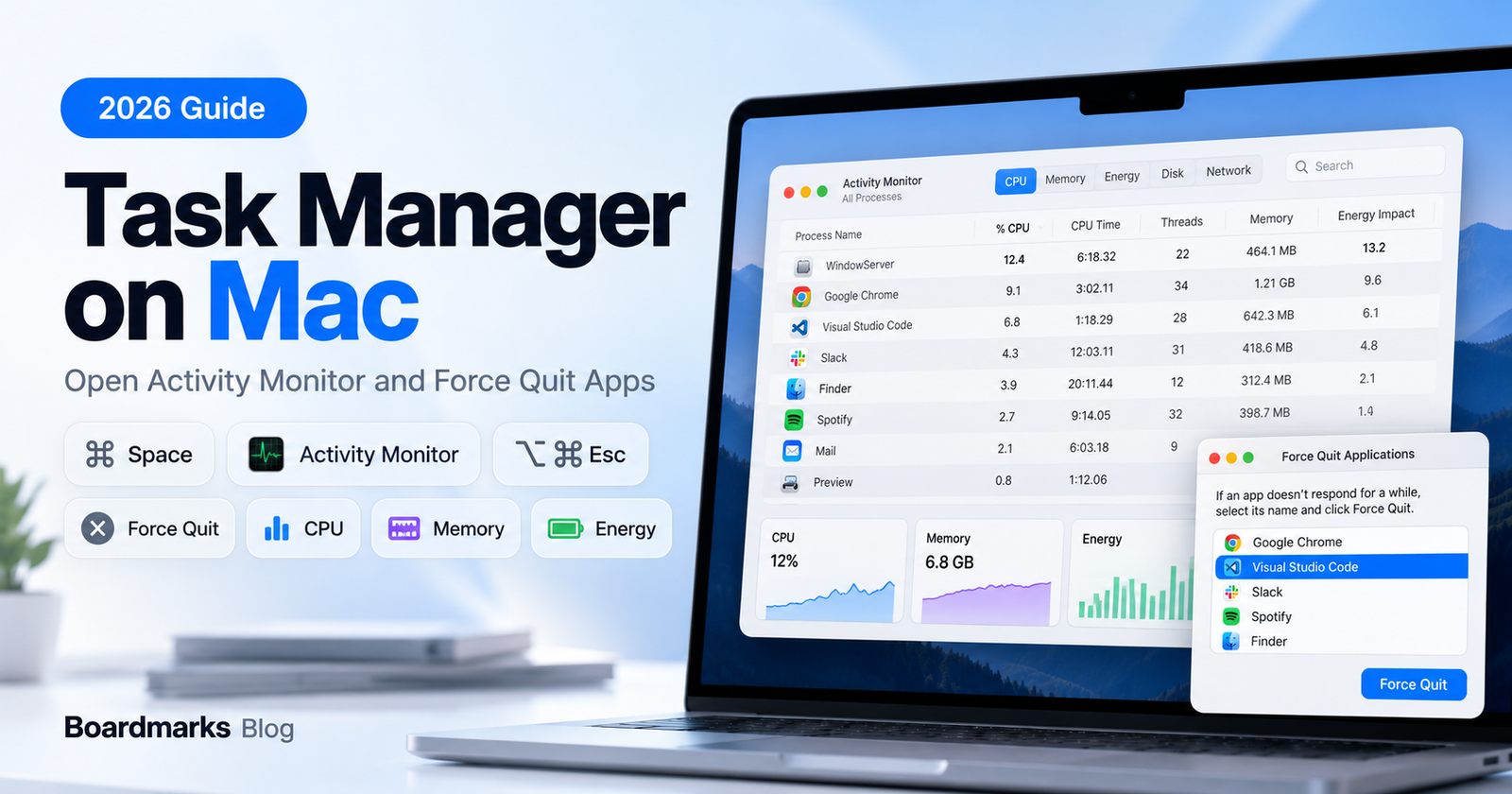
If you are looking for Task Manager on Mac, there is no app with that name. The Mac equivalent is Activity Monitor: press Command-Space, type Activity Monitor, and press Return. If one app is frozen and you just want it gone, press Option-Command-Esc to open the Force Quit window instead. Below you'll find how to use each one, what to try when force quit fails, and why Chrome often sits at the top of the list. Steps were written for macOS Tahoe 26.
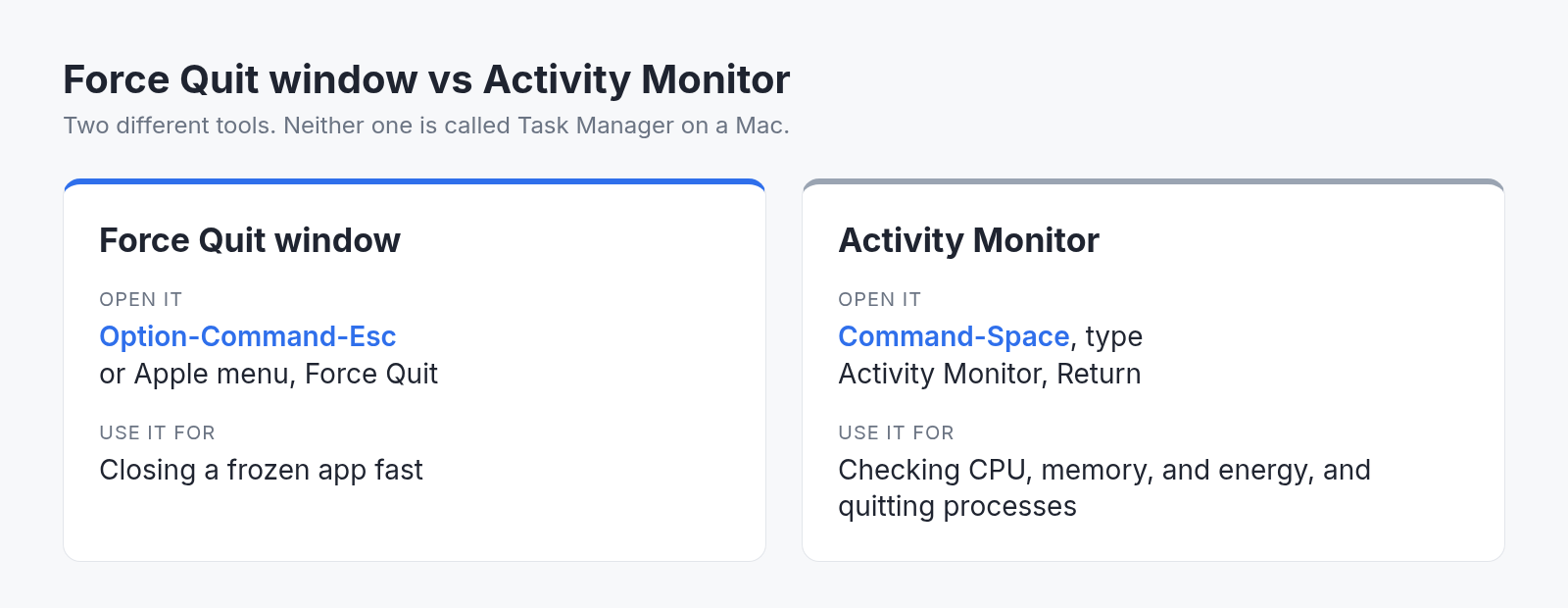
| Tool | How to open | Use it for |
|---|---|---|
| Force Quit window | Option-Command-Esc or Apple menu > Force Quit | Closing a frozen app fast |
| Activity Monitor | Command-Space, type Activity Monitor, Return | Seeing CPU, memory, energy, and quitting processes |
Table of contents
What Is Task Manager on Mac?
How to Open Task Manager on Mac
How to Use Activity Monitor on Mac
How to Force Quit an App on Mac
What Is Ctrl + Alt + Delete on a Mac?
What to Do When Force Quit Does Not Work
Why Chrome Shows Up High in Activity Monitor
What Is Task Manager on Mac?
On a Mac, the job Windows gives to Task Manager is done by Activity Monitor. It lists every running process, including apps, system apps used by macOS, and background processes, and shows how much CPU, memory, and energy each one uses. You can also quit or force quit a process from it.
The one thing Activity Monitor is not is fast for a single frozen app. For that, macOS has a separate, smaller Force Quit window. Knowing which of the two you need saves a lot of clicking.
How to Open Task Manager on Mac
There are several ways to open Activity Monitor. Pick the one that fits how you work.
Open Activity Monitor with Spotlight
This is the fastest built-in route:
Press Command-Space to open Spotlight.
Type Activity Monitor.
Press Return.
You usually only need to type the first few letters before it appears at the top.
Open Activity Monitor from Finder (Applications > Utilities)
If you are wondering where Activity Monitor is on Mac, it lives in the Utilities folder inside Applications. In Finder, press Shift-Command-U to open Utilities directly, then double-click Activity Monitor. You can also click the Go menu in the Finder menu bar and choose Utilities.
Open It from Apps (Fn-Shift-A on macOS Tahoe 26 or Later)
On macOS Tahoe 26 or later, press Fn-Shift-A to show Apps, then find Activity Monitor. On earlier versions of macOS, the same shortcut opens Launchpad.
Keep Activity Monitor in the Dock
If you check your Mac often, keep Activity Monitor in the Dock. Open it once, Control-click its icon in the Dock, then choose Options > Keep in Dock. Apple's guide also notes that Activity Monitor can show a live CPU graph right in the Dock, which is handy if you want to spot a busy Mac without opening the window.
Is There a Task Manager Shortcut on Mac?
Not a single built-in one. Apple's keyboard shortcut list has no key combination that opens Activity Monitor directly. Command-Space followed by typing the name is the quickest built-in path.
The shortcut people often mean is Option-Command-Esc, but that opens the Force Quit window, not Activity Monitor. Some sites mix the two up, which is why the table at the top of this page exists.
How to Use Activity Monitor on Mac
Activity Monitor has tabs across the top, including CPU, Memory, Energy, Disk, and Network. Click a column heading in any tab to sort the list, and use the search field to find a process by name.
Check CPU Usage
Click CPU, then click the % CPU column heading to sort the busiest processes to the top. The bottom of the window shows the number of open processes and threads. A process that stays near the top for a long time while you are not using it is worth a closer look.
Check Memory Usage and Memory Pressure
Click Memory. At the bottom of the window you will see Physical Memory, Memory Used, Cached Files, Swap Used, and the Memory Pressure graph. Apple says memory pressure is determined by the amount of free memory, swap rate, wired memory, and file cached memory.
Apple's guide explains the graph colours this way:
Green: your Mac is using all of its RAM efficiently.
Yellow: your Mac might eventually need more RAM.
Red: your Mac needs more RAM.
Apple also notes that free or unused memory does not by itself make a Mac faster. So a high Memory Used figure with green pressure is normal. Pressure is the number to watch.
Find What Is Draining Battery (Energy Tab)
Click Energy. The Energy Impact column is a relative measure of each app's current energy use, and lower is better. On Mac laptops, the 12 hr Power column shows the average over the last 12 hours, and the bottom of the window shows battery details. The Preventing Sleep column tells you if an app is keeping your Mac awake.
Quit or Force Quit a Process in Activity Monitor
Select the app or process in the Process Name list. An unresponsive one is marked (Not Responding) and appears red.
Click the Stop button (an icon with no text label) in the upper-left corner of the Activity Monitor window.
Choose Quit or Force Quit.
Quit works like choosing File > Quit in the app and only closes it when that is safe. Force Quit closes it immediately, so unsaved work in that process can be lost. If you try to quit a process you do not own, macOS may ask for an administrator password.
Processes You Should Not Quit
Apple warns that force quitting a process used by other apps or processes can cause problems for them. If you do not recognize a process name, leave it alone. To see what depends on what, choose View > All Processes, Hierarchically, or choose View > My Processes to show only the processes owned by your account. Stick to apps you opened yourself.
How to Force Quit an App on Mac
Always try a normal quit first with Command-Q, because it lets the app save changes. If the app does not respond, use one of these.
Use Option-Command-Esc (Force Quit Window)
Press Option (or Alt), Command, and Esc together. On a Mac with a Touch Bar, Esc is on the left side of the Touch Bar. In the Force Quit window, select the frozen app, then click Force Quit.
Force Quit from the Apple Menu
Click the Apple menu in the corner of your screen and choose Force Quit. The same Force Quit window opens.
Force Quit from the Dock
Control-click the frozen app's icon in the Dock, then choose Force Quit. As with every force quit, you may lose unsaved changes.
What Is Ctrl + Alt + Delete on a Mac?
The Mac answer to Ctrl + Alt + Delete is Option-Command-Esc, which Apple lists as the shortcut to force quit an app. It opens the Force Quit window. If you want the full process view instead, open Activity Monitor with Spotlight.
Ctrl + Shift + Esc, the Windows Task Manager shortcut, is not on Apple's list of Mac shortcuts and does not open either tool. If you use a Windows keyboard with your Mac, Apple says to press Alt in place of Option and Ctrl or the Windows logo key in place of Command.
What to Do When Force Quit Does Not Work
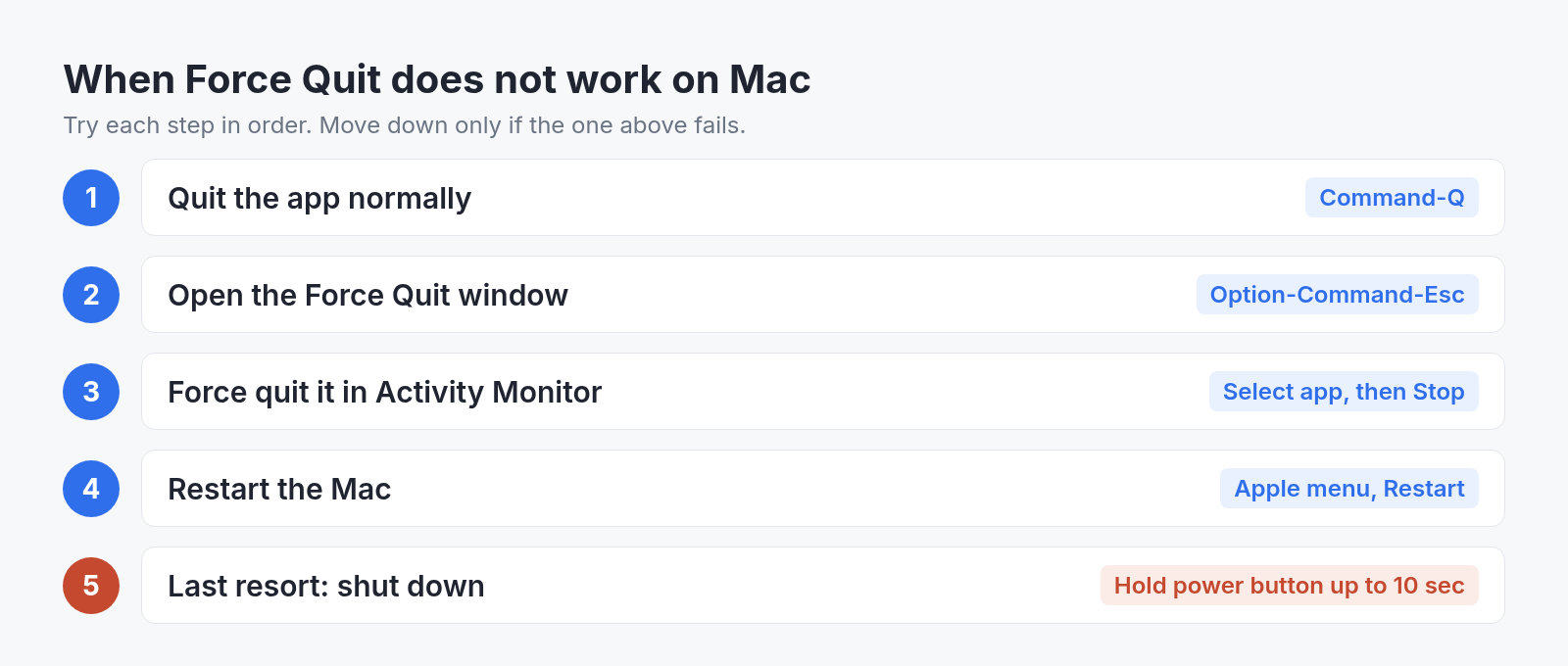
Work down this list and stop as soon as one step works:
Command-Q to quit the app normally.
Option-Command-Esc, select the app, then click Force Quit.
Activity Monitor: select the process, click the Stop button (an icon with no text label) in the upper-left corner, then choose Force Quit.
Restart: from the Apple menu, choose Restart.
Force your Mac to turn off: press and hold the power button for up to 10 seconds until the Mac turns off. On laptops with Touch ID, press and hold the Touch ID button. Then press and release the power button to turn it back on.
Steps 4 and 5 come from Apple's support article How to force an app to quit on Mac. Use the power button only when the Mac will not restart, because open work that was not saved will be lost.
Why Chrome Shows Up High in Activity Monitor
Chrome runs separate processes for tabs, extensions, and background work, so it can appear many times in Activity Monitor. That makes it hard to tell which tab is the problem from Activity Monitor alone.
Chrome has its own Task Manager for this. Google's help page says to click the More menu at the top right, then choose More tools > Task Manager. Select Memory to sort by memory use, pick the tab or extension you want to close, and click End Process. Any unsaved work in that task will be lost.
Before you force quit Chrome or restart your Mac, save all your open tabs in Chrome so nothing important disappears. If tabs do vanish, here is how to restore closed tabs in Chrome. And if this happens every week, our guide to having too many Chrome tabs open covers habits that keep the count down.
Boardmarks is our Chrome extension, so we are not neutral here. It lets you Quick Save pages onto boards on your New Tab, so you can close tabs without losing track of them.
FAQ
- Does Mac have a Task Manager?
- Not by that name. Activity Monitor is the Task Manager on Mac. It shows running processes and their CPU, memory, and energy use, and it can quit or force quit them.
- What is the Task Manager shortcut on Mac?
- There is no built-in shortcut that opens Activity Monitor directly. Press Command-Space and type Activity Monitor. Option-Command-Esc opens the Force Quit window, which is faster for a single frozen app.
- Where is Activity Monitor on my Mac?
- In Applications > Utilities. In Finder, Shift-Command-U opens the Utilities folder. You can also search for it in Spotlight.
- How do I force quit Finder on Mac?
- Finder is always running, so you relaunch it instead. Open the Force Quit window with Option-Command-Esc, select Finder, and click Relaunch.
- Is it safe to force quit apps on Mac?
- Yes for a frozen app, but unsaved work in that app can be lost. Avoid force quitting system processes you do not recognize, since other apps may depend on them.
Switching from Windows and setting up your Mac? See our picks of the best Mac apps for developers in 2026 and how to add favorites in Safari on Mac.
Chrome New Tab extension
Organize bookmarks, todos, and habits on every New Tab.
- Visual bookmark boards
- Todos, habits, notes, reminders
- Local-first by default
Free trial · no card required