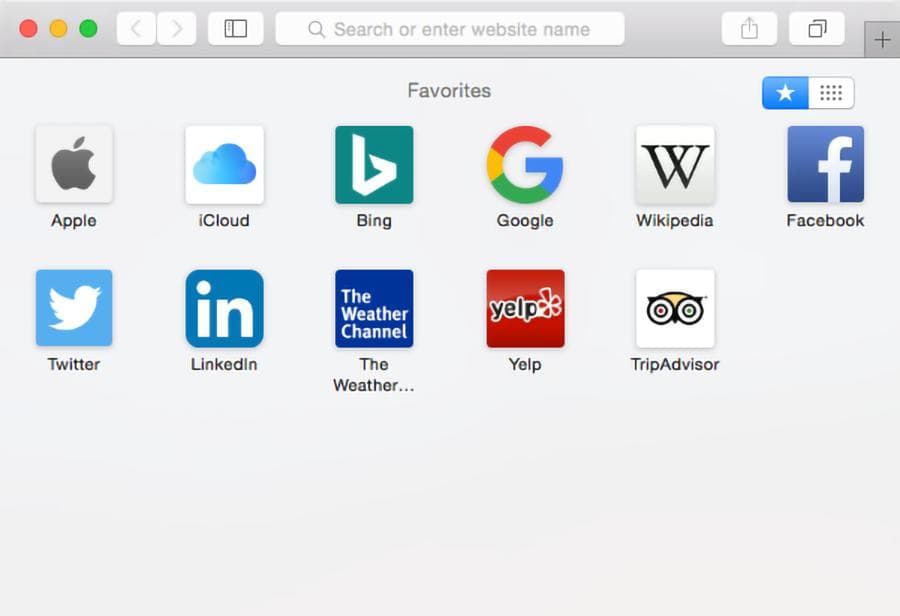
Safari lets you save websites you visit regularly as Favorites, so you can open them without searching for the address every time. You can reach those sites from the Smart Search field, the Start Page, or the Favorites bar.
Below: how to add Favorites in Safari on Mac, show or hide the Favorites bar, organize saved sites into folders, and sync bookmarks across Apple devices. Steps follow Apple's Safari User Guide.
What are Favorites in Safari?
Favorites are bookmarks saved in Safari's Favorites folder. They give you quick access to sites you open often, such as Gmail, YouTube, Google Drive, or a company dashboard.
Safari can show these sites as icons on the Start Page or as shortcuts in a horizontal bar below the toolbar. Keep daily sites in Favorites and put less frequent pages in ordinary bookmark folders.
1. How to add Favorites in Safari on Mac
The easiest way is the Bookmarks menu. You save the current page and choose where it appears. Three other routes write to the same Favorites folder.
Method 1: Use the Bookmarks menu
- Open Safari on your Mac.
- Visit the website you want to save.
- Click Bookmarks in the menu bar at the top of the screen.
- Select Add Bookmark. You can also press Command-D.
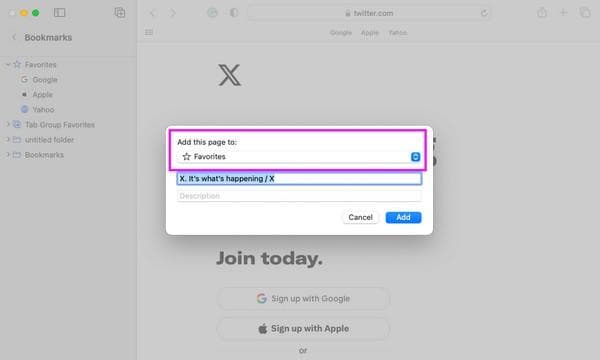
- Under Add this page to, select Favorites.
- Change the bookmark name if needed, then click Add.
The site is now in the Favorites folder. If you regularly open a dashboard, save it as a Favorite and give it a short name such as Analytics so it fits on the bar.
Method 2: Add a website using the Share button
You can save a page without opening the Bookmarks menu.
- Open the website in Safari.
- Click the Share button in Safari's toolbar.
- Choose Add Bookmark to.
- Select Favorites as the destination.
- Enter a name and click Add.
Both methods save the page to the same Favorites folder.
Method 3: Drag a website to the Favorites bar
If you keep the Favorites bar visible, you can add a site directly to it.
- Open the website you want to save.
- Click the Smart Search field at the top of Safari.
- Drag the website address from the field onto the Favorites bar.
- Release it at the position where you want the shortcut.
This is useful when you want to save several sites and keep them in a specific order.
2. How to show the Favorites bar in Safari
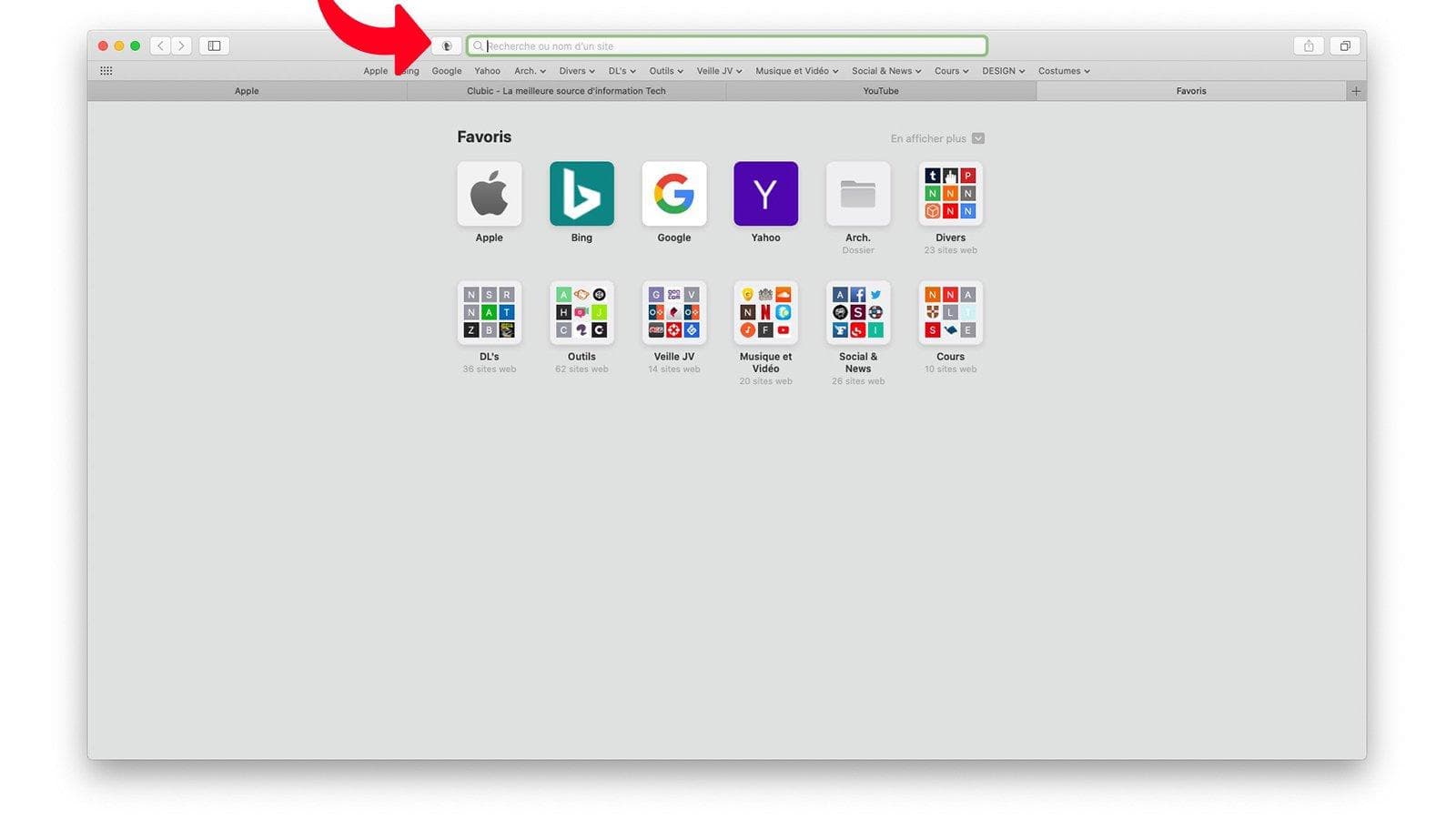
The Favorites bar is a row of saved sites below Safari's toolbar. It gives you one-click access without opening the Start Page.
- Open Safari.
- Click View in the menu bar.
- Select Show Favorites Bar.
The bar appears below the toolbar. You can also press Shift-Command-B to show or hide it.
If you cannot see every saved site, click the angle brackets at the right end of the bar, or widen the window. Full-screen Safari can hide the bar. Exit full screen with Control-Command-F, then confirm View still shows Hide Favorites Bar.
Apple also covers viewing Favorites from the Smart Search field in View your Favorites.
3. How to show Favorites on Safari's Start Page
Safari can show favorite sites as a grid of icons on the Start Page. That gives you a visual set of shortcuts without keeping the Favorites bar on.
- Open a new Safari tab and go to the Start Page.
- Click the options control on the Start Page (often labeled Edit or shown as an icon).
- Turn on Favorites in the Start Page customization options.
- Close the customization panel.
Your saved sites should appear in the Favorites section. To open the Start Page on every new tab, go to Safari > Settings > General and choose Start Page for new tabs.
Safari can also point the Start Page Favorites section at a different bookmarks folder in General settings. Menu labels can vary slightly by macOS version. See Apple's Start Page customization guide.
4. How to organize Favorites in Safari on Mac
As you add more sites, the Favorites bar gets crowded. A few small edits keep the row usable.
Rearrange your Favorites
Drag items to a new position on the Favorites bar or Start Page. Put the sites you open most on the left so they stay visible.
Rename a Favorite
- Find the site in the Favorites bar or Favorites section.
- Control-click its name.
- Select Rename.
- Enter a shorter name and press Return.
Short names fit more bookmarks on the bar. "Google Search Console" can become Search Console.
Show only website icons
If you recognize sites by their icons, hide the names. Control-click a site in the Favorites bar and deselect Show Title. To hide all titles, Control-click an empty area between items and choose Show Icons Only.
That saves space without deleting any bookmarks.
5. How to create folders for Safari Favorites
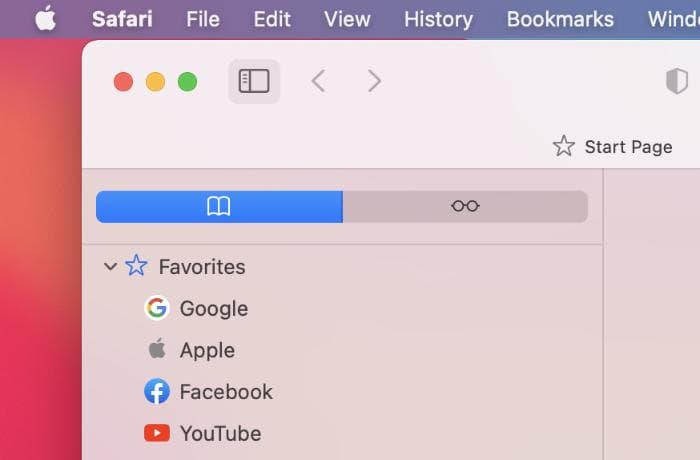
Folders help when several sites belong to one job. A Work folder might hold Gmail, Google Drive, and a project tool. A Reading folder can hold news sites and blogs.
- Open Safari and show the Bookmarks sidebar with Control-Command-1, or choose Bookmarks > Show Bookmarks.
- Control-click in the sidebar (or use Bookmarks > Add Bookmark Folder).
- Create a new folder and give it a short name.
- Move the folder into Favorites, then drag the relevant bookmarks into it.
You can also manage folders in Bookmarks > Edit Bookmarks. Sidebar labels can differ between Safari versions. A folder on the Favorites bar becomes a drop-down. Command-click that folder to open every bookmark inside it at once.
A few clearly named folders are easier to use than saving every site in the same row.
6. How to delete a Favorite in Safari
If you no longer need a shortcut, Control-click the site in the Favorites bar or Favorites section and choose Delete.
You can also drag the item off the bar until it disappears. Deleting a Favorite removes the saved bookmark. It does not delete the website or its content.
7. How to sync Safari Favorites across your Apple devices
If you use Safari on a Mac, iPhone, or iPad, iCloud can keep bookmarks and Favorites in sync. Sign in with the same Apple Account on each device. Menu names vary by macOS and iOS version. Apple's current iCloud setup is in the iCloud User Guide.
On your Mac
- Open System Settings.
- Click your name and select iCloud.
- Open the list of apps using iCloud (often See All or Saved to iCloud).
- Turn on Safari.
On your iPhone or iPad
- Open Settings and tap your name.
- Select iCloud, then open the full app list if needed.
- Turn on Safari.
Once Safari sync is on, Favorites can stay up to date across those devices. Deletions sync too, so removing a favorite on the Mac removes it elsewhere.
8. Safari Favorites vs. regular bookmarks
Favorites and bookmarks both save links. Favorites are simply bookmarks stored in a folder Safari surfaces in more places.
| Feature | Favorites | Regular bookmarks |
|---|---|---|
| Main purpose | Quick access to sites you open often | Save sites for later |
| Start Page | Can appear as icons | Usually reached through folders |
| Favorites bar | Appears directly or inside a folder | Must sit in Favorites to appear |
| Organization | Can use folders | Can use folders |
| iCloud sync | Yes, when Safari is on in iCloud | Yes, when Safari is on in iCloud |
You can move a regular bookmark into Favorites whenever you want faster access. For articles you plan to read once, use Reading List instead. Shift-Command-D adds the current page to Reading List, not Favorites.
9. Can you use Safari Favorites in Chrome?
Safari's Favorites bar is part of Safari. It does not appear automatically in Google Chrome, Microsoft Edge, or other browsers.
If you switch between Safari and Chrome, manage bookmarks in each browser, or import Safari bookmarks into Chrome once (the lists then drift). For people who work mainly in Chrome, a visual bookmark manager is a different way to organize saved sites.
Organize Chrome bookmarks with Boardmarks
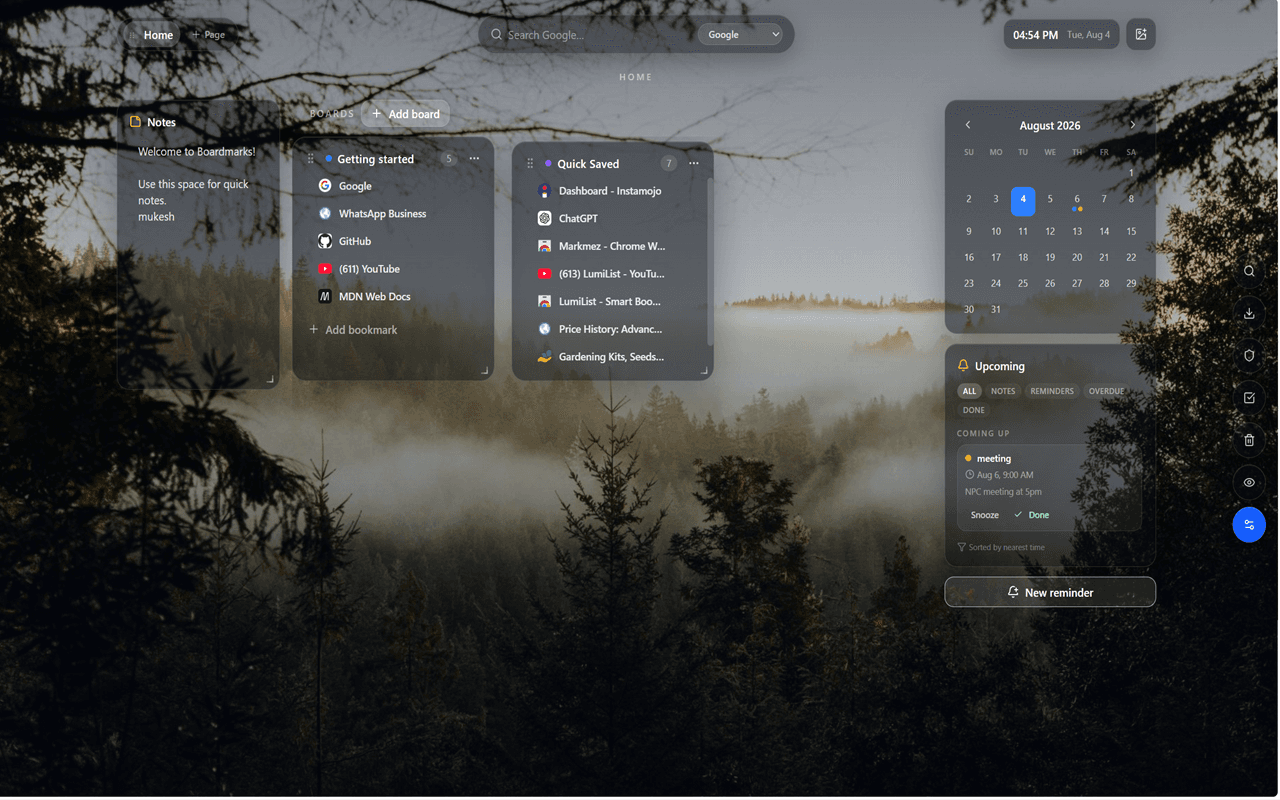
Boardmarks (disclosure: this is our product) is a Chrome New Tab extension. It organizes saved sites into visual boards instead of relying only on a bookmarks bar.
- Save and organize websites in visual boards.
- Save multiple open tabs together.
- Import existing Chrome bookmarks.
- Optional cloud backup after Google sign-in, if you turn it on.
- Todos, habits, notes, and reminders on the same New Tab.
Boardmarks works in supported Chromium browsers. It does not install inside Safari and does not sync Safari Favorites automatically.
Visual Chrome bookmark manager · Boardmarks features
If you also use Chrome, see how to organize Chrome bookmarks and how to organize bookmarks without folders.
10. Safari Favorites not showing? Try these fixes
If you saved a site but cannot find it, check these settings.
- The Favorites bar is hidden. Open View > Show Favorites Bar.
- Favorites are missing from the Start Page. Open the Start Page, turn Favorites on in the customization options, and check Safari > Settings > General for the Start Page Favorites folder.
- The site was saved in another folder. Open the Bookmarks sidebar and search. Move the bookmark into Favorites if you find it elsewhere.
- Some Favorites are hidden. Click the angle brackets at the right end of the bar.
- Favorites are missing on another Apple device. Confirm Safari is on in iCloud on both devices and they use the same Apple Account.
Frequently asked questions
- What is the shortcut to add a Favorite in Safari on Mac?
- Press Command-D while viewing a website. Select Favorites as the destination and click Add.
- How do I add Google to Safari Favorites?
- Open google.com in Safari, choose Bookmarks > Add Bookmark, select Favorites, and click Add. Use the same steps for Gmail, YouTube, and other sites.
- How many Favorites can I add in Safari?
- Apple does not specify a fixed maximum. How many you see on the Favorites bar depends on window width and bookmark names. Extra items sit behind angle brackets on the right.
- Can I create multiple Favorites folders in Safari?
- Yes. You can create folders inside Favorites to group sites by work, study, shopping, or other categories.
- Will deleting a Favorite delete the website?
- No. Removing a Favorite deletes the saved bookmark from Safari. The website stays available at its normal URL.
- How do I show the Favorites bar in Safari?
- Choose View > Show Favorites Bar, or press Shift-Command-B. The bar appears below the toolbar. Press the same shortcut again to hide it.
- Do Safari Favorites sync to iPhone and iPad?
- Yes, when Safari is turned on for iCloud on each device and you use the same Apple Account. Deletions sync too.
- Can I use Safari Favorites in Chrome?
- Not automatically. Safari Favorites stay inside Safari. Chrome can import bookmarks once, but the lists then diverge. Keep a Safari setup and a Chrome setup if you use both.
Final thoughts
Adding Favorites in Safari on Mac takes a few clicks. Open the site, choose Bookmarks > Add Bookmark, select Favorites, and save it.
For quicker access, turn on the Favorites bar or show Favorites on the Start Page. As the collection grows, use short names and folders so daily sites stay easy to find.
If you use more than one Apple device, turn on Safari in iCloud. If Chrome is where most of your work happens, set up bookmarks there separately.
Add Boardmarks to ChromeChrome New Tab extension
Organize bookmarks, todos, and habits on every New Tab.
- Visual bookmark boards
- Todos, habits, notes, reminders
- Local-first by default
Free trial · no card required