A development setup on Mac needs more than a code editor. You also need a way to organize your links and notes, test APIs, inspect databases, run services in containers, and keep terminal sessions from taking over your screen. The right tools handle those tasks without adding unnecessary friction. This guide covers 12 options that fit common development tasks in 2026, starting with a Chrome New Tab extension that works on Mac, then moving through editors, terminals, API clients, and utilities.
Favorite Mac Developer Apps: The Short List
If you are setting up a new Mac or a new project, start with an editor, a terminal, and a browser workspace. Add API testing, database browsing, and containers only when your project calls for them.
Browser workspace and notes
- Boardmarks: Chrome New Tab extension (works on Mac) for organizing project links, todos, and developer notes on visual boards.
- Obsidian: Local linked notes for technical decisions, error logs, and project context.
Code editors
- Visual Studio Code: Free, flexible editor with a large extension ecosystem for any language or framework.
- Cursor: AI-assisted editor built on VS Code for working across a codebase with AI agents.
- Xcode: Required for iOS, macOS, watchOS, and tvOS development.
Terminal and launcher
- iTerm2: Split panes and profiles for managing multiple terminal sessions at once.
- Raycast: Keyboard launcher with clipboard history, snippets, and developer tool extensions.
API, database, and containers
- OrbStack: Lightweight Docker and Linux VM management on Mac.
- Postman: API request builder and test runner for HTTP, GraphQL, and gRPC.
- TablePlus: Visual database browser for PostgreSQL, MySQL, SQLite, and more.
- Proxyman: HTTP debugging proxy for inspecting real application network traffic.
Window management
- Rectangle: Free keyboard shortcuts for snapping windows into repeatable layouts.
Mac Developer Apps Comparison
| App | Best for | Free plan | Price from | Platform |
|---|---|---|---|---|
| Boardmarks | organizing dev bookmarks, todos, and notes on every Chrome New Tab | Trial | 7-day free trial, then Pro plans | Chrome extension (works on Mac) |
| Visual Studio Code | code editing, debugging, and Git across any language or framework | Yes (fully free) | Free | Mac, Windows, Linux |
| Cursor | working across a codebase with AI agents that understand context | Yes (limited) | Free plan; Pro from $20/month | Mac, Windows, Linux |
| Xcode | iOS, macOS, watchOS, and tvOS app development | Yes (fully free) | Free | Mac only |
| iTerm2 | running multiple terminal sessions side by side with search and profiles | Yes (fully free) | Free | Mac only |
| Raycast | keyboard-driven app launching, clipboard history, snippets, and window management | Yes | Free plan; Pro from $8/month | Mac, Windows |
| OrbStack | running Docker containers and Linux VMs on macOS with low overhead | Yes (personal use) | Free for personal use; Team plans from $8/user/month | Mac only |
| Postman | constructing, testing, and automating API requests across HTTP, GraphQL, and gRPC | Yes | Free plan; Paid from $19/user/month | Mac, Windows, Linux, Web |
| TablePlus | inspecting, filtering, and editing database records while debugging | Yes (limited) | Free plan (limited connections); Basic license from $69 one-time | Mac, Windows, Linux, iOS |
| Proxyman | intercepting and inspecting HTTP requests your application is making | Yes (limited) | Free plan (limited rules); Standard license from $75 one-time | Mac, Windows, Linux |
| Rectangle | moving and resizing windows to repeatable layouts with keyboard shortcuts | Yes (fully free) | Free; Rectangle Pro from $9.99 one-time | Mac only |
| Obsidian | local linked notes for capturing technical decisions, errors, and project context | Yes (core app) | Core app free (personal and commercial); Sync and Publish are paid | Mac, Windows, Linux, iOS, Android |
How We Chose These Apps
Boardmarks publishes this site, and Boardmarks appears at position 1 on this list. That is our product. We are disclosing that relationship so you can weigh the recommendation accordingly. No other app on this list paid for placement, and we have no sponsorship or affiliate arrangements with the other tools.
Every app on this list was evaluated against five questions that separate useful developer tools from ones that feel necessary but add overhead.
- Does it solve a real daily problem? Not a theoretical one. A problem that shows up multiple times per week during actual development work.
- Is there a free or trial option? Developers should be able to evaluate any tool before committing to a paid plan.
- Does it reduce friction or add it? A tool that requires significant setup or maintenance time works against the goal.
- Does it fit real project types? The list covers web, backend, and Apple platform development rather than one specialized stack.
- Does it stay useful after the first week? Many tools feel exciting on day one and are uninstalled by day ten.
The selection reflects common developer needs across browser organization, editing, terminal work, API testing, database browsing, containers, and window management.
1. Boardmarks: Best Chrome New Tab Extension for Developers on Mac
Price: 7-day free trial, then Pro plans · Best for: organizing dev bookmarks, todos, and notes on every Chrome New Tab
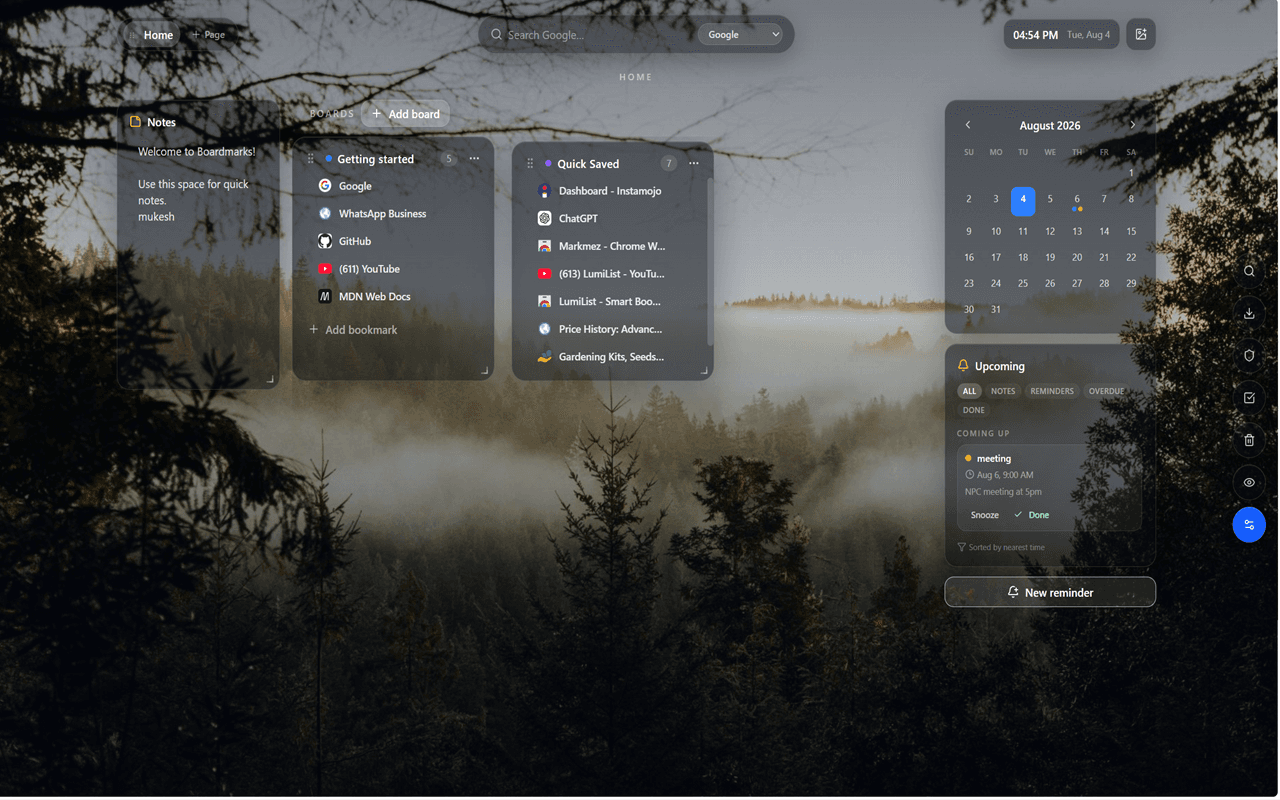
Developers collect a lot of links. Documentation, GitHub repos, staging environments, internal dashboards, design specs, and Stack Overflow answers that saved the day. Most of them end up in Chrome bookmarks you will never find again. Boardmarks is a Chrome New Tab extension that works on Mac (and any OS where Chrome runs). It is not a native desktop app. Instead, it turns the New Tab page into a visual workspace where those links are actually useful.
Instead of a blank start page, you get visual bookmark boards, Quick Save, save-all-tabs, todos, scratch notes, calendar notes, and reminders. You can create one board per project, one board for documentation, and another for tools you open daily. Data stays in Chrome local storage by default. For developers who work in Chrome all day, it keeps reference links, project todos, and notes in a single place you already open dozens of times per day.
Key features
- Visual Pages and Boards for bookmarks instead of deep nested folders
- One-click Quick Save and save-all-tabs from the toolbar popup
- Todos, notes, and calendar reminders on the same New Tab
- Google Calendar and Tasks integration for optional sync
- Local-first Chrome storage with optional cloud backup
Pros
- ✓Keeps project links, todos, and notes on the tab you already open constantly
- ✓Visual boards make it easy to separate projects, docs, and tools at a glance
- ✓Local-first: your data stays on your device by default
Cons
- ✗Chrome extension rather than a native Mac app; not a cross-browser or mobile link archive
- ✗Full feature access requires Pro after the 7-day trial
Verdict: Boardmarks is useful for developers who have too many bookmark folders and want project links, todos, and notes on the same Chrome New Tab they already use throughout the day.
2. Visual Studio Code: Best Flexible Code Editor for Most Developers
Price: Free · Best for: code editing, debugging, and Git across any language or framework
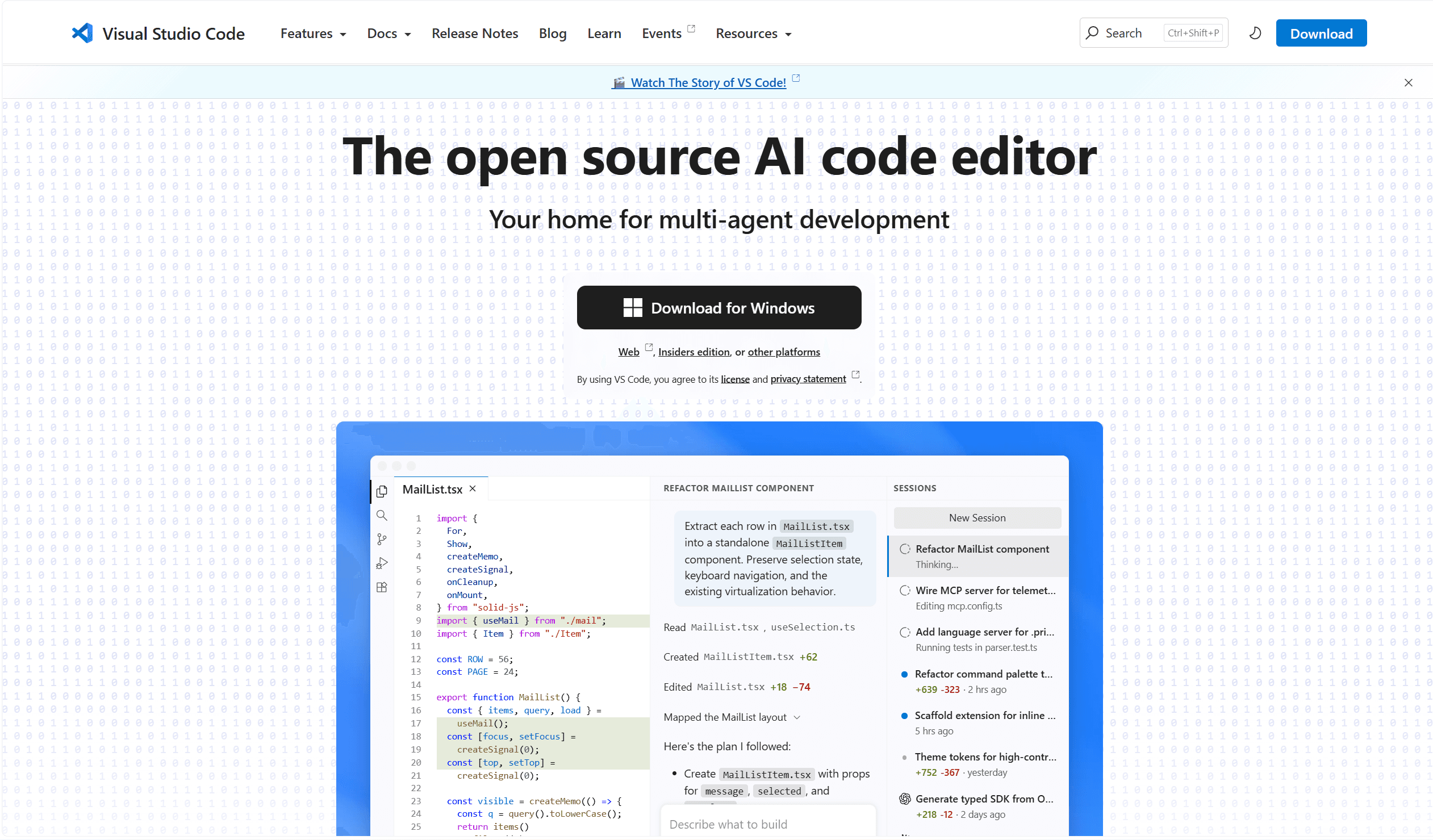
VS Code is a sensible starting point for most development work on Mac. It combines code editing, debugging, an integrated terminal, and Git support in one app. JavaScript and TypeScript support is built in. Extensions add tools for Python, Go, Rust, and every other language or framework.
For a React or Next.js project, you can edit components, check terminal output, and review changed files without leaving the editor. Profiles let you keep separate settings and extension sets for different kinds of projects. Its flexibility is the main reason to choose it as a primary editor on Mac: you start with a minimal setup and add only what each project requires.
Key features
- Built-in JavaScript and TypeScript support with IntelliSense
- Integrated debugger, terminal, and Git panel
- Extension marketplace with thousands of language and tool plugins
- Profiles for keeping separate extension sets per project type
- Remote development extensions for SSH, containers, and Codespaces
Pros
- ✓Completely free with no feature limits
- ✓Extension ecosystem covers nearly every language and tool
- ✓Consistent across Mac, Windows, and Linux
Cons
- ✗Performance can slow down with a large number of extensions active
- ✗Requires some configuration time to match a specific workflow
Verdict: VS Code is a strong editor choice for web and backend developers on Mac. Install it, add the extensions your project needs, and avoid installing extensions speculatively.
3. Cursor: Best Editor for AI-Assisted Development
Price: Free plan; Pro from $20/month · Best for: working across a codebase with AI agents that understand context
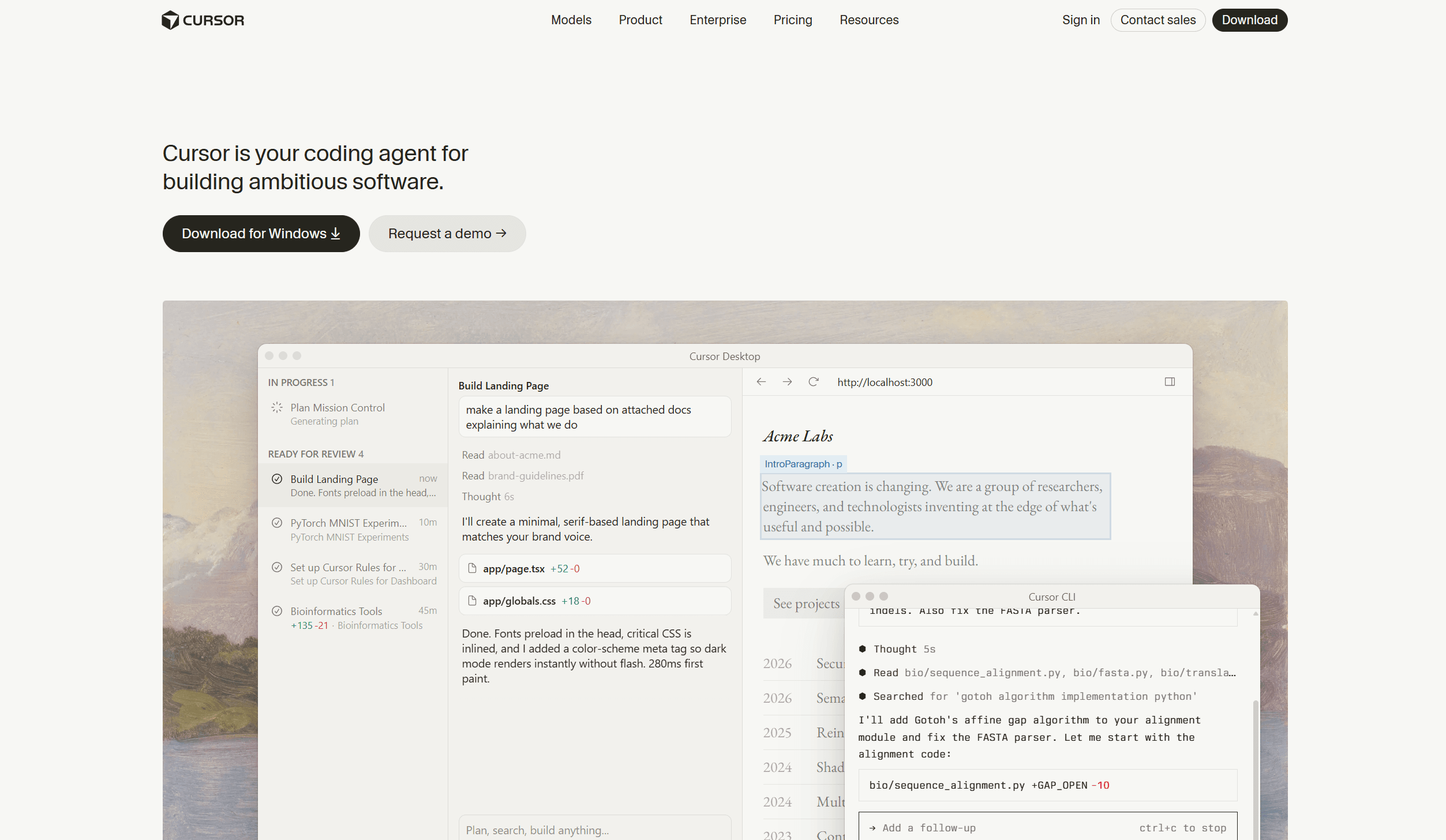
Cursor is a code editor built around AI assistance, with agents that can work on development tasks and make changes across multiple files. It is useful when you want AI help that extends beyond completing the next line: tracing how data flows through a codebase, refactoring a function across callers, or understanding an unfamiliar file before editing it.
The most effective way to use Cursor is with a narrow task, relevant files, and a clear expected result. Giving it a vague prompt and accepting the output without review is where things go wrong. It makes the most sense if AI assistance is already a regular part of your workflow and you want a dedicated environment for it.
Key features
- AI agents that can read, edit, and create files across a codebase
- Context-aware code completion that understands the full project
- Tab completion that predicts multi-line edits
- Chat interface for asking questions about code without leaving the editor
- Built on VS Code, so existing extensions and keybindings transfer
Pros
- ✓AI understands project-wide context, not just the current file
- ✓Built on VS Code, so extensions and workflows carry over
- ✓Saves real time on repetitive refactors and cross-file changes
Cons
- ✗Pro subscription adds cost compared to VS Code alone
- ✗AI output requires careful review for business logic and edge cases
Verdict: Cursor is worth trying if AI assistance is already part of how you write code and you want a tighter integration than a VS Code extension provides. Review every change before committing.
4. Xcode: Required for Building Apps for Apple Platforms
Price: Free · Best for: iOS, macOS, watchOS, and tvOS app development
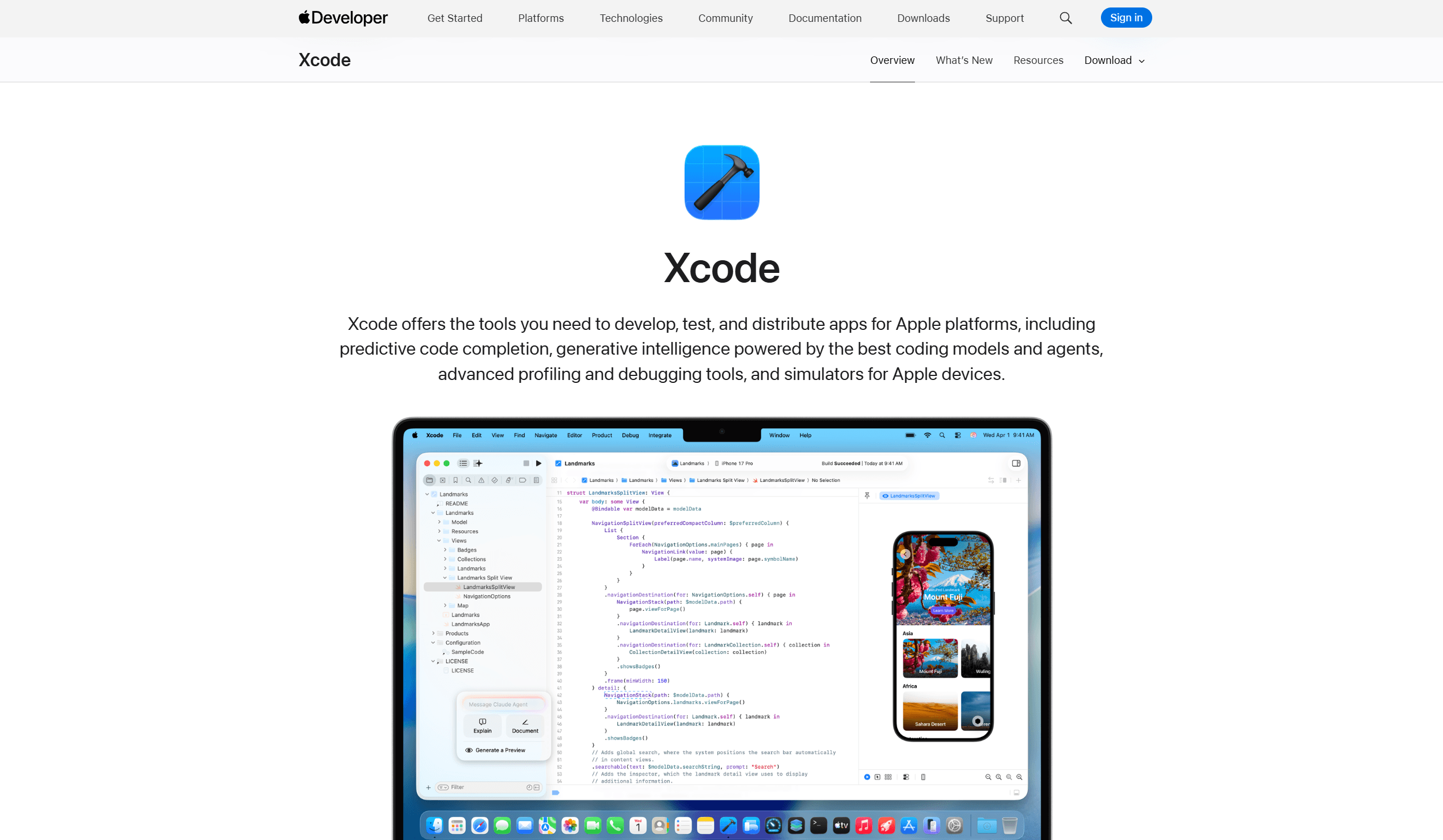
Xcode is Apple's development environment for building apps across its platforms. If you want to build an iPhone app, a native Mac utility, an Apple Watch app, or an Apple TV experience, Xcode is the required starting point. It brings together editing, building, testing, and debugging tools in one environment.
For developers moving from web development into Apple apps, Xcode is a separate environment to learn, with its own project settings, build system, and simulator workflow. It is the main IDE for the Apple ecosystem. If your work is entirely browser-based, it does not need to become your everyday editor. Uploading builds to App Store Connect can also be done with tools such as Apple's Transporter, so Xcode is not the only upload path.
Key features
- Full IDE for Swift, SwiftUI, Objective-C, and C++
- Simulator for iPhone, iPad, Mac, Apple Watch, and Apple TV
- Instruments profiler for performance and memory analysis
- Integrated Interface Builder for visual UI layout
- Organizer for archiving, distributing, and submitting to the App Store
Pros
- ✓Required starting point for building Apple platform apps on Mac
- ✓Completely free with no subscription required
- ✓Simulator covers the full Apple device range without physical hardware
Cons
- ✗Large installation size and slow build times on older Macs
- ✗Steep learning curve for developers coming from web-first tools
Verdict: Xcode belongs on every Mac that will build for Apple platforms. If your work is web-only, you can skip it. If Apple development is in your roadmap, install it early and get familiar with the project structure before your first real deadline.
5. iTerm2: Best Terminal for Managing Multiple Sessions
Price: Free · Best for: running multiple terminal sessions side by side with search and profiles
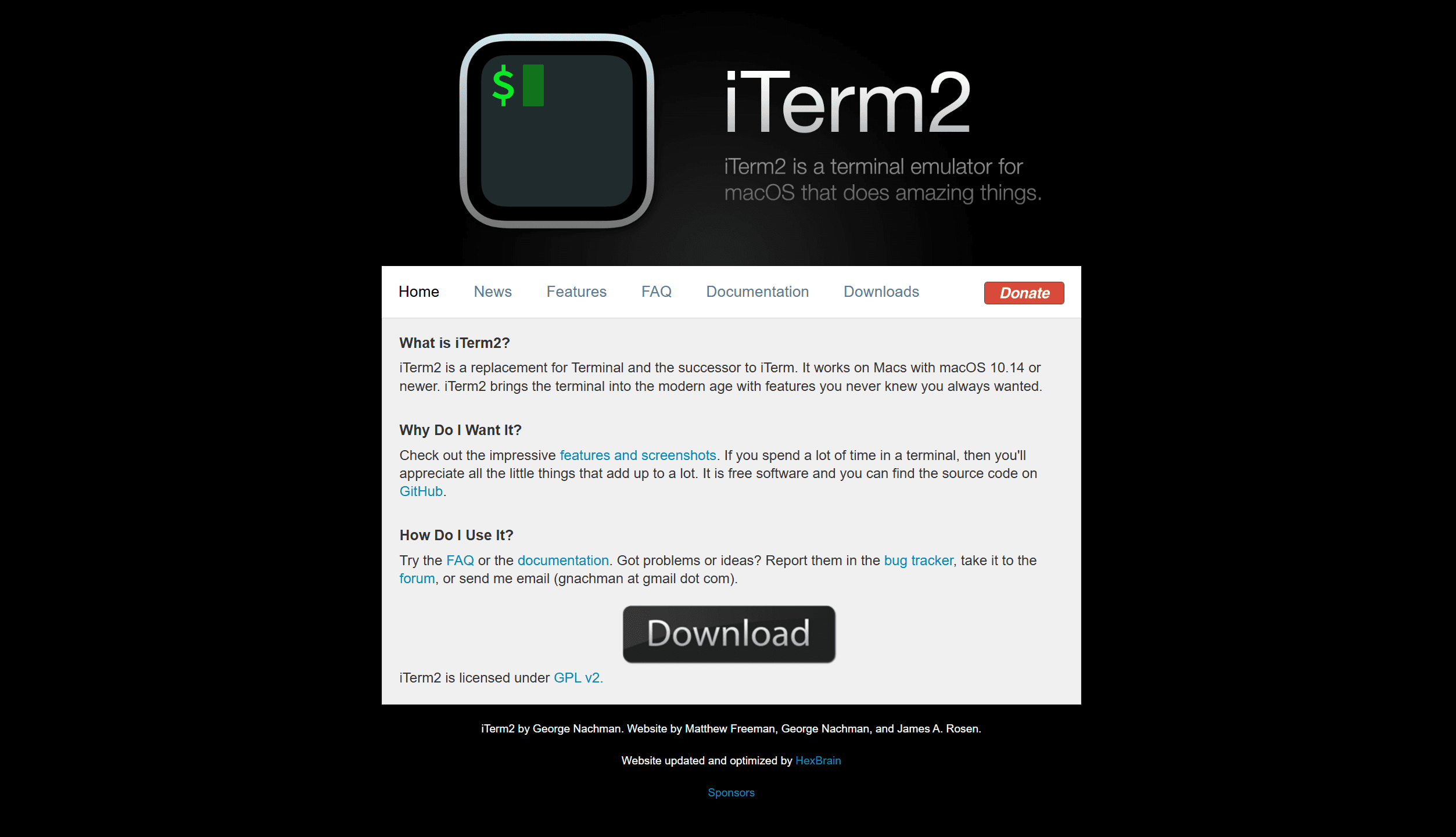
A full-stack project often involves several processes running at once: a frontend dev server, a backend API, a database, and a separate session for running commands. iTerm2 replaces the built-in macOS Terminal with split panes, profiles, shell integration, and search across terminal output.
Split panes let you keep multiple sessions visible at the same time without switching windows. Profiles store different settings for different environments (local, staging, remote servers). Search helps when you need to locate an error in a long stream of output. It is a common terminal upgrade for Mac developers, and it is completely free.
Key features
- Split panes for multiple terminal sessions in one window
- Profiles with per-session shell, color, and directory settings
- Shell integration for command history, marks, and directory tracking
- Trigger system for responding to text patterns in output
- Search across current and scrollback terminal output
Pros
- ✓Free and actively maintained with a consistent update history
- ✓Split panes eliminate the need to switch windows between processes
- ✓Profiles make remote and local sessions easy to distinguish visually
Cons
- ✗Mac-only; no Windows or Linux equivalent from the same team
- ✗Some advanced features have a learning curve before they feel natural
Verdict: The built-in Terminal is enough for occasional commands. Consider iTerm2 when organizing multiple terminal sessions has become part of your daily development work.
6. Raycast: Best Keyboard Launcher for Repeated Developer Actions
Price: Free plan; Pro from $8/month · Best for: keyboard-driven app launching, clipboard history, snippets, and window management
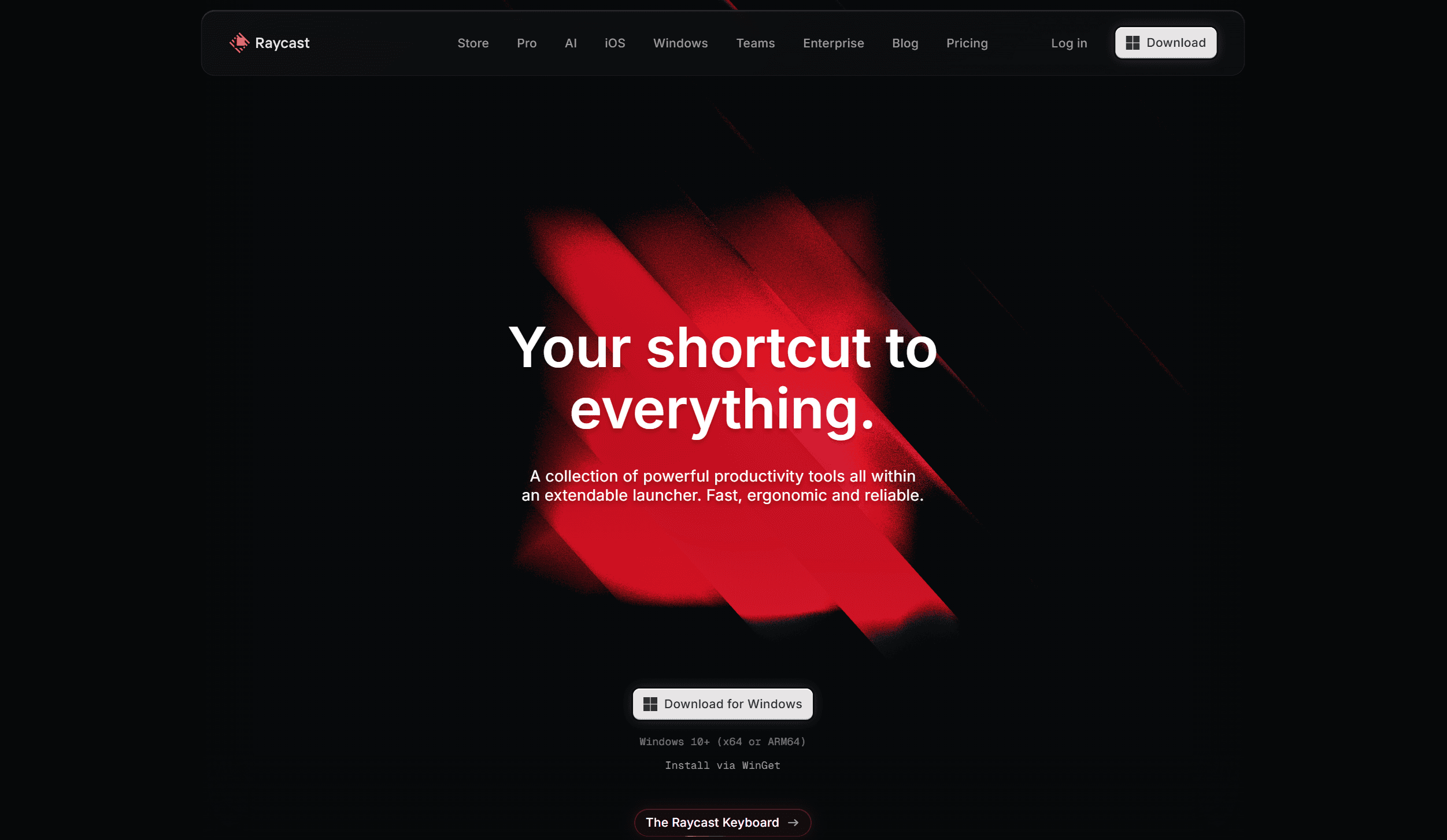
Raycast is a keyboard-driven launcher that replaces Spotlight on Mac (and is also available on Windows). Beyond app launching, it includes clipboard history, text snippets, window management, a floating notes pad, and an extension system that connects with GitHub, Linear, Jira, and dozens of other developer tools.
Its value comes from the small actions you repeat. Finding something you copied earlier, inserting a frequently used command, or resizing a window becomes a quick keyboard search instead of a trip through several menus. The easiest way to evaluate it is to install it, replace Spotlight for one week, and note which additional features you actually reach for.
Key features
- App launching and file search replacing Spotlight
- Clipboard history with search across recent copies
- Snippets for frequently typed text and commands
- Window management with keyboard shortcuts for common layouts
- Extensions connecting to GitHub, Linear, Jira, and other dev tools
Pros
- ✓Free plan covers app launching, clipboard history, and basic window management
- ✓Extension ecosystem brings dev tool integrations into one keyboard interface
- ✓Available on Mac and Windows
Cons
- ✗AI and some extensions require the Pro plan
- ✗Feature parity between Mac and Windows can differ by release
Verdict: Install Raycast, use it for a week, and then decide whether it earns its place. App launching and clipboard history alone are often enough to justify switching from Spotlight.
7. OrbStack: Best for Local Containers and Linux Environments on Mac
Price: Free for personal use; Team plans from $8/user/month · Best for: running Docker containers and Linux VMs on macOS with low overhead
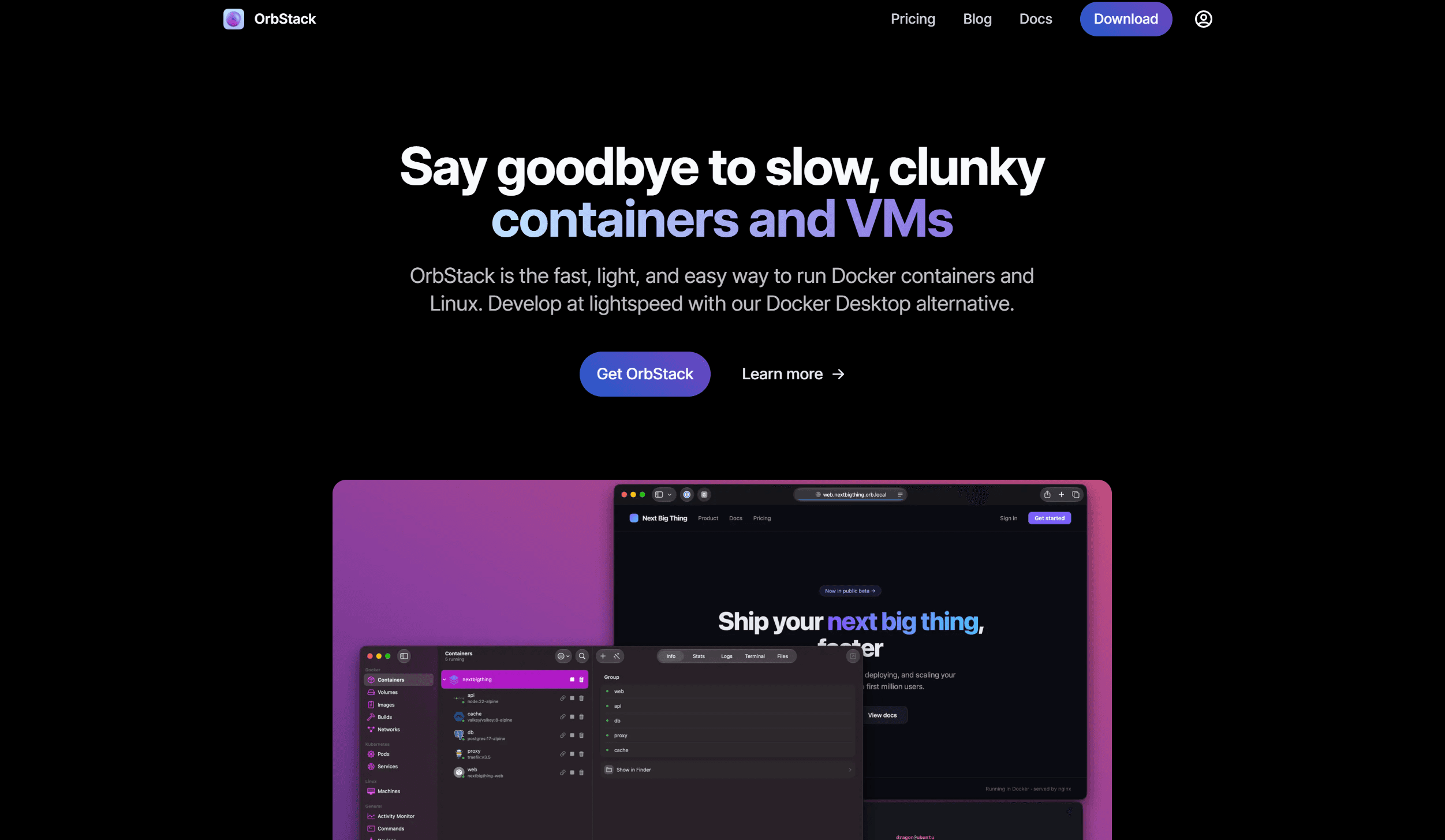
OrbStack runs Docker containers and Linux machines on macOS. It supports Docker Compose and provides integrations for networking, file sharing, and command-line workflows. It is relevant when your application depends on services such as a database, cache, and backend API.
Keeping those services in containers makes the local setup easier to reproduce across projects and machines. For a Next.js application with PostgreSQL and Redis, OrbStack provides the environment that runs supporting services while you work in your editor. It is a practical Docker Desktop replacement for developers who need containers running quickly with low system overhead.
Key features
- Docker container management with Docker Compose support
- Linux VMs for running full Linux environments on Mac
- Fast startup and low memory footprint compared to alternatives
- CLI integration for working with containers from the terminal
- Networking that works out of the box for container-to-host communication
Pros
- ✓Faster startup and lighter on system resources than Docker Desktop
- ✓Free for personal use with full feature access
- ✓Works with existing Docker Compose files without changes
Cons
- ✗Mac-only, so Windows or Linux team members need Docker Desktop or alternatives
- ✗Commercial use requires a paid plan
Verdict: If your project uses Docker and Docker Desktop has been slow or heavy on your Mac, OrbStack is a drop-in replacement worth trying. Skip it if your projects do not use containers at all.
8. Postman: Best for Testing APIs Before Building the UI
Price: Free plan; Paid from $19/user/month · Best for: constructing, testing, and automating API requests across HTTP, GraphQL, and gRPC
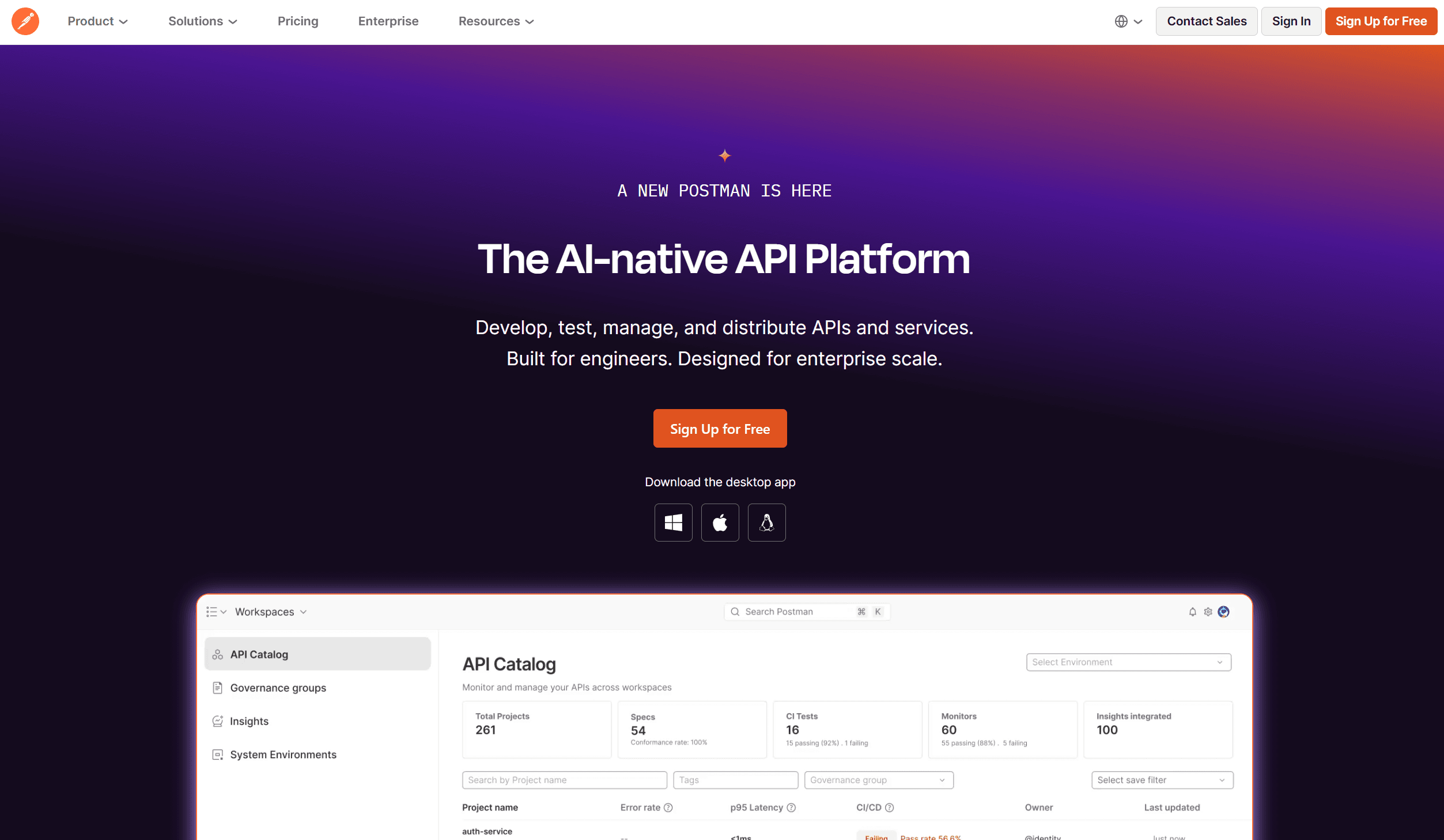
Postman lets you send API requests, inspect responses, configure authentication, and write scripts for request workflows and tests. It supports HTTP, GraphQL, gRPC, WebSocket, and other protocols. For developers, it is most useful before connecting a new endpoint to the frontend: verify the API works the way you expect before writing the UI code.
Suppose a login form returns an error. Sending the request directly from Postman shows whether the endpoint itself is broken before you investigate the frontend code. It is also useful when integrating an unfamiliar third-party API: work through the authentication, request structure, and response shape in Postman before writing the integration. The free plan covers most individual developer needs.
Key features
- Request builder for HTTP, GraphQL, gRPC, WebSocket, and MQTT
- Collections for organizing and sharing requests across a team
- Test scripts for validating response status, body, and headers
- Environments for switching between local, staging, and production base URLs
- Mock servers for building frontend code before the API exists
Pros
- ✓Free plan covers the full individual developer workflow
- ✓Collections make it easy to save and share request sets with teammates
- ✓Environment variables eliminate the need to edit URLs when switching contexts
Cons
- ✗Heavier than a curl command for a quick one-off request
- ✗Team collaboration features require a paid plan
Verdict: Use Postman when you work with APIs regularly and need a reliable way to construct, save, and repeat requests. For a single quick check, a terminal command is faster.
9. TablePlus: Best for Browsing and Editing Application Data
Price: Free plan (limited connections); Basic license from $69 one-time · Best for: inspecting, filtering, and editing database records while debugging
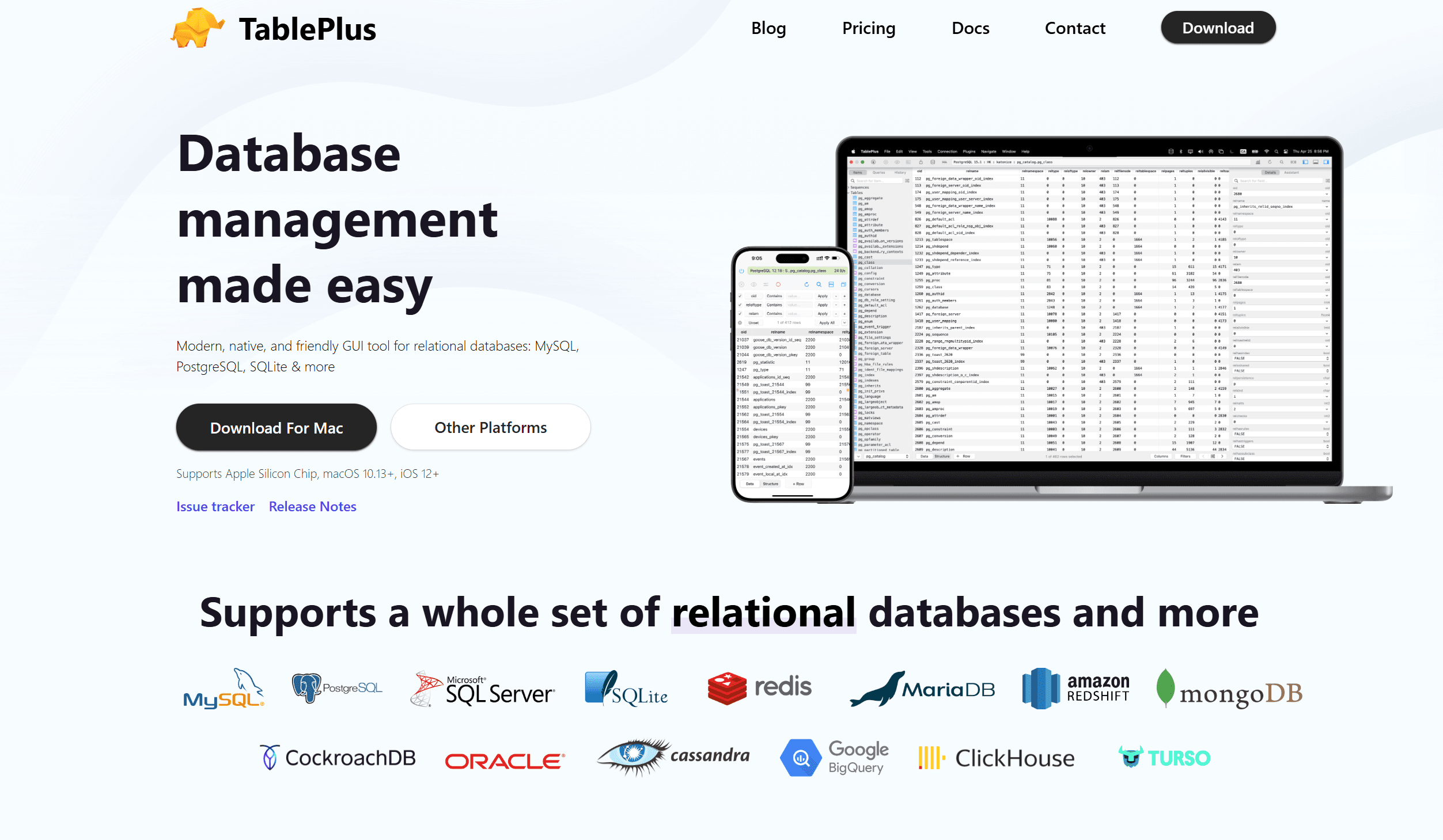
TablePlus provides a graphical interface for working with databases. It supports PostgreSQL, MySQL, SQLite, Redis, MongoDB, and others. Inline editing, filters, multiple simultaneous connections, and a review-changes workflow make it practical for daily development use.
It helps when the question is about actual records: did the form save the correct data, which account owns this item, why is this field empty? Browsing related records across tables while debugging is faster with a visual interface than writing a new query for each check. TablePlus is a polished option for developers who inspect and edit data frequently.
Key features
- Support for PostgreSQL, MySQL, SQLite, Redis, MongoDB, and more
- Inline cell editing with a review-before-commit workflow
- Multiple simultaneous connections in tabs
- Filters and sorting without writing SQL for simple queries
- SSH tunneling for connecting to remote or protected databases
Pros
- ✓Handles multiple database types in one app with a consistent interface
- ✓Review mode shows pending changes before executing them
- ✓Free plan supports basic usage for a limited number of open connections
Cons
- ✗Free plan limits simultaneous open connections and databases
- ✗Paid license is a one-time cost but higher than some alternatives
Verdict: TablePlus suits developers who frequently inspect or edit database records while building and debugging. If you only touch a database occasionally, the free plan or a simple terminal client may be enough.
10. Proxyman: Best for Debugging Application Network Traffic
Price: Free plan (limited rules); Standard license from $75 one-time · Best for: intercepting and inspecting HTTP requests your application is making
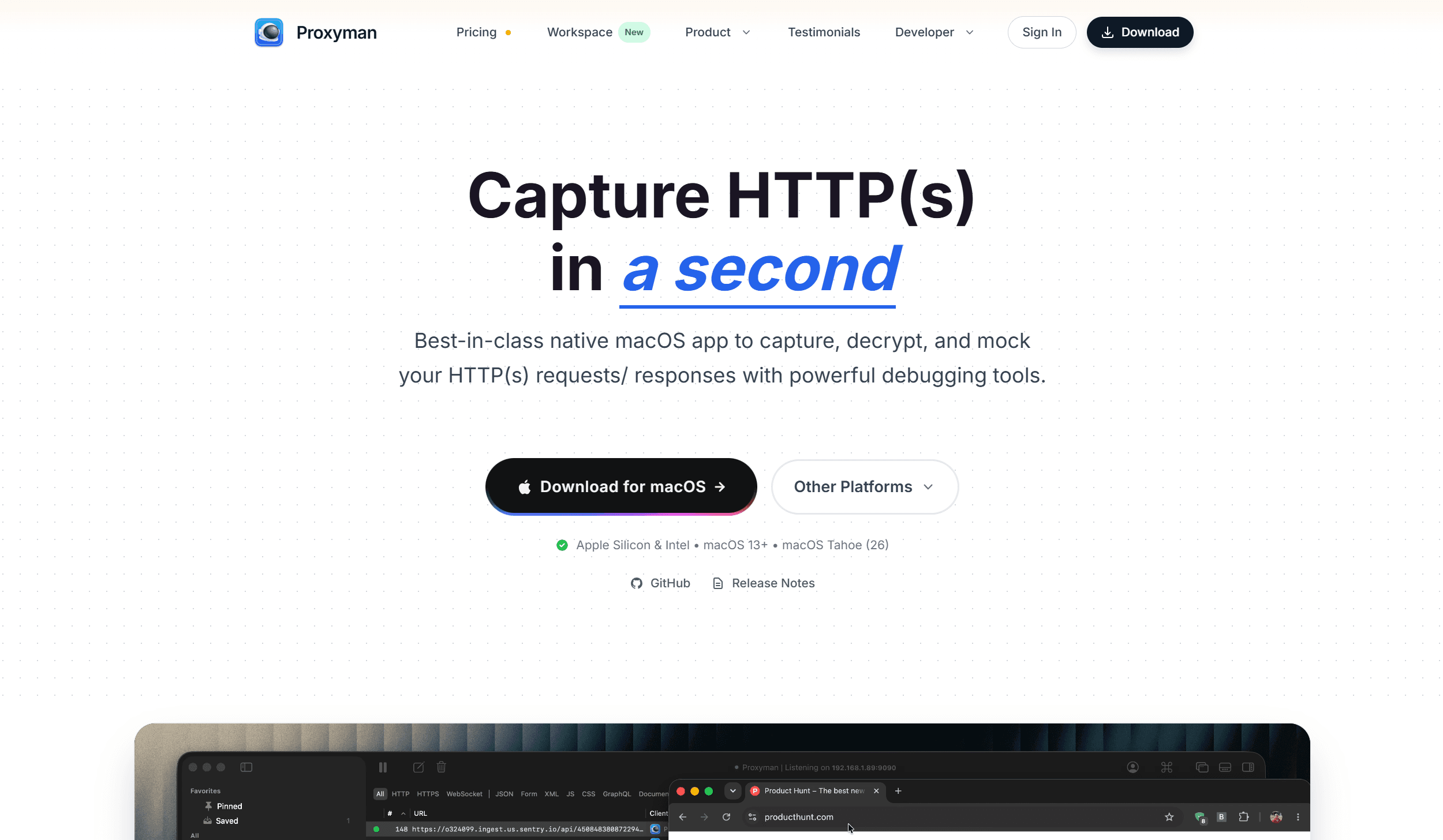
Proxyman is an HTTP debugging proxy for inspecting application network traffic. It runs on Mac, Windows, and Linux. It lets you see every request an app makes, including headers, bodies, and response times. Breakpoints let you modify requests or responses before they reach the client or server.
It helps with situations where an API works correctly in Postman but behaves differently inside your application. Looking at the actual traffic reveals a missing header, an unexpected request body, or a request going to the wrong endpoint. Proxyman is a direct tool for this kind of network-level debugging that browser developer tools cannot reach.
Key features
- HTTP and HTTPS traffic interception with automatic SSL certificate handling
- Breakpoints for modifying requests or responses mid-flight
- Scripting with JavaScript for automated request rewriting
- Diff view for comparing two requests or responses side by side
- iOS and Android device proxying through the desktop app
Pros
- ✓Catches request issues that are invisible in the browser developer tools
- ✓SSL interception works without complex manual setup
- ✓Available on Mac, Windows, and Linux with a shared license model
Cons
- ✗Full breakpoint and scripting features require a paid license
- ✗Desktop proxy setup still takes more effort than browser Network tools alone
Verdict: Start with your browser Network panel and Postman. Add Proxyman when you need to inspect what an application or a native process is actually sending, not what you expect it to send.
11. Rectangle: Best Free Window Manager for Mac Developers
Price: Free; Rectangle Pro from $9.99 one-time · Best for: moving and resizing windows to repeatable layouts with keyboard shortcuts
A common development layout puts the editor on one side and a browser or terminal on the other. Another keeps documentation beside the code. Rectangle gives you keyboard shortcuts and screen-edge snapping to put windows into these layouts instantly, without dragging and resizing manually every time.
It is open source and completely free. Rectangle is a simple way to solve window arrangement without a subscription. If you already use Raycast, check whether its window management covers your typical layouts before adding Rectangle separately.
Key features
- Keyboard shortcuts for halves, thirds, quarters, and full screen
- Screen edge snapping for mouse-driven window arrangement
- Multi-monitor support with shortcuts for moving windows between displays
- Custom shortcuts for non-standard positions in Rectangle Pro
- Open source with no telemetry or account required
Pros
- ✓Free, open source, and lightweight with no background services
- ✓Shortcuts become muscle memory within a few days
- ✓No account or subscription required for the full free version
Cons
- ✗Mac-only, with no Windows version (use PowerToys FancyZones on Windows)
- ✗Overlaps with Raycast window management if you already use that
Verdict: Try Rectangle when manual window resizing is slowing you down. It takes about five minutes to install and configure, and the core shortcuts are useful from day one.
12. Obsidian: Best for Building a Personal Technical Knowledge Base
Price: Core app free (personal and commercial); Sync and Publish are paid · Best for: local linked notes for capturing technical decisions, errors, and project context
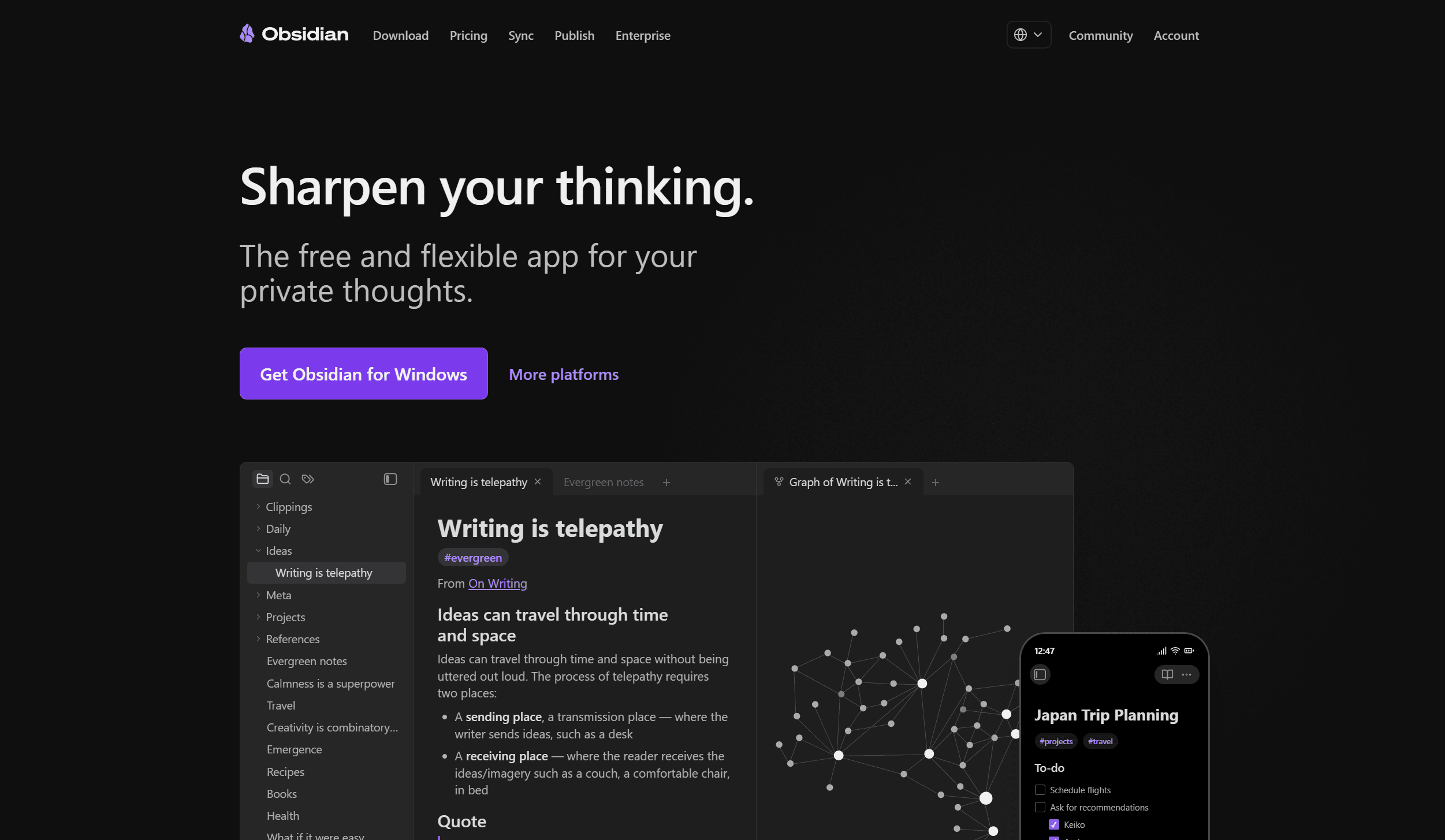
Developers accumulate knowledge that is too specific for a wiki and too valuable to lose: the reason a particular architecture decision was made, an error that took three hours to debug, a deployment checklist that changes every few months, or notes on an unfamiliar part of the codebase. Obsidian stores all of it as local Markdown files you own completely.
Every note can link to every other note. A note about a recurring production error links to the runbook, the related service, and the monitoring dashboard. Over time you can build a personal reference library that reflects how your own codebase and projects actually work. Obsidian suits developers who want long-term knowledge retention without vendor lock-in.
Key features
- Local Markdown files stored on your machine, no account required for core use
- Bidirectional links between any notes
- Graph view showing connections across your entire knowledge base
- Plugin ecosystem with hundreds of community extensions
- Daily notes template for a built-in log or journal practice
Pros
- ✓Complete data ownership: files stay on your machine and are readable anywhere
- ✓Core app is free for personal and commercial use
- ✓Optional Sync and Publish are paid add-ons if you need them
Cons
- ✗Takes time to develop the linking habit before the value compounds
- ✗Official sync across devices costs extra (free alternatives such as iCloud exist)
Verdict: Obsidian rewards patience. Start with a few folders and clear filenames. If you write notes on projects, errors, or decisions, the linked vault becomes more useful over time. If you want something simpler to start, a plain notes app works fine until you outgrow it.
How to Choose Your Mac Developer Stack
The most common mistake when setting up a developer Mac is installing every tool at once and using none of them consistently. A smaller stack you actually use beats a larger one you maintain intermittently.
Start with the tools your current project actually needs:
- Your project links, docs, and todos are scattered across browser tabs → Boardmarks (Chrome extension)
- Your current editor lacks the extensions your project needs → VS Code
- AI assistance is already part of how you write code → Cursor
- You are building for iPhone, Mac, Apple Watch, or Apple TV → Xcode
- You are managing multiple terminal sessions at once → iTerm2
- You repeat the same keyboard actions dozens of times per day → Raycast
- Your project uses Docker containers or Linux services → OrbStack
- You need to test and debug API endpoints → Postman
- You inspect database records while building and debugging → TablePlus
- Your app is making requests that look wrong in production → Proxyman
- You drag windows into the same layouts manually every day → Rectangle
- You lose technical notes and decisions between projects → Obsidian
Use that first tool for two weeks before adding another. Each new app takes attention to build the habit. Give it time to become invisible before you layer on more.
The goal is a setup that runs quietly in the background while you do actual development work. Prefer tools you stop noticing because they fit the job.
Frequently Asked Questions
- What are the best Mac apps for developers in 2026?
- The best Mac apps for developers in 2026 cover six areas: a Chrome New Tab extension for project links (Boardmarks), code editing (VS Code or Cursor), terminal sessions (iTerm2), API testing (Postman), database browsing (TablePlus), and container management (OrbStack). Add Raycast for keyboard shortcuts, Proxyman for network debugging, Rectangle for window management, and Obsidian for technical notes based on what slows you down most.
- Do I need every app on this list?
- No. Start with the tools that match your current project. A frontend developer might need VS Code, iTerm2, Postman, and Boardmarks. An iOS developer will add Xcode. A backend developer will reach for OrbStack and TablePlus. Install one tool, use it during real work, then decide whether it earns its place.
- What is the best free Mac app for developers?
- Strong free options include VS Code (fully free), Xcode (free from Apple), iTerm2 (free and open source), Rectangle (free), and Obsidian (core app free for personal and commercial use; Sync and Publish are paid). Boardmarks is a Chrome extension with a 7-day free trial, then Pro plans. OrbStack and Raycast have free tiers. Start with whichever free tool addresses the biggest gap in your current setup.
- Should I use VS Code or Cursor?
- Both are strong editors. VS Code is the reliable choice with a massive extension ecosystem and no subscription required. Cursor adds AI agents that can work across a codebase, which is useful if AI assistance is already a regular part of how you write and review code. Try each on a small project and compare how comfortably you can edit, debug, and navigate before investing in customization.
- What is OrbStack and why do developers use it?
- OrbStack runs Docker containers and Linux environments on macOS. It supports Docker Compose and provides integrations for networking, file sharing, and command-line workflows. Developers use it when their projects depend on services like PostgreSQL, Redis, or a containerized API. It starts quickly and uses fewer system resources than Docker Desktop on most machines.
- What is the difference between Postman and Proxyman?
- Postman is for constructing and testing API requests yourself. Proxyman is for inspecting requests an application is already making. A practical path is to start with an API client and browser developer tools, then add Proxyman when you need to inspect real application traffic, compare responses, or debug a missing header.
- Is Raycast worth switching from Spotlight?
- Raycast is worth trying if you repeat small actions throughout the day: clipboard history, snippets, window management, or launching tools via extensions. App launching alone may not justify the switch. Its value grows as you add features that replace repetitive tasks. Start by replacing Spotlight and see whether you use the additional features after a week.
- Why would a developer use Boardmarks?
- Developers accumulate reference links across documentation, GitHub repos, design tools, staging environments, and internal dashboards. Boardmarks is a Chrome New Tab extension (not a native Mac desktop app) that turns every new tab into a visual workspace for organizing those links on boards, alongside todos, notes, and reminders. It runs on Chrome on Mac and keeps frequently used developer links one click away without buried bookmark folders.
- What is the best Mac terminal app for developers?
- iTerm2 is a widely used macOS terminal replacement for developers. It supports split panes for running multiple processes side by side, profiles for different session settings, search across terminal output, and configurable keyboard shortcuts. The built-in Terminal is sufficient for occasional commands; iTerm2 becomes useful when managing multiple sessions is part of your daily work.
- Which Mac apps work on both Mac and Windows?
- VS Code, Postman, Obsidian, Cursor, Raycast, and Proxyman run on Mac and Windows. Boardmarks is a Chrome extension, so it works on Mac (and other OS) wherever Chrome runs. Xcode, iTerm2, Rectangle, and OrbStack are Mac-only. If you work across operating systems, VS Code, Postman, Obsidian, and Boardmarks are the easiest to keep consistent.
- How should I decide which developer apps to install first?
- Match your first tools to the project you are actually working on. For a web project, start with VS Code or Cursor, then add Postman when you need to test endpoints, TablePlus when you inspect database records, and OrbStack when the project uses containers. Utilities like Rectangle, Raycast, and iTerm2 are easiest to evaluate against a repeated annoyance in your current workflow.
Final Thoughts
The best Mac setup for developers in 2026 is not the one with the most apps. It is the one with the fewest apps you actually open every day. Start with an editor, a terminal, and a place for project links and notes. Add API testing, database browsing, and containers when your project calls for them. Add utilities like Rectangle, Raycast, and Obsidian in response to specific friction points, not in anticipation of them.
Each app on this list removes a specific daily friction point. Find your biggest friction point, solve it, then move to the next. That approach compounds over months into a development setup that feels easier to maintain.
If your browser tabs and project links are the main mess, try Boardmarks free for 7 days. It is a Chrome New Tab extension that works on Mac, and it keeps project links, todos, and notes on the page you already open constantly.
Add Boardmarks to ChromeRelated
Chrome New Tab extension
Organize bookmarks, todos, and habits on every New Tab.
- Visual bookmark boards
- Todos, habits, notes, reminders
- Local-first by default
7-day free trial. No card required.