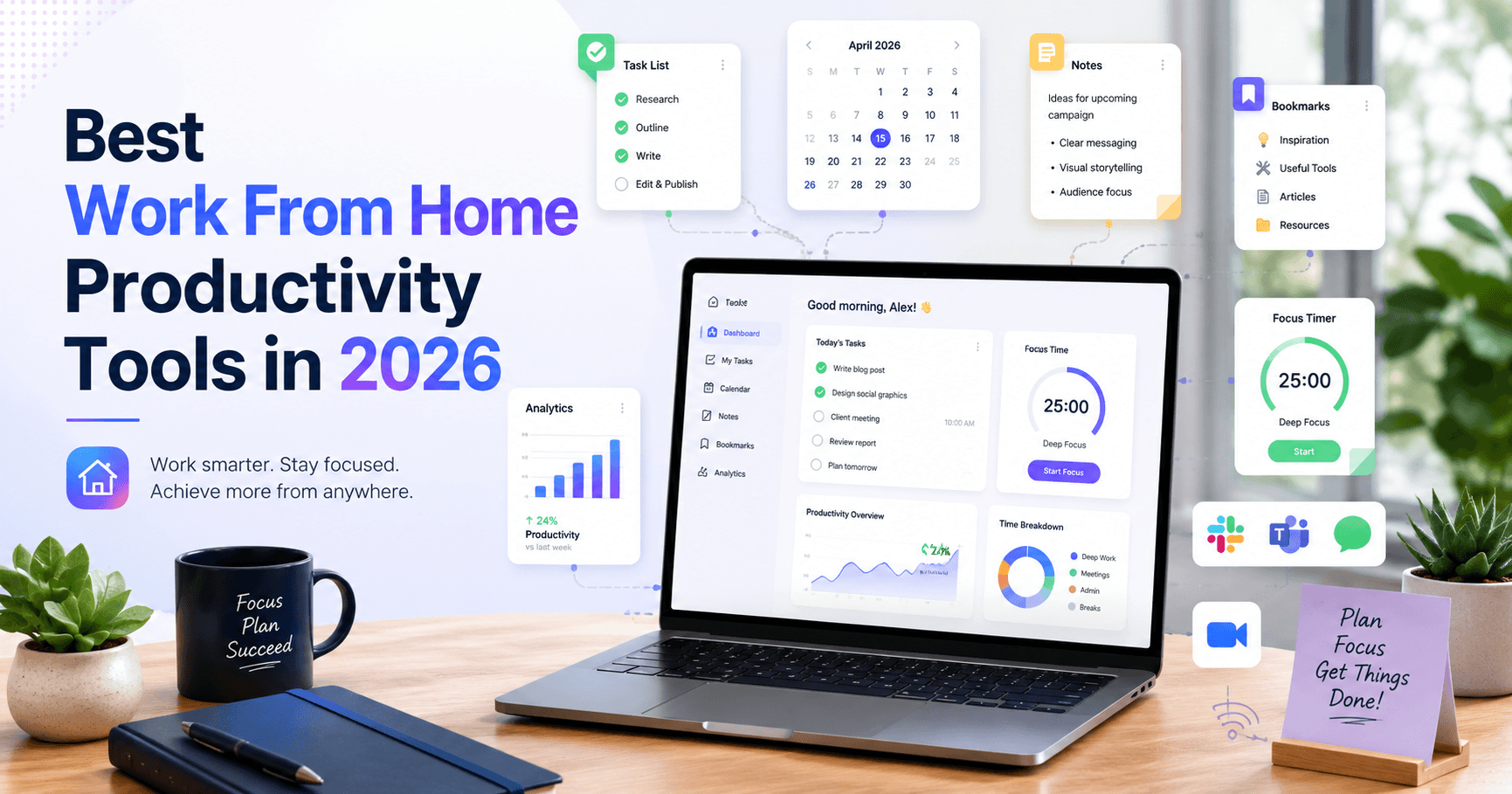
Working from home is a skill. The environment is comfortable but it lacks the external structure of an office. There is no commute to mark the start of the day, no colleague walking past to break an unproductive stretch, and no meeting room to clear your head. The right work from home productivity tools replace that structure with systems you control. This guide covers 10 tools that remote workers actually use to stay organized, focused, and effective across a full work week.
Favorite Work From Home Tools: The Short List
If you only want a few tools, start with a Chrome workspace, a meeting notes app, and a way to plan the day. Add email, noise cancellation, or time tracking only when that problem shows up every week.
Planning and workspace
- Boardmarks: Chrome New Tab workspace with visual bookmark boards, todos, habits, notes, and reminders.
- Sunsama: Daily planning that imports tasks from your tools and time-blocks your day.
Communication and meetings
- Superhuman: Fast email client with keyboard shortcuts and thread summaries.
- Fireflies.ai: Automatic transcripts and summaries for supported video calls.
- Krisp: Noise and echo removal for clearer calls from a home office.
Knowledge and collaboration
- Obsidian: Local, linked notes for a personal knowledge base.
- Miro: Infinite canvas for visual collaboration, brainstorming, and remote workshops.
Automation, security, and tracking
- Zapier: No-code automation that connects your apps and cuts repetitive handoffs.
- 1Password: Password manager with team vaults for shared logins.
- Toggl Track: One-click time tracking with weekly reports that show where hours went.
Work From Home Productivity Tools Comparison
| Tool | Best for | Free plan | Price from | Platform |
|---|---|---|---|---|
| Boardmarks | bookmarks, todos, habits, notes, and reminders on every Chrome New Tab | Trial | 7-day free trial, then Pro plans | Chrome (all OS) |
| Superhuman | processing a full inbox in half the usual time | No | From $30/month | Web, Mac, Windows, iOS, Android |
| Fireflies.ai | searchable transcripts and AI summaries of every meeting | Yes (limited minutes) | Free tier; paid plans from $10/month | Web + integrations (Zoom, Meet, Teams) |
| Obsidian | linked local notes that connect ideas across projects | Yes | Free for personal use; sync and publish are paid | Mac, Windows, Linux, iOS, Android |
| Sunsama | a guided daily planning session that structures the remote workday | No (14-day free trial) | From $20/month | Web, Mac, Windows, iOS, Android |
| Krisp | removing background noise and room echo on every call | Yes (60 minutes/day) | Free plan; Pro from $8/month | Mac, Windows |
| Miro | visual brainstorming, workshops, and project planning across time zones | Yes (3 boards) | Free plan (3 boards); paid plans from $8/user/month | Web, Mac, Windows, iOS, Android |
| Zapier | connecting apps and automating repetitive cross-tool handoffs | Yes (100 tasks/month) | Free plan (100 tasks/month); paid from $19.99/month | Web (all OS) |
| 1Password | secure password management and shared credential access for distributed teams | No (14-day trial) | From $2.99/month personal; $7.99/user/month teams | Chrome, Mac, Windows, iOS, Android |
| Toggl Track | one-click time tracking across projects to find where hours actually go | Yes (unlimited tracking) | Free plan; Starter from $9/user/month | Web, Mac, Windows, iOS, Android, Chrome extension |
How We Chose These Tools
Every tool on this list was evaluated against five questions that separate genuinely useful remote work software from tools that feel productive but add overhead.
- Does it solve a real daily problem? Not a theoretical one. A problem you hit multiple times a week.
- Does it work without a full team buy-in? Individual remote workers should be able to get value alone before convincing a team.
- Can users evaluate the product before committing? We considered permanent free plans, free trials, and whether users can meaningfully evaluate the tool before paying.
- Does it reduce friction or add it? A tool that needs 30 minutes of setup per week is not a productivity tool.
- Does it stay useful after the first week? Many tools feel exciting on day one and collect dust by day eight.
No tool is on this list because of sponsorship or affiliate arrangements. The selection reflects what remote workers consistently reach for across planning, communication, knowledge, automation, security, and time awareness.
1. Boardmarks: Best Chrome Workspace for Remote Workers
Price: 7-day free trial, then Pro plans · Best for: bookmarks, todos, habits, notes, and reminders on every Chrome New Tab
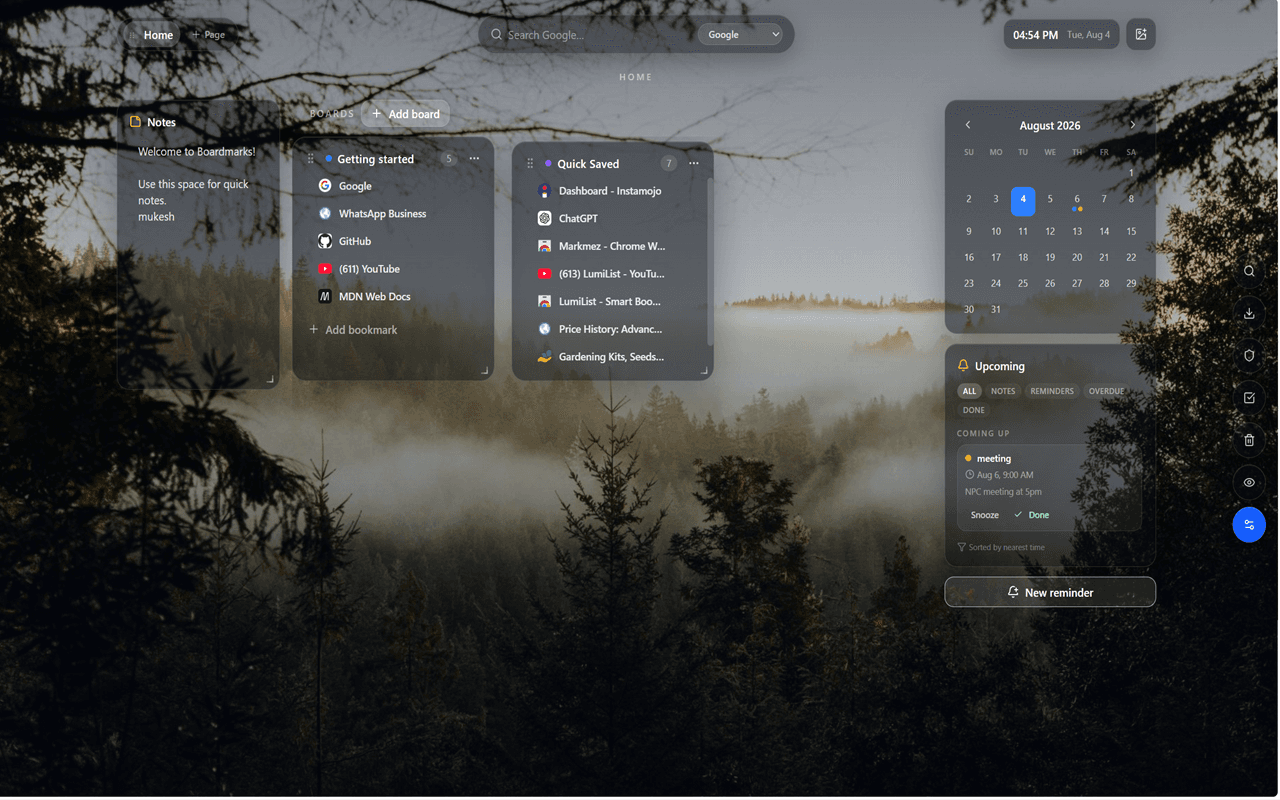
Remote work lives in Chrome. Tabs multiply, bookmarks disappear into nested folders, tasks pile up in a separate app, and notes live somewhere else entirely. Boardmarks fixes that by turning the Chrome New Tab (the page you already open dozens of times a day) into a visual workspace.
Instead of a blank start page, you get visual bookmark boards, Quick Save, save-all-tabs, todos, habits, scratch notes, calendar notes, and reminders. Data stays in Chrome local storage by default, so nothing is shared without your action. For remote workers who spend most of the day in Chrome, Boardmarks can reduce context switching by keeping frequently used links and lightweight work from home productivity tools directly on the New Tab page.
Key features
- Visual Pages and Boards for bookmarks instead of deep nested folders
- One-click Quick Save and save-all-tabs from the toolbar popup
- Todos, habits, notes, and calendar reminders on the same New Tab
- Custom wallpapers, Google Apps launcher, privacy mode
- Local-first Chrome storage with optional cloud backup
Pros
- ✓Replaces five separate tabs (bookmarks, tasks, notes, reminders, habits) with one New Tab
- ✓Zero context-switching: everything is already on the page you open anyway
- ✓Local-first: your data stays on your device by default
Cons
- ✗Designed for Chrome New Tab, not a cross-browser or mobile bookmark archive
- ✗Full feature access requires Pro after the 7-day trial
Verdict: Boardmarks is particularly useful if browser clutter is one of your main productivity problems and you want bookmarks, tasks, notes, habits, and reminders accessible from the same Chrome workspace.
2. Superhuman: Best for Remote Workers Who Live in Email
Price: From $30/month · Best for: processing a full inbox in half the usual time
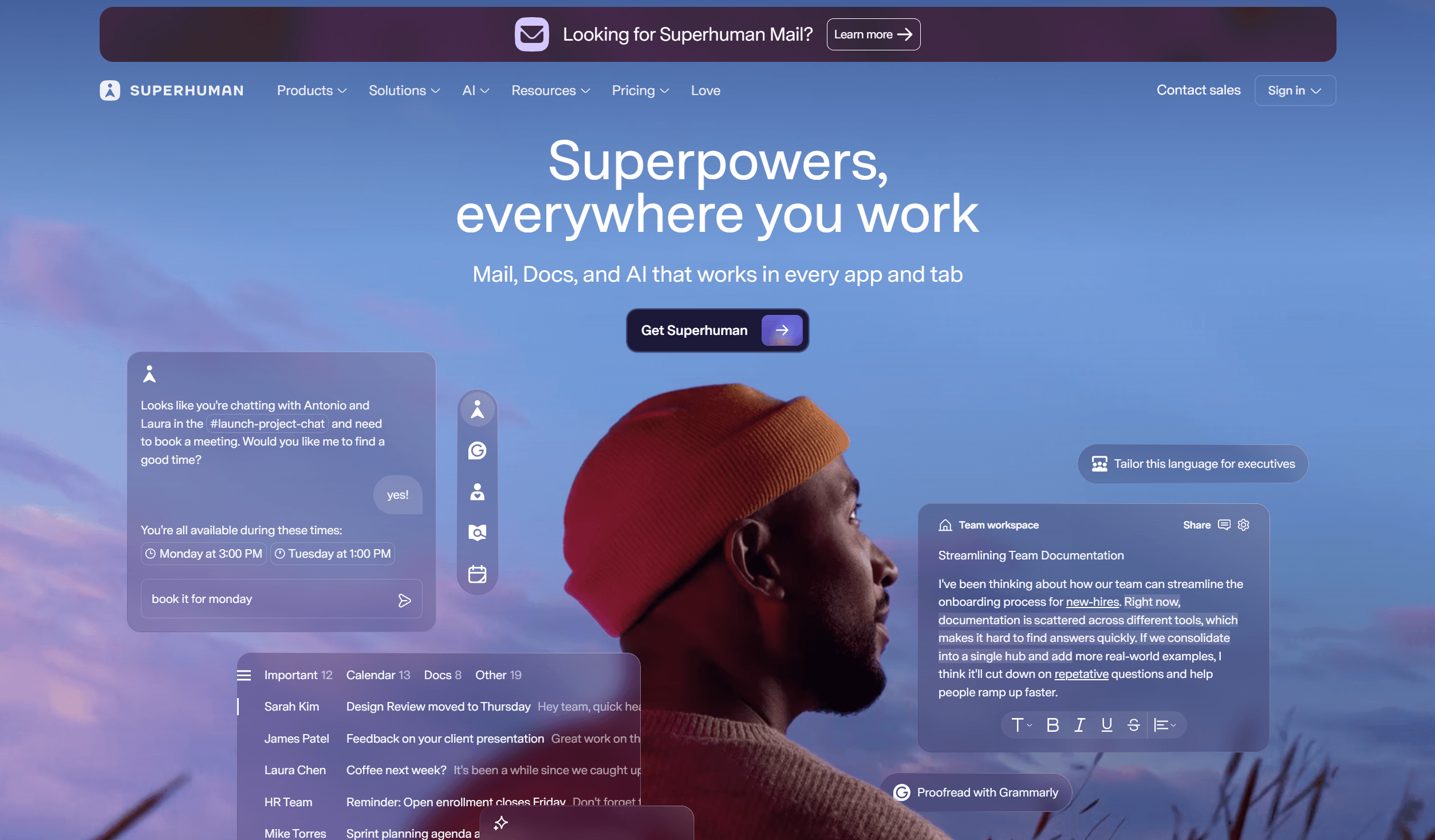
Remote work made email worse. Async teams send more messages, fewer decisions happen in person, and a shared office that once filtered noise now exists only in your inbox. Superhuman is built for people who need to process 100+ emails a day without drowning.
Everything is keyboard-first. AI summaries surface the key information from long threads before you read them. The result is an email experience that feels significantly faster than any standard client, which makes it one of the most impactful work from home productivity tools for communication-heavy roles.
Key features
- Complete keyboard shortcut system. You rarely need the mouse
- AI email summaries for long threads
- Split Inbox for separating signal from noise
- Read status and follow-up reminders
- Fast search across the full archive
Pros
- ✓Dramatically reduces time spent in email each day
- ✓AI features summarize threads before you open them
- ✓Keyboard shortcuts become muscle memory quickly
Cons
- ✗$30/month is a real commitment for individual remote workers
- ✗Only supports Gmail and Outlook accounts
Verdict: If email is your biggest daily time sink and you process a heavy inbox, Superhuman pays for itself. If you only check email occasionally, a free client is enough.
3. Fireflies.ai: Best for Automatic Meeting Notes and Transcription
Price: Free tier; paid plans from $10/month · Best for: searchable transcripts and AI summaries of every meeting
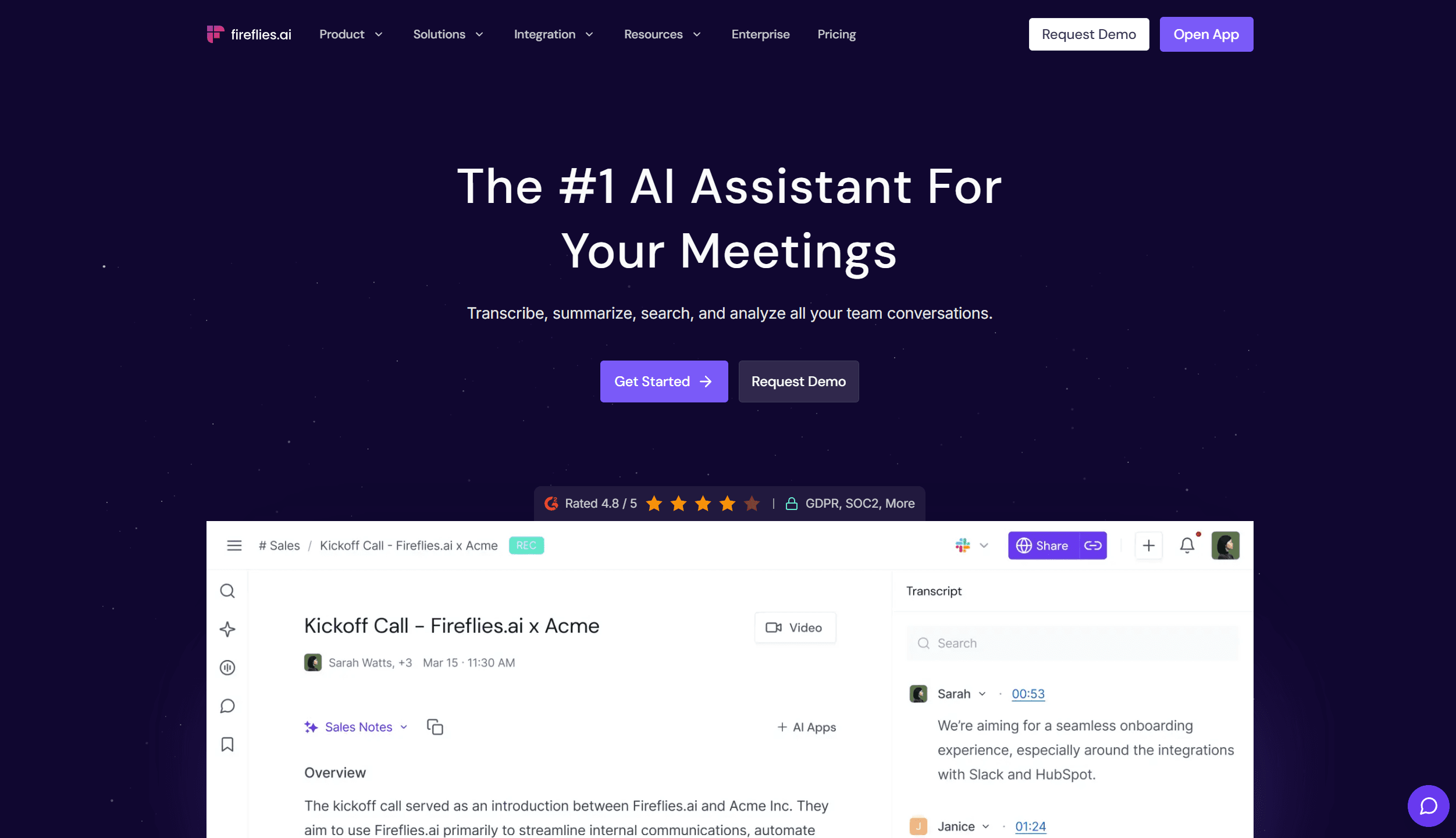
Remote meetings leave no paper trail by default. Notes get forgotten, decisions get re-litigated, and follow-ups fall through gaps. Fireflies.ai can automatically capture and transcribe supported meetings, then produce a searchable transcript, an AI-generated summary, and extracted action items after the call.
It works with Google Meet, Zoom, and Microsoft Teams, and how it joins a meeting can depend on your account setup. For remote workers in back-to-back calls, it is one of the highest-value work from home productivity tools because it reduces the mental load of taking notes while also trying to participate.
Key features
- Automatic transcription for Zoom, Google Meet, and Microsoft Teams
- AI meeting summaries and action item extraction
- Searchable meeting library across all past calls
- Slack, Notion, and CRM integrations for delivery
- Speaker identification in the transcript
Pros
- ✓Completely hands-free, with no setup required per meeting
- ✓Searchable archive means you can find any decision from any past call
- ✓Action items delivered to Slack or email after each call
Cons
- ✗Free plan limits monthly transcription minutes
- ✗AI summaries occasionally miss nuance in complex strategic discussions
Verdict: Use Fireflies if you are in more than three video calls per week and currently write notes by hand. The time savings are immediate and stack every day.
4. Obsidian: Best for Building a Remote Work Second Brain
Price: Free for personal use; sync and publish are paid · Best for: linked local notes that connect ideas across projects
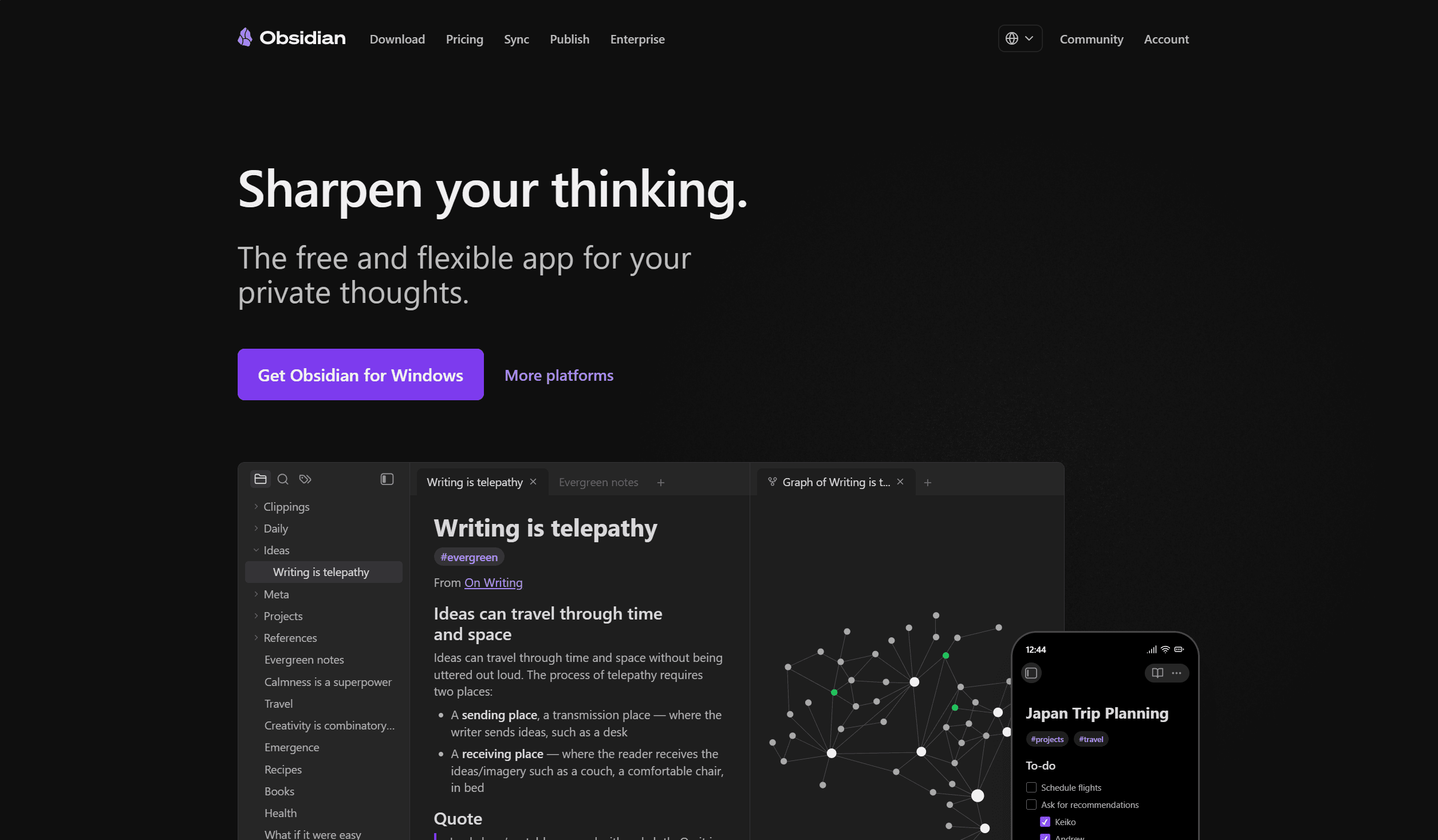
Remote workers accumulate knowledge scattered across email, Slack, docs, and browser tabs. Obsidian gives that knowledge a home: a local, link-based note system that connects ideas the way your brain actually works: by association, not by folder.
Every note can link to every other note. Over time, the graph view reveals unexpected connections between projects, clients, and ideas. Because notes are plain Markdown files stored locally, you own your data completely. No vendor lock-in, no subscription required for the core app. This makes it one of the best work from home productivity tools for knowledge workers who need a reliable private second brain.
Key features
- Bidirectional links between any notes
- Visual graph of your entire knowledge base
- Local Markdown files, with no account required for core use
- Plugin ecosystem with hundreds of community extensions
- Daily notes template for a built-in journaling or log practice
Pros
- ✓Complete data ownership: files stay on your machine
- ✓Free for personal use with no feature limits on core app
- ✓Grows into a permanent knowledge system over months and years
Cons
- ✗Takes time to develop the linking habit before it pays off
- ✗Official sync across devices costs extra (free alternatives exist)
Verdict: Obsidian rewards patience. If you take notes on projects, meetings, research, or ideas, it becomes indispensable after a month. If you want something simpler on day one, start with a basic notes app and move to Obsidian once you need linked knowledge.
5. Sunsama: Best for a Daily Remote Work Planning Ritual
Price: From $20/month · Best for: a guided daily planning session that structures the remote workday
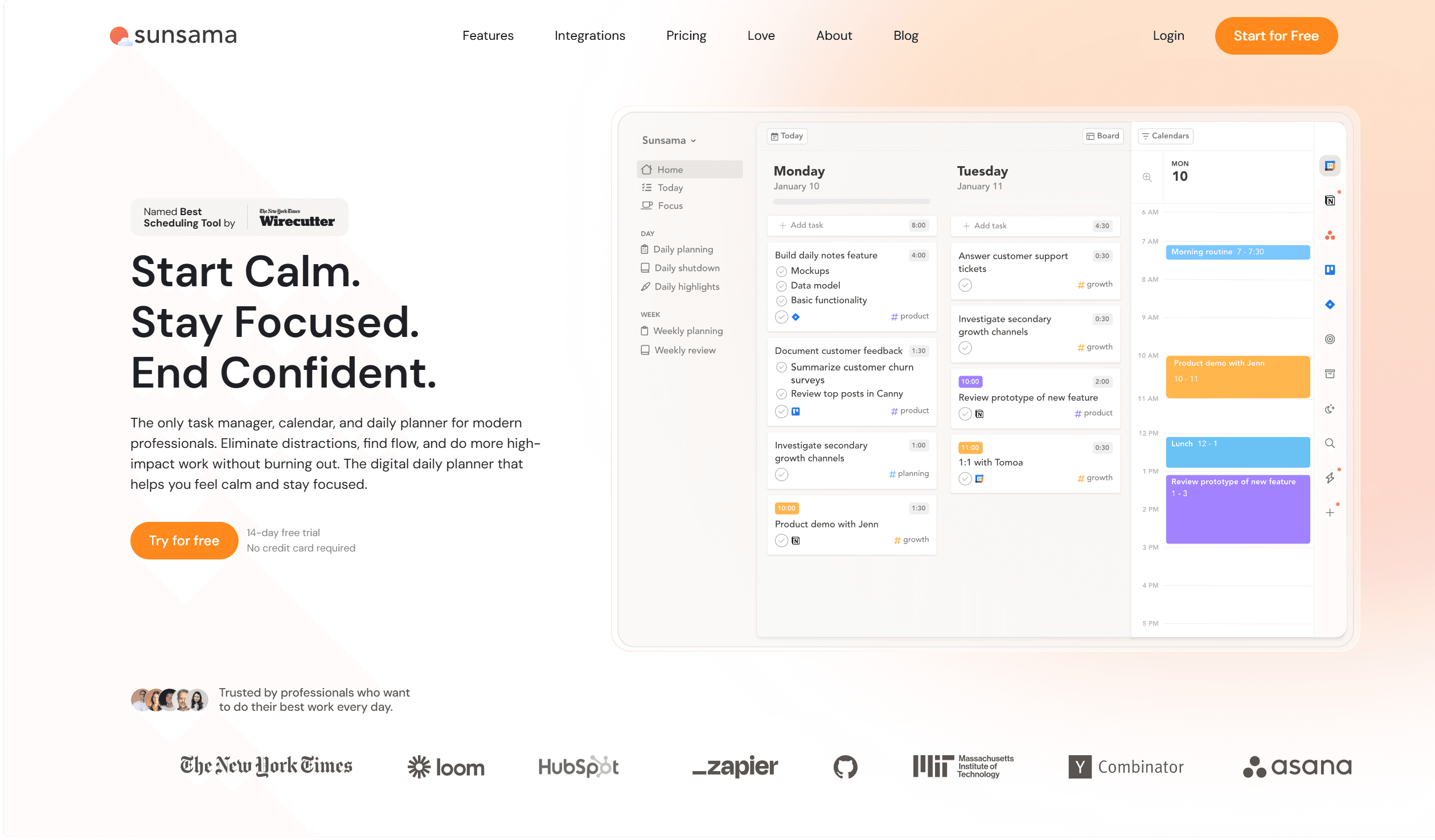
The hardest part of remote work is that there is no office rhythm to follow. Sunsama creates one. Each morning, a guided planning session pulls tasks from GitHub, Asana, Jira, Linear, Todoist, or Gmail and helps you choose what you will actually do today, then time block it.
Evening shutdown reviews close the day with the same structure. Remote workers who use Sunsama report a sharper boundary between work and personal time, which is one of the biggest challenges of working from home. Among work from home productivity tools, few tackle the structural problems of remote work as directly as a daily planning ritual.
Key features
- Guided morning planning that imports tasks from 10+ integrations
- Time-blocking on a daily calendar view
- Evening shutdown ritual with end-of-day review
- Weekly planning view for workload awareness
- Slack status sync during focus blocks
Pros
- ✓Creates the office structure that remote work lacks by default
- ✓Pulls tasks from the tools your team already uses
- ✓Strong boundary between work hours and personal time
Cons
- ✗At $20/month it is one of the pricier individual productivity tools
- ✗Requires 15-20 minutes of genuine daily commitment to work
Verdict: If you end most days unsure what you actually accomplished, Sunsama is the most direct fix. If you already have a planning system that works, a cheaper task tool is enough.
6. Krisp: Best for Noise-Free Remote Calls
Price: Free plan; Pro from $8/month · Best for: removing background noise and room echo on every call
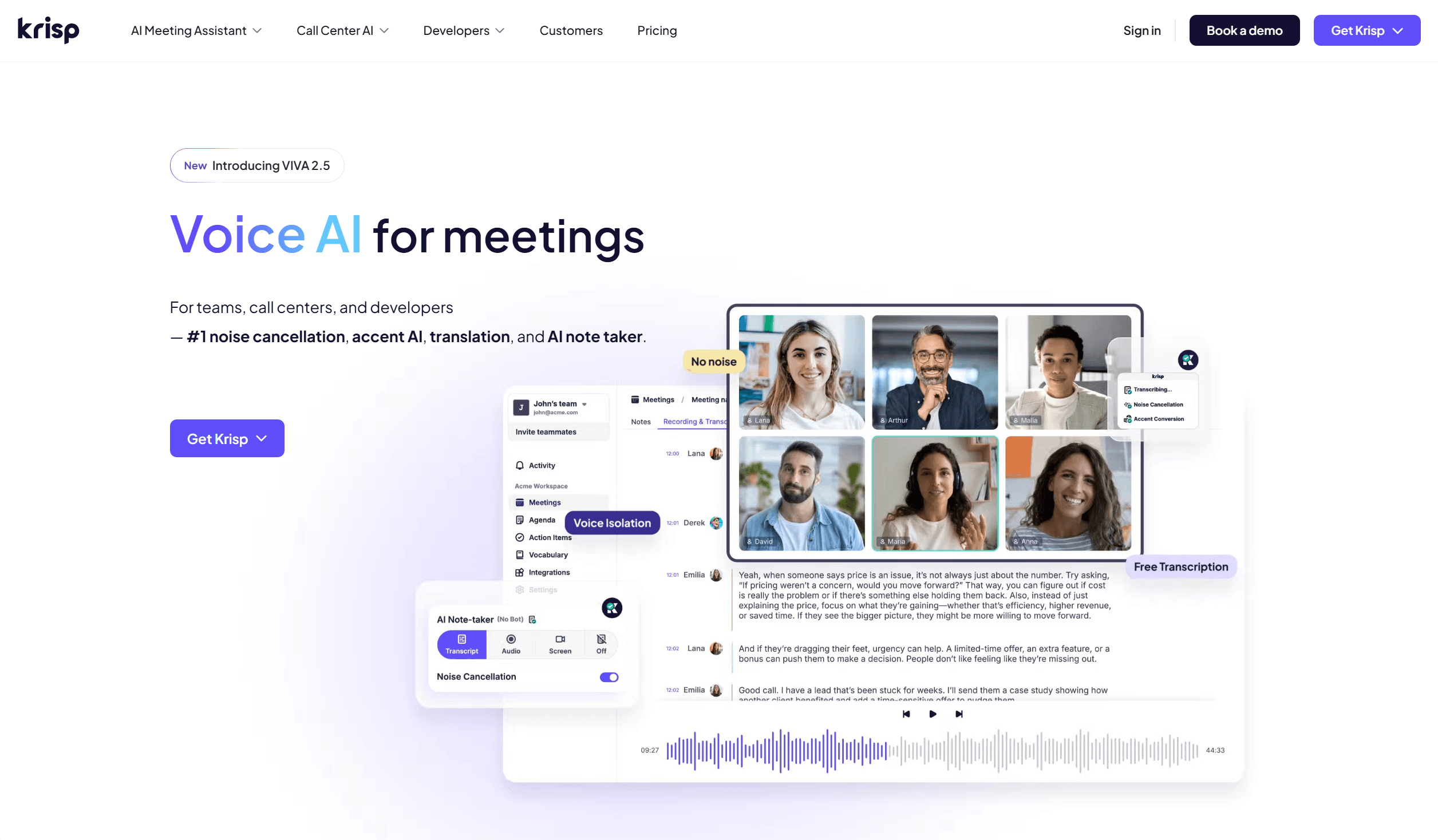
Home offices come with neighbors, dogs, construction, children, and kitchen sounds. Krisp runs as a virtual microphone and speaker on your computer, stripping background noise and room echo in real time before any call app picks it up.
It works with every call platform (Google Meet, Zoom, Microsoft Teams, Slack, Discord) because it operates at the system audio level, not as a plugin to any specific app. For remote workers on multiple calls per day, having professional call quality regardless of where you are is a real work from home productivity advantage. It also removes noise on the other end, so you hear teammates more clearly.
Key features
- AI noise cancellation on both mic and speaker
- Room echo removal without specialized equipment
- Works with every call platform at the system level
- Background voice removal (blocks nearby conversations)
- Meeting transcription and notes on paid plans
Pros
- ✓Works across every call app without per-app setup
- ✓Meaningfully improves call quality from noisy home environments
- ✓Free plan covers occasional callers at 60 minutes/day
Cons
- ✗Paid plan required for heavy call schedules beyond 60 minutes/day
- ✗Desktop only, with no browser extension or mobile app
Verdict: If background noise is embarrassing your calls or distracting you from hearing teammates, Krisp is the most direct fix with the least setup effort.
7. Miro: Best for Async Visual Collaboration
Price: Free plan (3 boards); paid plans from $8/user/month · Best for: visual brainstorming, workshops, and project planning across time zones

The whiteboard was an underrated office tool. Remote teams lost it. Miro replaces it with an infinite digital canvas that works synchronously in workshops or asynchronously across time zones.
Teams use Miro for product roadmaps, sprint planning, user story mapping, brainstorming, and design feedback: any thinking that benefits from visual space rather than a linear document. Compared to a shared doc or slide deck, Miro captures the spatial relationships between ideas that make complex planning easier to communicate. It is one of the most versatile work from home productivity tools for distributed teams that plan together.
Key features
- Infinite canvas with real-time and async collaboration
- 100+ templates for standups, retrospectives, roadmaps, and brainstorming
- Sticky notes, diagrams, frames, and embedded media
- Timer, voting, and facilitation tools for virtual workshops
- Integrations with Jira, Figma, Slack, and Google Workspace
Pros
- ✓Works both live in workshops and async over days or weeks
- ✓Reduces the need for back-and-forth explanations in long documents
- ✓Free plan covers individual users and small teams with 3 boards
Cons
- ✗Three-board limit on the free plan becomes a constraint for active teams
- ✗Large complex boards can feel overwhelming to first-time participants
Verdict: Use Miro when your team regularly plans, brainstorms, or reviews work visually. If your collaboration happens entirely through documents and Slack, a simpler tool may serve you first.
8. Zapier: Best for Automating Remote Work Repetition
Price: Free plan (100 tasks/month); paid from $19.99/month · Best for: connecting apps and automating repetitive cross-tool handoffs
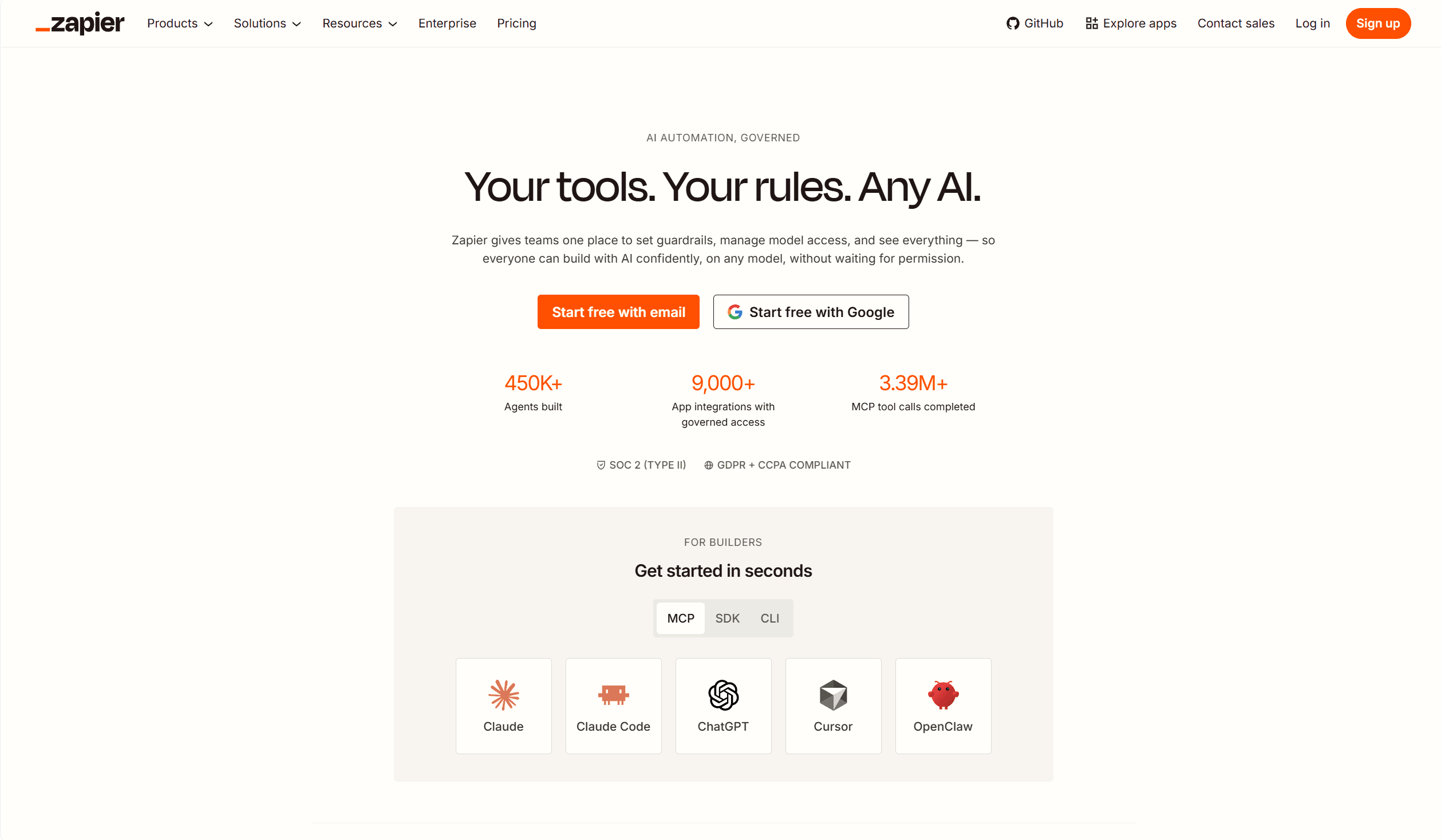
Remote work creates more manual handoffs between tools. A form submission needs to create a Slack message. A new Airtable row needs to trigger a Gmail draft. A Calendly booking needs to update a spreadsheet. Zapier automates all of these without code.
A Zap is a trigger-and-action pair between two apps. Once it runs, the repetitive task disappears from your day permanently. For remote workers juggling many disconnected SaaS tools, Zapier is one of the highest-leverage work from home productivity tools because each automation runs on its own after you set it once.
Key features
- 6,000+ app integrations including Gmail, Slack, Airtable, and Notion
- Multi-step workflows with filters, delays, and conditional paths
- Templates for common automation patterns (no setup from scratch)
- History log and error alerts for each Zap
- Tables, Interfaces, and Chatbots for richer workflows on paid plans
Pros
- ✓Eliminates permanent recurring manual tasks between apps
- ✓Free plan with 100 tasks/month is enough for simple personal automations
- ✓No-code: most remote workers can build useful Zaps without IT help
Cons
- ✗Multi-step Zaps and premium app connections require a paid plan
- ✗Debugging failed Zaps requires reading the task history carefully
Verdict: Build one Zap for the most annoying repetitive task you do between apps this week. If it works, you will never do that task manually again. That is the best demonstration of what Zapier is worth.
9. 1Password: Best Password Manager for Remote Teams
Price: From $2.99/month personal; $7.99/user/month teams · Best for: secure password management and shared credential access for distributed teams
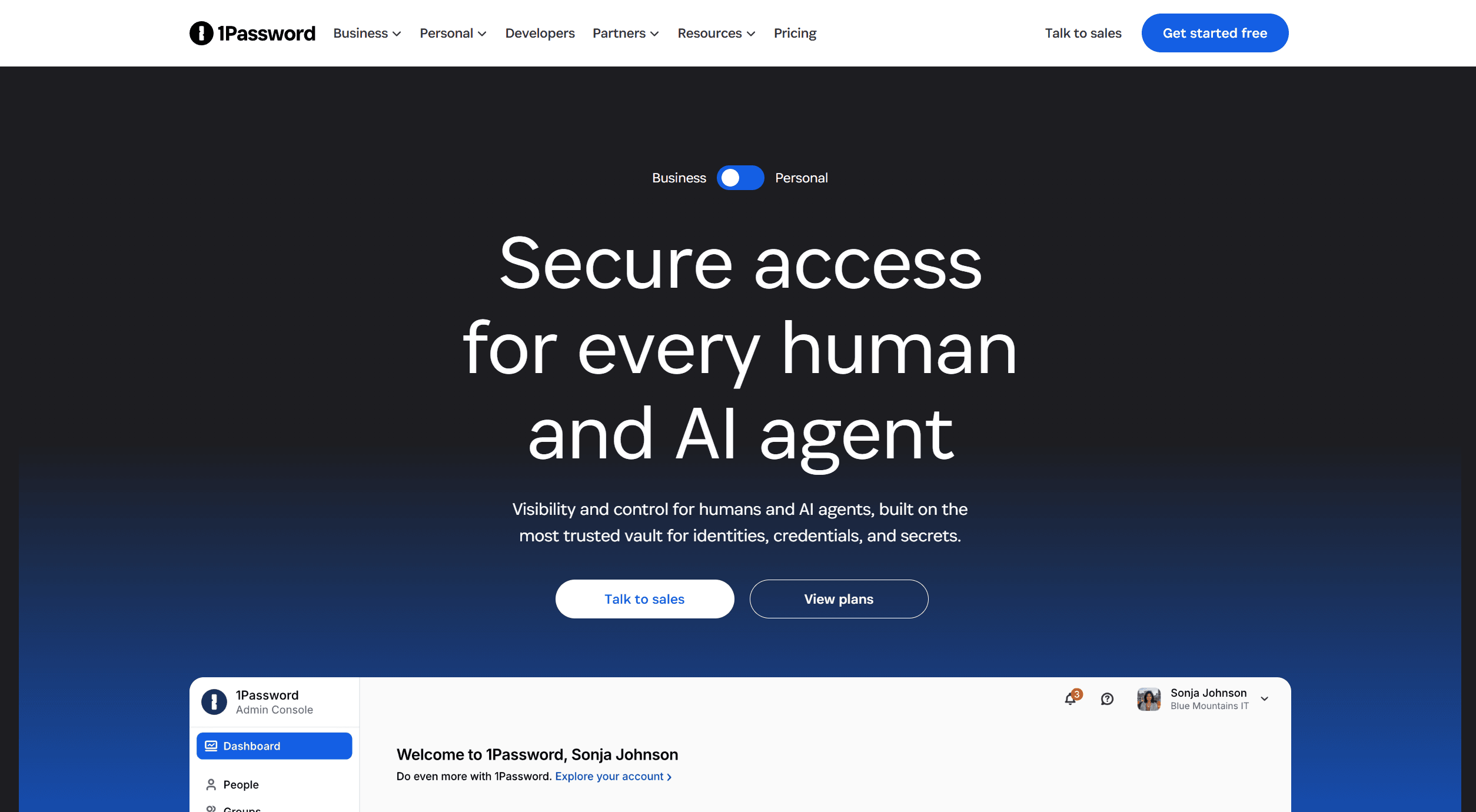
Remote workers access dozens of SaaS tools. Password reuse is the fastest path to a security incident that disrupts an entire distributed team. 1Password manages every credential, generates strong unique passwords, and fills them in one click in the browser.
The Teams plan adds secure shared vaults, so everyone in the team accesses the shared marketing account, dev tools, or client credentials without anyone needing to know the actual password. For remote teams where IT is not in the next room, 1Password is a foundational work from home security tool that doubles as a productivity tool by eliminating password reset interruptions.
Key features
- Browser extension for one-click autofill on every site
- Strong password generation with length and complexity controls
- Secure shared vaults for team credentials
- Passkey support for passwordless logins
- Travel Mode to hide sensitive vaults at borders
Pros
- ✓Eliminates the time lost to forgotten and reset passwords
- ✓Team vaults mean shared accounts are always accessible without sharing raw passwords
- ✓Polished and reliable across all platforms and browsers
Cons
- ✗No permanent free tier. You need a subscription from day one
- ✗Migrating from another password manager takes an afternoon
Verdict: A password manager is not optional for remote workers with access to company systems. 1Password is the most polished option for individuals and the most practical for small remote teams.
10. Toggl Track: Best for Honest Time Awareness When Working From Home
Price: Free plan; Starter from $9/user/month · Best for: one-click time tracking across projects to find where hours actually go
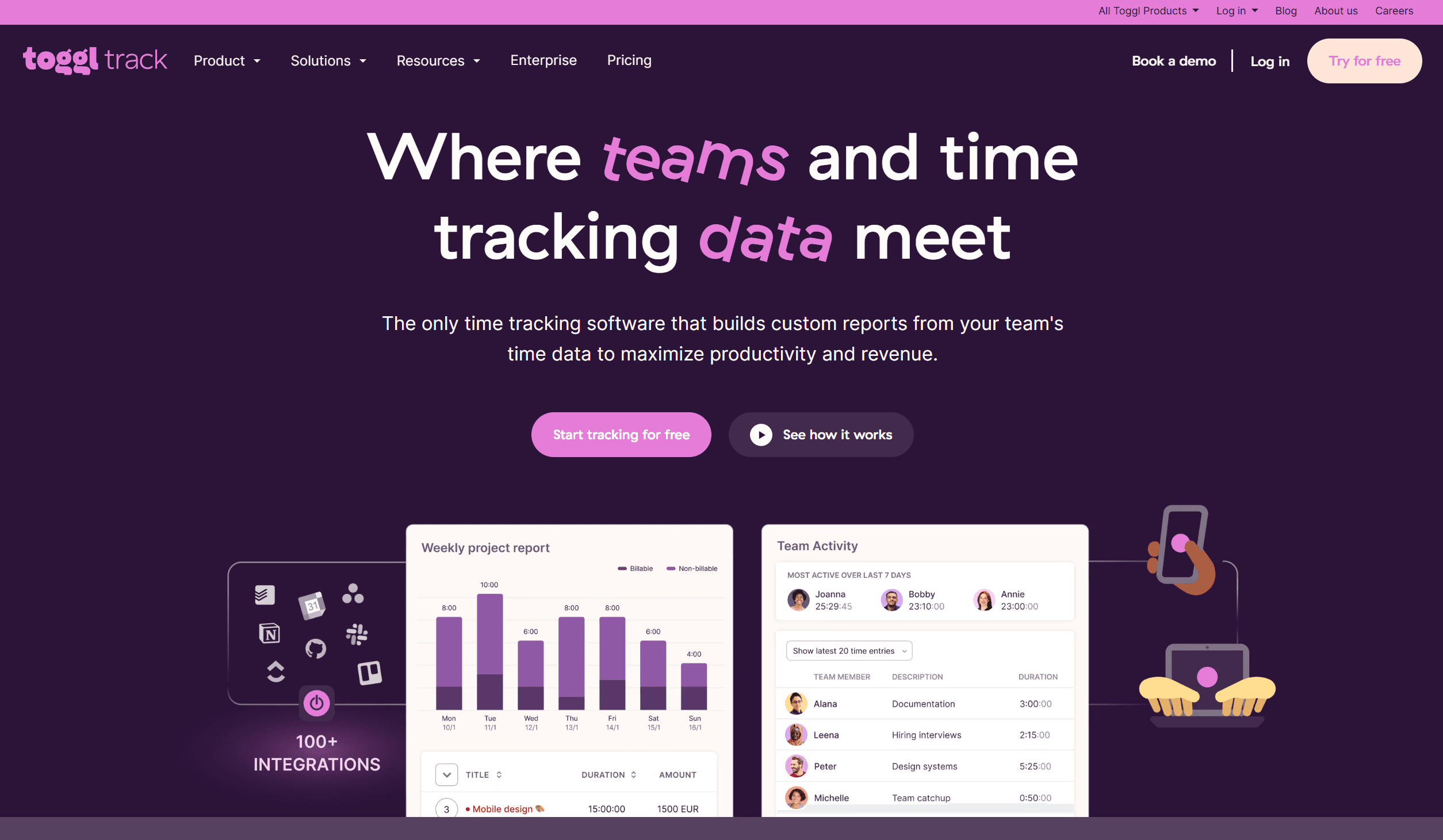
Working from home blurs the line between working hard and working long. Toggl Track puts a timer on every task so you can see the difference. Start a timer when you begin a task, tag it with a project, stop it when you switch. At the end of the week, a report tells you exactly where your hours went.
For freelancers, accurate timesheets mean accurate invoices. For salaried remote workers, time data reveals which projects or meetings are absorbing the most time, which is essential for protecting deep work blocks. Among work from home productivity tools, Toggl Track is the simplest way to replace guesswork about your time with real data.
Key features
- One-click timer from the Chrome extension, desktop app, or web
- Project and client tags for categorized reports
- Weekly and monthly reports showing time by project or activity
- Idle detection to handle forgotten timers
- Free plan with unlimited tracking and basic reporting
Pros
- ✓Free plan covers everything most individual remote workers need
- ✓Works across Chrome extension, desktop, and mobile seamlessly
- ✓Weekly reports make time misalignment impossible to ignore
Cons
- ✗Only useful if you remember to start and stop timers consistently
- ✗Advanced billing and team features require a paid plan
Verdict: Start with Toggl Track free for two weeks. Review the Friday report. If the data surprises you, keep using it. Most remote workers who try it never go back to estimating time.
How to Choose the Right Work From Home Productivity Stack
The most common mistake remote workers make with productivity tools is installing too many at once and using none of them with any consistency. A smaller stack you actually use every day beats a larger one you maintain intermittently.
Start by identifying your single biggest friction point and matching it to one tool:
- Your Chrome browser is chaotic (bookmarks buried, tabs everywhere, no daily plan) → Boardmarks
- Email consumes more than 90 minutes per day → Superhuman
- Meeting notes are incomplete or non-existent → Fireflies.ai
- Your knowledge is scattered across 10 different places → Obsidian
- No structure to the remote workday → Sunsama
- Background noise disrupts every call → Krisp
- Your team struggles with async planning and visual thinking → Miro
- You do the same manual copy-paste between apps every week → Zapier
- Password resets interrupt your workflow → 1Password
- You genuinely do not know where your hours go → Toggl Track
Use that one tool for two weeks before adding another. Each new tool takes attention to build the habit. Give it time to become invisible before you layer on more.
The goal is a stack that runs quietly in the background while you do the actual work, not a set of apps that require their own maintenance. The best work from home productivity tools are the ones you stop noticing because they work.
If Chrome is where your work actually happens (and it is for most remote workers), start with Boardmarks. It is the only tool on this list that improves every new tab you open, not just a dedicated app you have to remember to switch to.
Add Boardmarks to ChromeFrequently Asked Questions
- What are the best work from home productivity tools in 2026?
- The best work from home productivity tools in 2026 cover five areas: a Chrome workspace (Boardmarks), email speed (Superhuman), meeting records (Fireflies.ai), knowledge management (Obsidian), and daily planning (Sunsama). Add noise cancellation (Krisp), async collaboration (Miro), automation (Zapier), password management (1Password), and time tracking (Toggl Track) based on what actually slows you down.
- Do I need to buy every tool on this list?
- No. Start with one tool that fixes your biggest daily pain point. Use it for a week before adding another. Most remote workers get the biggest lift from just two or three tools that match their actual workflow, not a full stack of ten.
- What is the best free work from home productivity tool?
- Strong permanent free options include Obsidian for personal notes, Toggl Track for time tracking, Miro with three free boards, and limited free tiers on Fireflies.ai and Krisp. Boardmarks offers a 7-day free trial with full access, then Pro plans. Start with whichever free or trial option solves the problem you hit most often.
- How do I set up a productive home office without buying expensive software?
- A practical free or low-cost stack is Obsidian for notes, Toggl Track for time awareness, Miro free boards for visual planning, and a free Krisp plan for cleaner calls. Add Boardmarks during its 7-day trial if you want a Chrome New Tab workspace, then decide whether Pro fits your budget. Start with permanent free tiers where you can, and use trials for tools that are not free forever.
- Which productivity tools are best for remote employees?
- Remote employees usually need a shared communication layer, meeting notes, and a personal workspace. Fireflies.ai helps with call transcripts and follow-ups, Krisp improves call quality from home, Miro supports async planning with teammates, and Boardmarks keeps bookmarks, todos, notes, habits, and reminders on the Chrome New Tab you open all day. Add 1Password if you share logins across a distributed team.
- What are the best productivity tools for freelancers working from home?
- Freelancers benefit most from tools that protect billable time and reduce admin. Toggl Track shows where hours go, Superhuman speeds up client email if your inbox is heavy, Obsidian keeps project notes in one place, and Zapier can cut repetitive handoffs between forms, email, and spreadsheets. Boardmarks helps if Chrome clutter is slowing your day, and you can evaluate it with the 7-day trial before paying.
- Can work from home productivity tools replace a physical office?
- They can replicate most of what an office provides: structured communication, shared project visibility, focused work time, and clear task ownership. The tools that matter most depend on your role. Writers need focus and knowledge management. Managers need project tracking and meeting tools. Everyone benefits from a reliable communication and task layer.
- What is the best tool for staying focused while working from home?
- Sunsama is strong for daily planning rituals that eliminate decision fatigue. Krisp removes audio distractions on calls. For deeper focus, Boardmarks keeps your work organized on the browser New Tab so you are not hunting for links mid-task. If social media is the main distraction, a site-blocker extension like StayFocusd works at the browser level.
- Is Boardmarks only for bookmarks or is it a full remote work tool?
- Boardmarks is a Chrome New Tab workspace that combines visual bookmark boards, Quick Save, save-all-tabs, todos, habits, calendar notes, and reminders in one place. For remote workers who live in Chrome, it acts as the daily dashboard that replaces scattered browser tabs, sticky notes, and a separate task app.
- Do these tools work on Windows and Mac?
- Most tools on this list are web-based or cross-platform: Boardmarks (Chrome extension, all OS), Superhuman (web/app), Fireflies.ai (web + integrations), Obsidian (Mac, Windows, Linux, mobile), Sunsama (web/app), Krisp (Mac and Windows desktop), Miro (web/app), Zapier (web), 1Password (all platforms), Toggl Track (web/app/extension). Zapier covers automation on Windows and Mac, so you do not need a Mac-only launcher for that job.
- How do I track time when working from home?
- Toggl Track is the simplest option: one-click timers, project tags, and honest weekly reports. Install the browser extension and start a timer when you switch tasks. Review the weekly report on Fridays to see where your hours actually went. This is more accurate than estimating at the end of the day.
- What is the best tool for remote meeting notes?
- Fireflies.ai can automatically capture and transcribe supported meetings on platforms like Google Meet, Zoom, and Microsoft Teams. After each call you typically get a searchable transcript, AI summary, and action items in your inbox or Slack. How it joins a meeting can depend on your setup, so treat it as a transcription and notes system rather than a no-bot promise.
Final Thoughts
The best remote work setup in 2026 is not the one with the most tools. It is the one with the fewest tools you actually use. Start with your Chrome workspace (Boardmarks), your communication layer (email and meetings), and your knowledge system (notes and planning). Add automation and time tracking once the core is stable.
Each tool on this list removes a specific friction point that slows remote workers down. Find your biggest friction point, solve it, then move to the next. That approach compounds over months into a remote work setup that feels effortless to maintain.
If you want to start with the tool that has the broadest daily impact for the least setup effort, try Boardmarks free for 7 days from the Chrome Web Store. It turns the New Tab you already open dozens of times a day into a workspace that works for you.
Add Boardmarks to ChromeChrome New Tab extension
Organize bookmarks, todos, and habits on every New Tab.
- Visual bookmark boards
- Todos, habits, notes, reminders
- Local-first by default
7-day free trial. No card required.