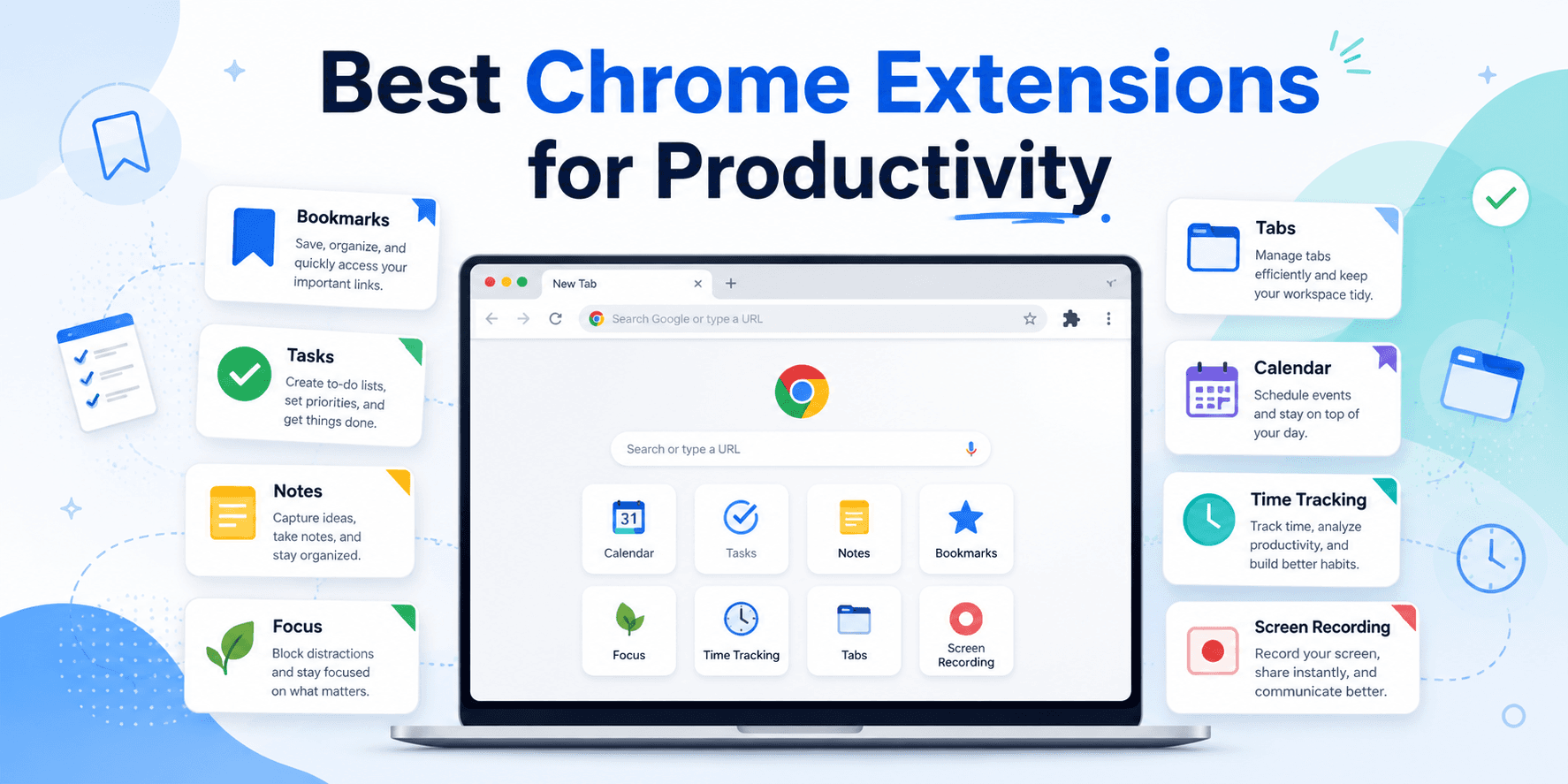
For most people, a practical core is Boardmarks (New Tab workspace), Todoist (tasks), Bitwarden (passwords), Grammarly (writing), OneTab (tabs), and StayFocusd or Momentum (focus). Add Loom, Clockify, Notion Web Clipper, Raindrop, Dark Reader, or Vimium when that specific bottleneck shows up.
Chrome extensions are useful when they remove friction from something you already do every day. The best ones stay quiet until you need them. The worst ones add clutter, slow down the browser, or become another dashboard you forget to open.
This guide focuses on extensions that solve clear browser-workflow problems: organizing bookmarks and daily work, capturing tasks, writing better, managing passwords, tracking time, saving research, controlling tabs, staying focused, and reducing visual noise.
Best Chrome Productivity Extensions at a Glance
| Tool | Best for | Free plan | Main downside |
|---|---|---|---|
| Boardmarks | visual bookmarks, todos, habits, notes, and reminders on every New Tab | Trial | Chrome New Tab–focused (not a multi-browser archive) |
| Todoist | turning pages, emails, and ideas into tasks fast | Yes | Only helps if you maintain a real task review habit |
| Grammarly | grammar, spelling, tone, and clarity checks | Yes | Suggestions can interrupt your writing flow |
| OneTab | collapsing many open tabs into one list | Yes | Not a full project or bookmark workspace |
| StayFocusd | hard limits on distracting websites | Yes | Strict rules can feel harsh if misconfigured |
| Loom | async screen recordings and walkthroughs | Yes | Not a substitute for live meetings when discussion is required |
| Notion Web Clipper | clipping pages into Notion databases and pages | Yes (with Notion) | Best only if you already live in Notion |
| Clockify | simple project-based time tracking | Yes | Requires consistent start/stop discipline |
| Bitwarden | secure password management on a budget | Yes | Less polished than some paid password managers |
| Momentum | a daily focus prompt and calmer New Tab aesthetic | Yes | Lightweight — not a full bookmark or task workspace |
| Raindrop.io | organizing bookmarks and research links across devices | Yes | Separate from your Chrome New Tab workspace |
| Dark Reader | dark mode on sites that do not offer it | Yes | Some sites need tweaks for perfect contrast |
| Vimium | browsing and clicking with keyboard shortcuts | Yes | Learning curve if you are not used to Vim-style keys |
Favorite Chrome Extensions for Productivity: The Short List
If you only install a few favorite Chrome extensions, start with one New Tab workspace, one task capture tool, one password manager, one writing helper, and one focus or tab tool. That gives you the biggest productivity lift without turning Chrome into a cluttered toolbar.
A practical setup is Boardmarks for bookmarks and daily planning on New Tab, Todoist for tasks, Bitwarden for passwords, Grammarly for writing polish, and OneTab or StayFocusd when tabs or distractions are the bottleneck.
Do not install every extension on this list at once. Add the one that fixes your current bottleneck, use it for a week, then decide whether it deserves a permanent spot.
How We Chose These Chrome Productivity Extensions
A good productivity extension should save more time than it costs. That sounds obvious, but many extensions fail that test after the first week.
We prioritized five things:
- Real utility: The extension has to solve a clear daily problem.
- Low overhead: It should not make Chrome feel slower or more cluttered.
- Easy setup: You should get value without spending an hour configuring it.
- Trust and permissions: Broad browser access should have an obvious reason.
- Staying power: The tool should still feel useful after the novelty wears off.
That is also why this list is not only AI tools. AI can help, but the biggest browser productivity wins are often simpler: fewer forgotten tasks, fewer weak passwords, fewer messy tabs, clearer writing, and a New Tab that actually helps you start the day.
1. Boardmarks — Best Chrome Extension for an All-in-One Productivity New Tab
Price: 7-day free trial, then Pro plans · Best for: visual bookmarks, todos, habits, notes, and reminders on every New Tab
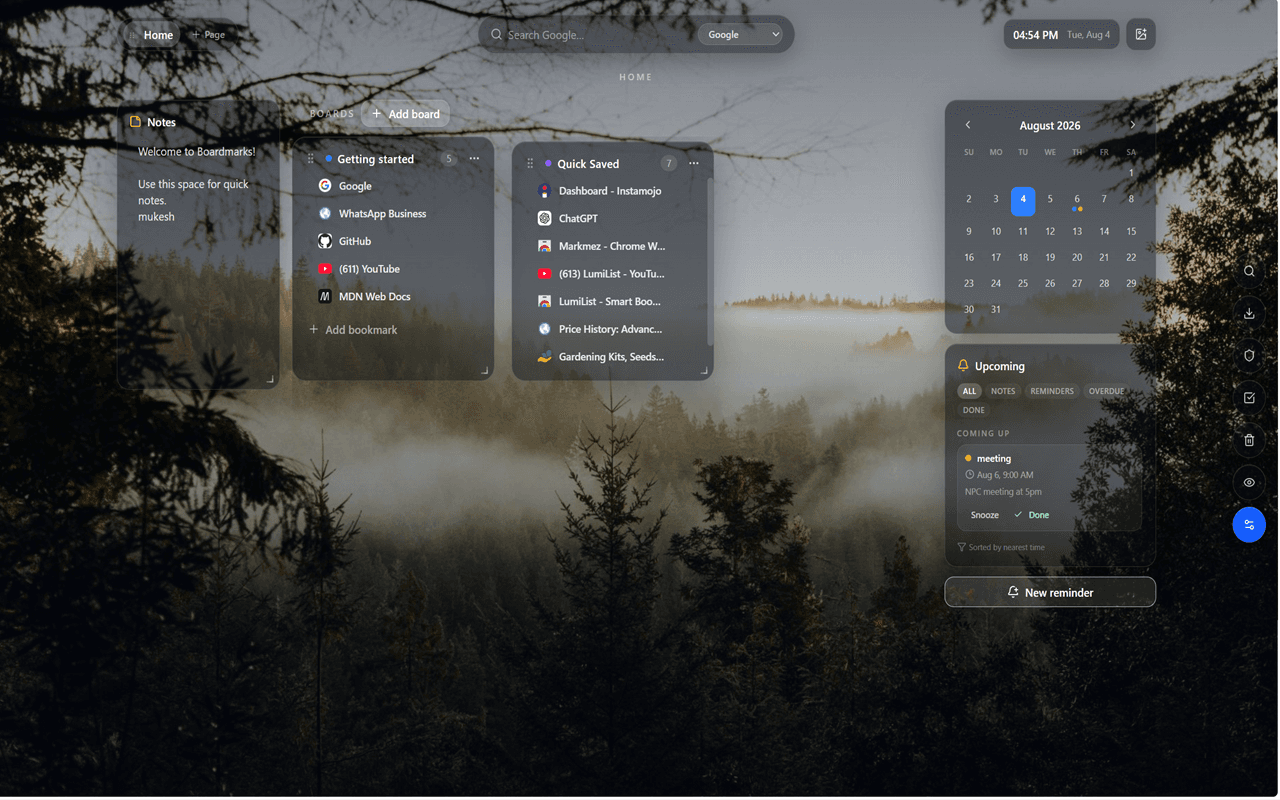
If your biggest productivity problem is jumping between bookmarks, tasks, notes, and reminders all day, Boardmarks puts those tools on the Chrome New Tab you already open dozens of times a day.
Instead of a blank start page, Boardmarks is a visual bookmark manager with boards, Quick Save, save-all-tabs, todos, habits, notes, and reminders in one Manifest V3 workspace. Data stays in Chrome local storage by default.
Visit Boardmarks or explore Boardmarks features.
What works
- Visual Pages and Boards for bookmarks instead of deep folder trees
- Save the current tab or all open tabs from the toolbar popup
- Todos, habits, notes, and reminders on the same New Tab
- Custom wallpapers and optional Google Apps launcher
- Local-first by default with optional Pro licensing
Main downside
Boardmarks is optimized for Chrome New Tab workflows. If you need a cross-platform bookmark archive with native mobile apps, a dedicated library like Raindrop may fit better alongside or instead.
Verdict: Install Boardmarks first if you want bookmarks and daily planning tools visible every time you open a new tab.
2. Todoist — Best Chrome Extension for Task Capture
Price: Free plan; Pro available · Best for: turning pages, emails, and ideas into tasks fast
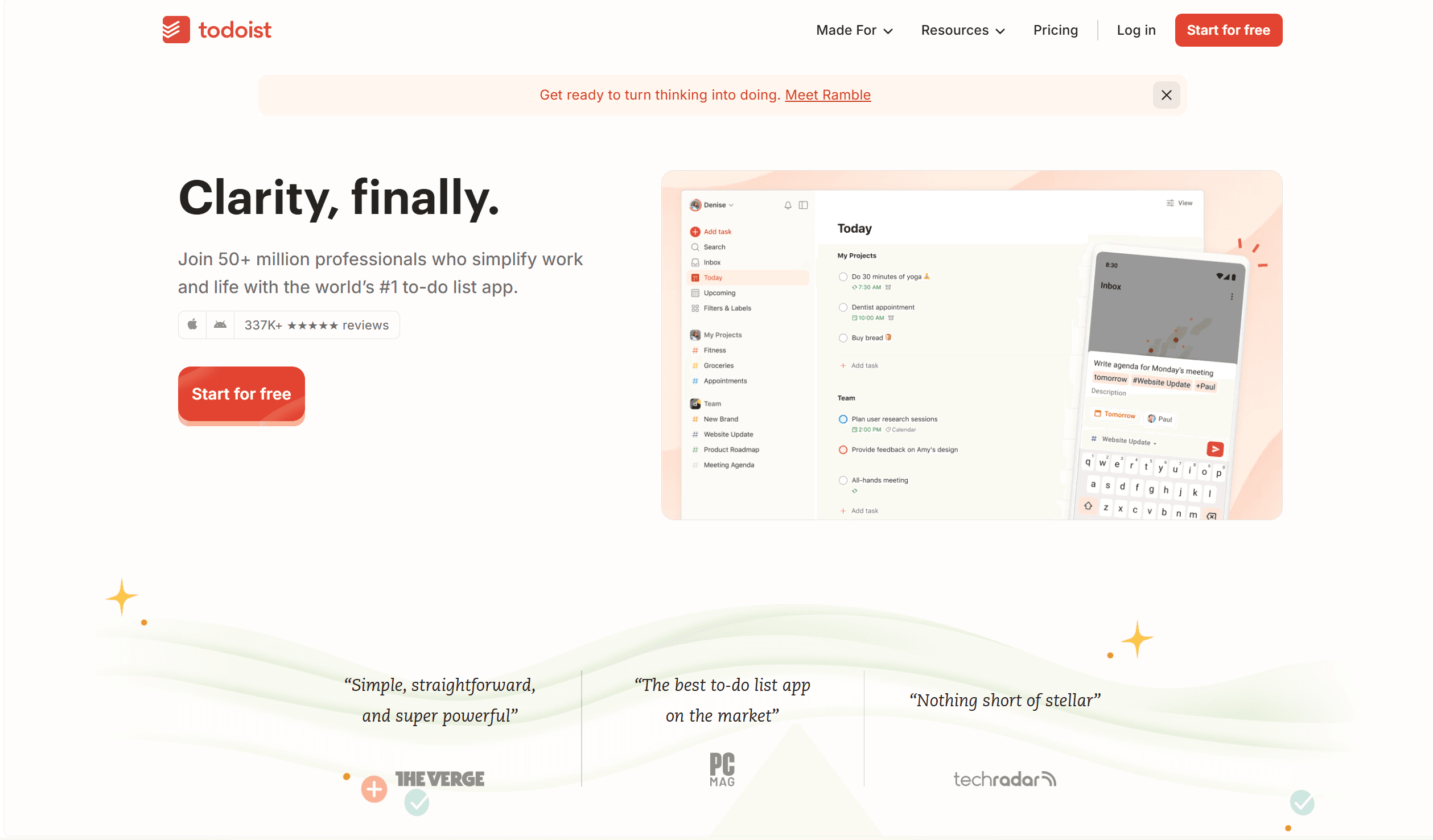
Todoist is one of the easiest ways to capture tasks without leaving the page you are on. The Chrome extension can save the current webpage as a task, add a due date, and put it in the right project.
This is useful when your work creates follow-ups all day: articles to read, invoices to send, bugs to file, or people to reply to.
What works
- Fast task capture from any webpage
- Natural language dates like “tomorrow” or “next Friday”
- Strong apps on desktop and mobile so your list follows you
Main downside
Todoist helps only if you maintain the task system. If you never review your list, it becomes a nicer-looking pile.
Verdict: Use Todoist if your biggest productivity problem is forgetting small follow-ups while you browse.
3. Grammarly — Best Chrome Extension for Better Writing
Price: Free plan; Pro available · Best for: grammar, spelling, tone, and clarity checks
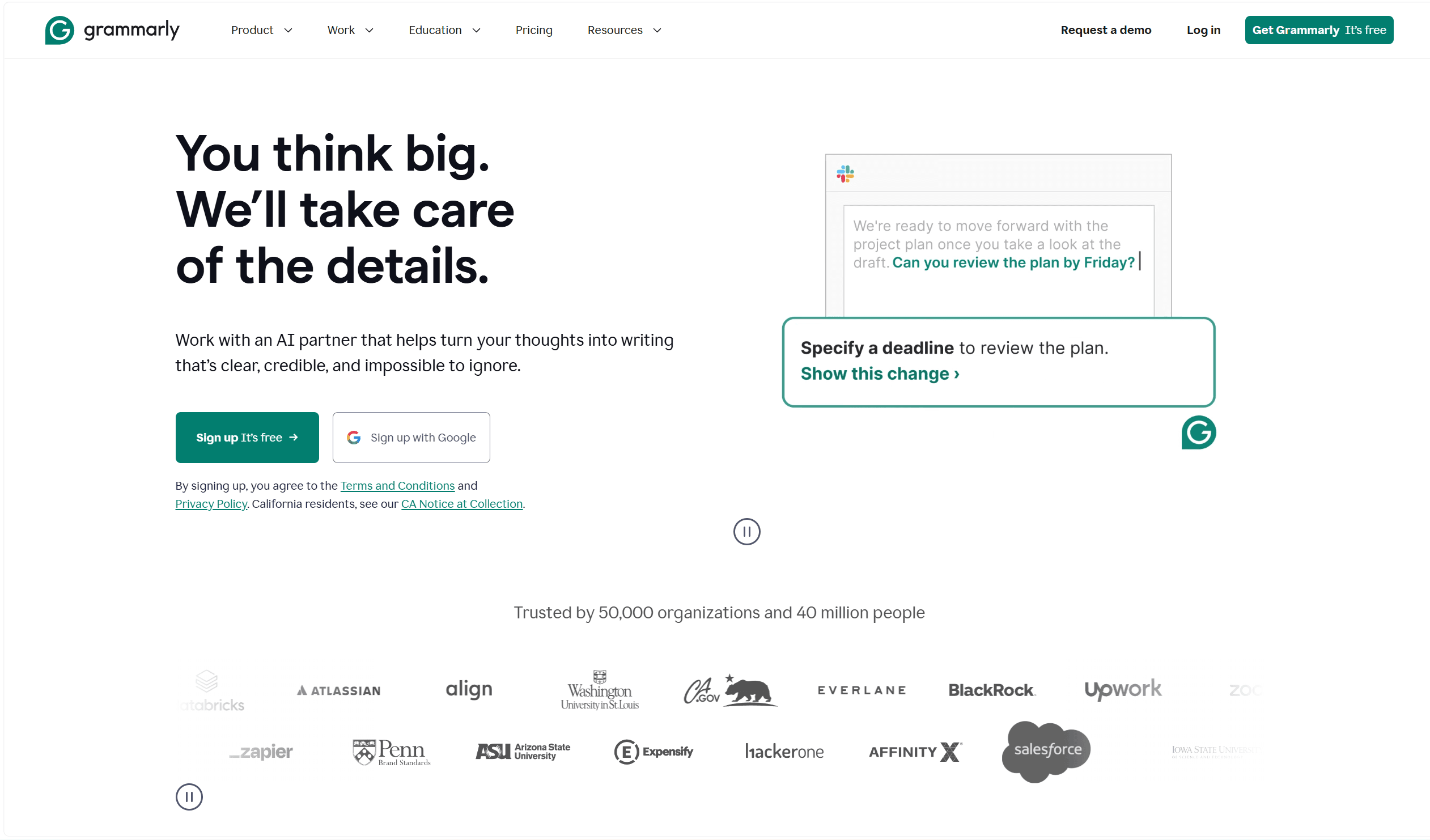
Grammarly works in text fields across Gmail, Google Docs, social posts, forms, and many other websites. It catches spelling and grammar issues as you write, then suggests clearer phrasing when needed.
For people who send a lot of emails or client messages, the value is simple: fewer embarrassing mistakes and less time rereading every sentence.
What works
- Real-time grammar and spelling checks
- Tone and clarity suggestions
- Useful free tier for basic writing cleanup
Main downside
Suggestions can get in the way, and not every rewrite matches your voice. Treat it as an editor, not an auto-pilot.
Verdict: Use Grammarly if your browser work includes emails, docs, proposals, comments, or social posts.
4. OneTab — Best Chrome Extension for Tab Overload
Price: Free · Best for: collapsing many open tabs into one list
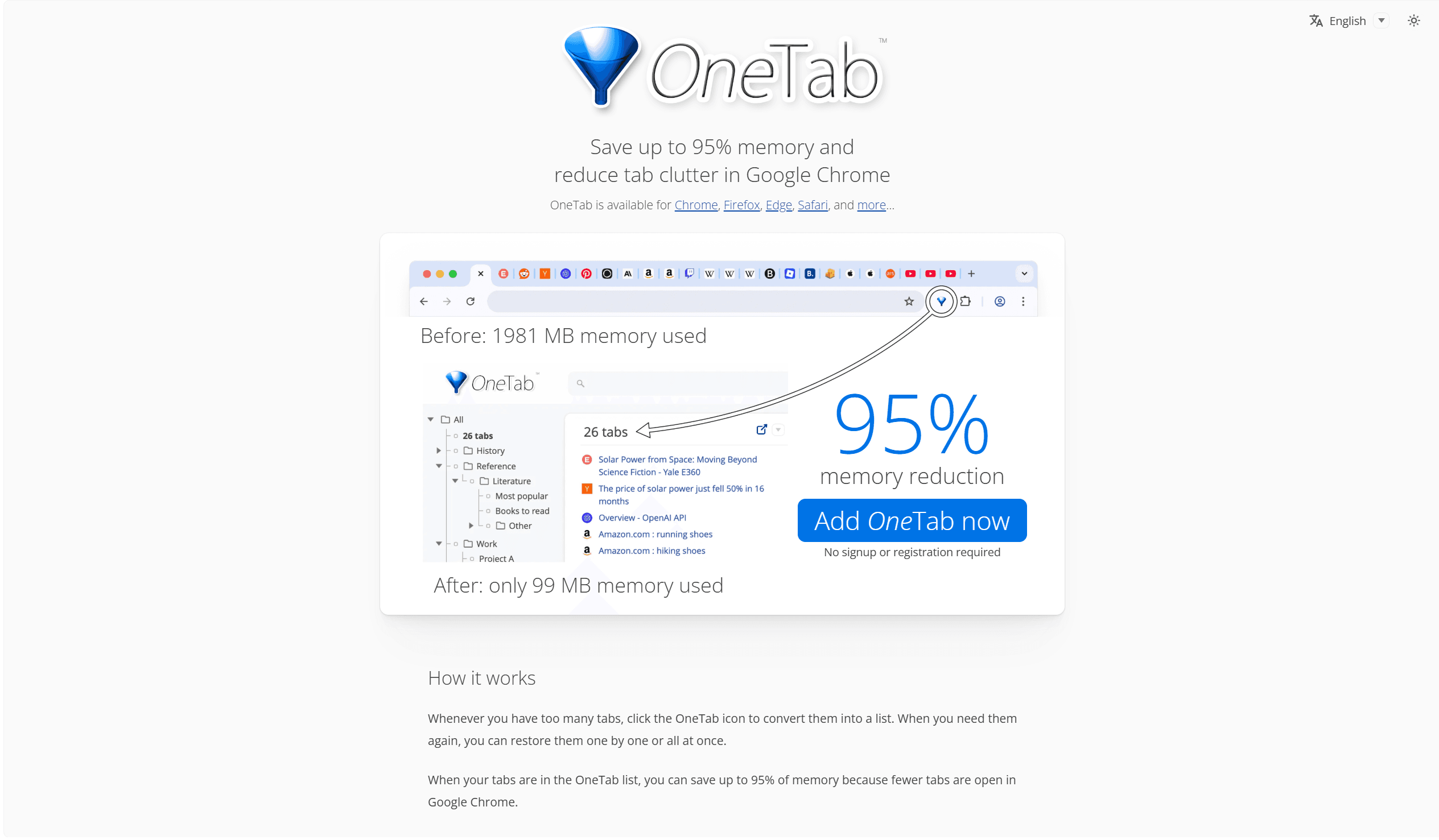
OneTab is simple: click the extension and it turns your open tabs into a saved list. That clears the tab bar and can reduce memory use without making you lose the pages.
It is especially useful when research turns into 40 open tabs and you need a reset without closing everything forever.
What works
- Fast tab cleanup into a single list
- Easy restore of individual tabs or the whole set
- Lightweight and free for basic use
Main downside
OneTab is a tab compressor, not a visual bookmark manager. For ongoing boards next to todos and notes, Boardmarks or Raindrop go further.
Verdict: Use OneTab when you need an instant “close the chaos” button before organizing tabs for the long term.
5. StayFocusd — Best Chrome Extension for Blocking Distractions
Price: Free · Best for: hard limits on distracting websites
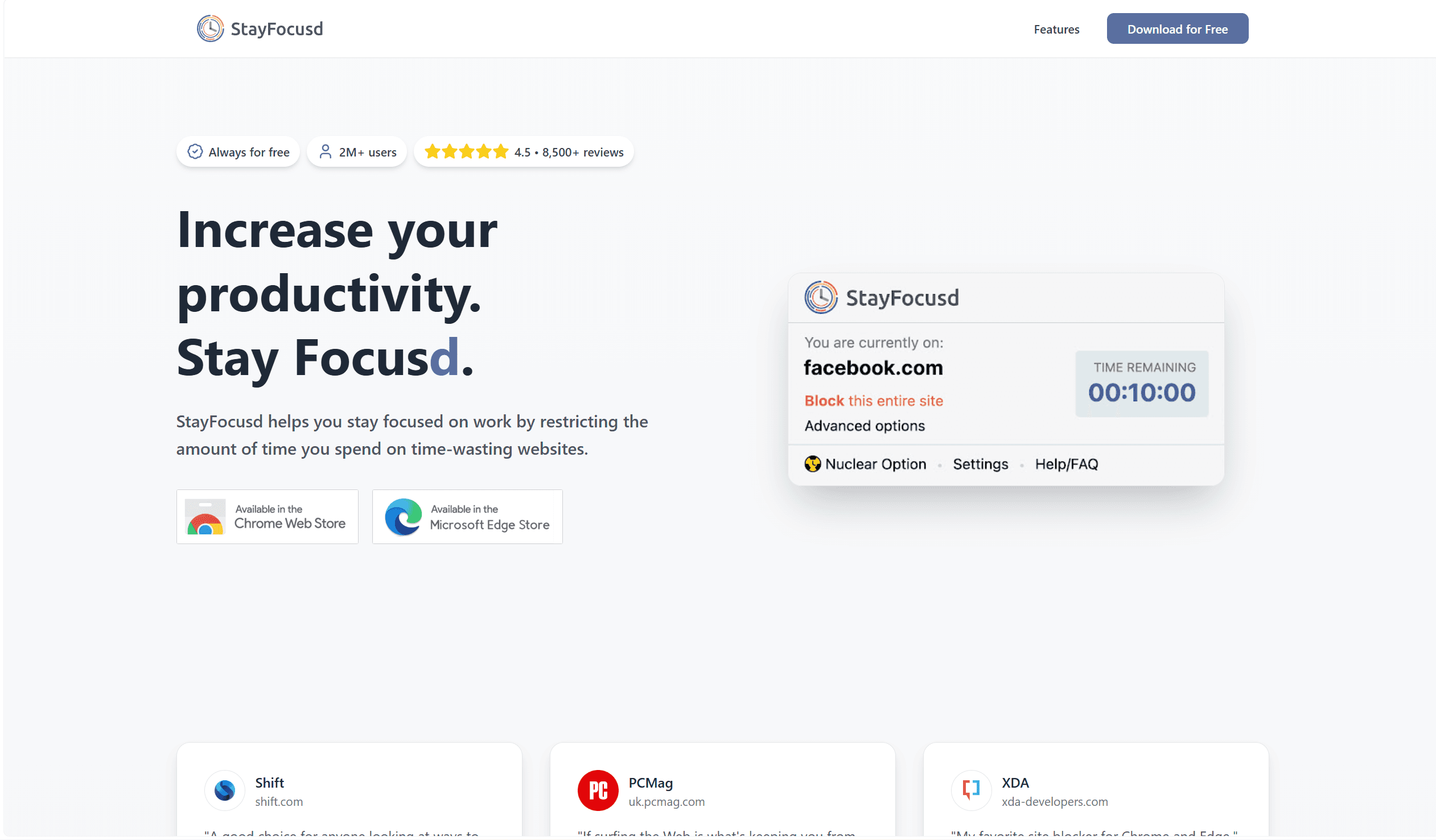
StayFocusd puts time limits on sites that steal your attention — social feeds, news, video rabbit holes — so deep work sessions are harder to derail.
If willpower alone is not enough, a hard block in the browser is often more effective than another to-do list tip.
What works
- Daily time budgets for blocked sites
- Nuclear Option–style hard blocks when you need them
- Simple setup for common distraction domains
Main downside
Overly strict settings can lock you out of sites you occasionally need for work. Start with a short list of true time-wasters.
Verdict: Choose StayFocusd if distraction sites are the main reason your Chrome day goes sideways.
6. Loom — Best Chrome Extension for Quick Screen Recordings
Price: Free plan; paid plans available · Best for: async screen recordings and walkthroughs
Loom lets you record your screen, camera, or both and share a link instead of scheduling another meeting. It is ideal for bug reports, product walkthroughs, and async updates.
The Chrome extension keeps recording one click away while you are already in the browser tab that needs explaining.
What works
- Fast screen + cam recordings from Chrome
- Shareable links instead of large video uploads
- Useful free tier for personal and small-team use
Main downside
Async video does not replace conversation when you need real-time decisions. Use Loom to explain; meet when you need to debate.
Verdict: Add Loom if you repeatedly type long explanations that a two-minute recording would replace.
7. Notion Web Clipper — Best Chrome Extension for Saving Research into Notion
Price: Free with a Notion account · Best for: clipping pages into Notion databases and pages
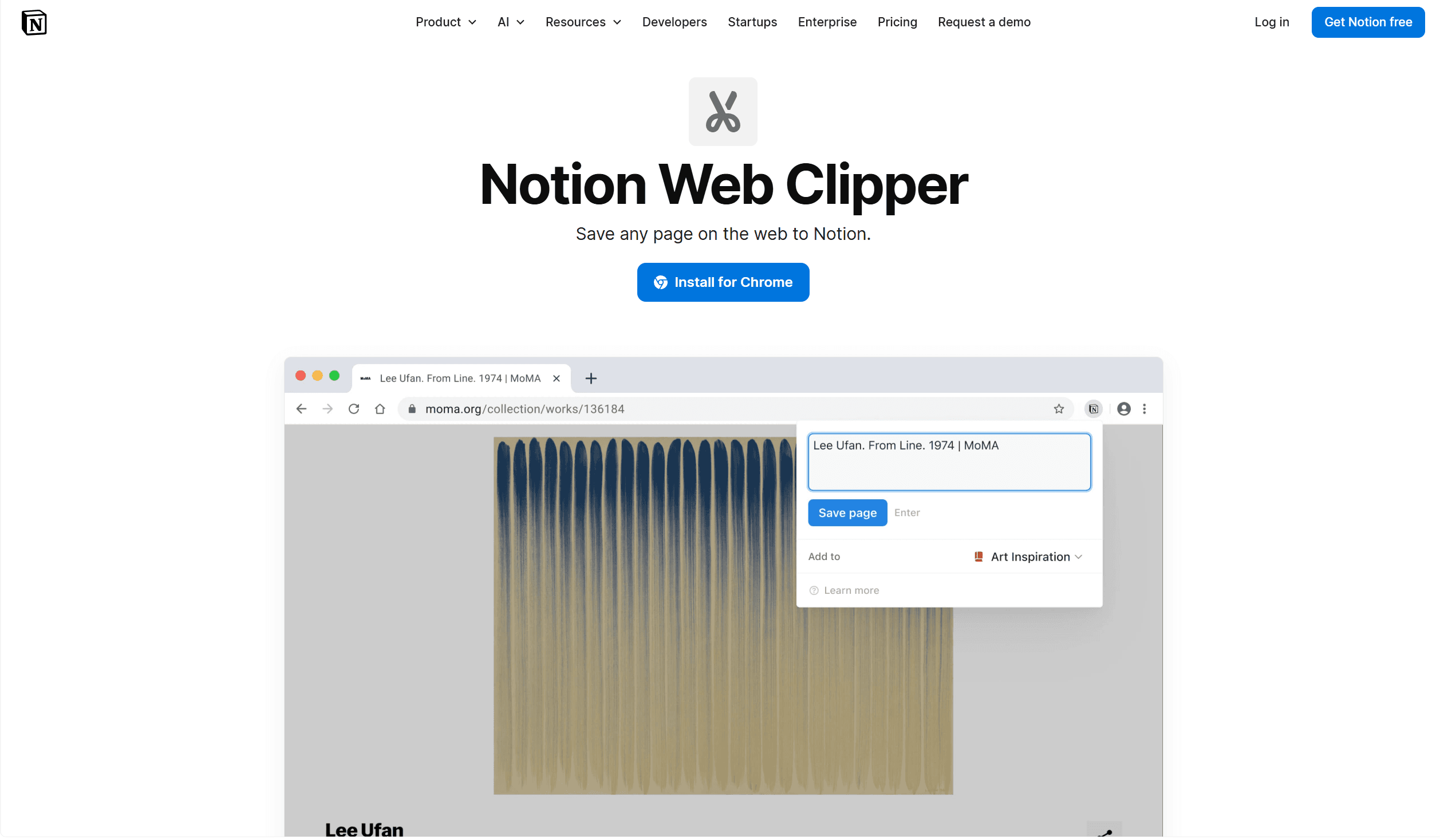
Notion Web Clipper saves the current page into your Notion workspace — useful for research dumps, reading lists, and project references you want inside existing Notion databases.
If Notion is already your second brain, clipping from Chrome beats copy-pasting titles and URLs by hand.
What works
- One-click save into Notion pages or databases
- Keeps research next to notes you already maintain
- Works well for students and knowledge workers on Notion
Main downside
If you do not use Notion daily, the clipper becomes another inbox you ignore. Prefer Boardmarks boards or Raindrop if your archive should live closer to the browser.
Verdict: Use Notion Web Clipper only if Notion is already where you organize research and notes.
8. Clockify — Best Chrome Extension for Time Tracking
Price: Free plan; paid plans available · Best for: simple project-based time tracking
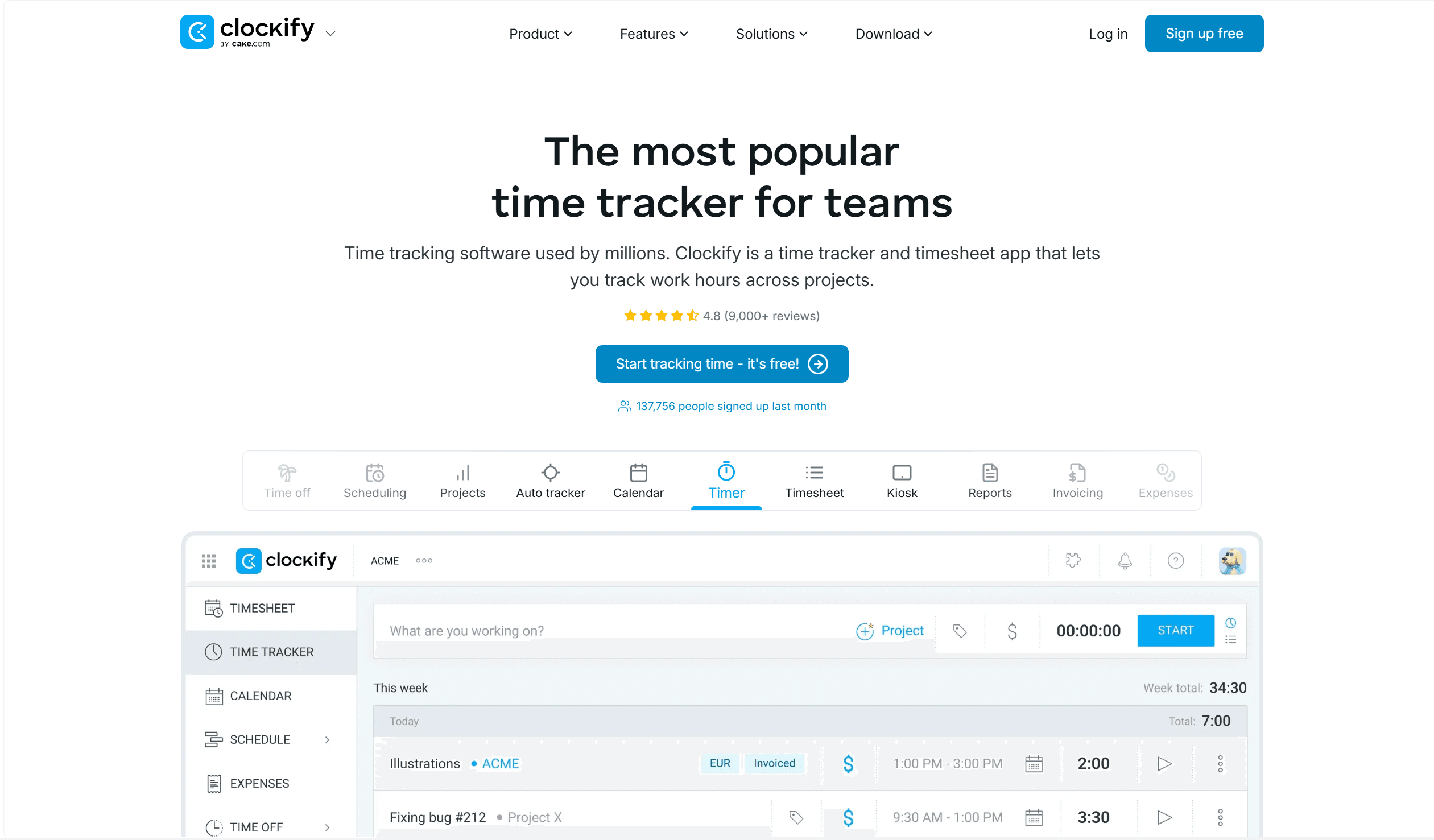
Clockify is a straightforward time tracker with a Chrome extension for starting timers while you work. Freelancers and teams use it to see where hours actually go.
The free plan is enough for many people who need basic project timers without enterprise complexity.
What works
- One-click timers from the browser
- Project and client tagging
- Generous free plan for individuals
Main downside
Timers only help if you remember to start them. Forgotten timers produce useless reports.
Verdict: Pick Clockify if you need honest timesheets or want to find which browser work eats your day.
9. Bitwarden — Best Free Chrome Extension for Passwords
Price: Strong free plan; Premium available · Best for: secure password management on a budget
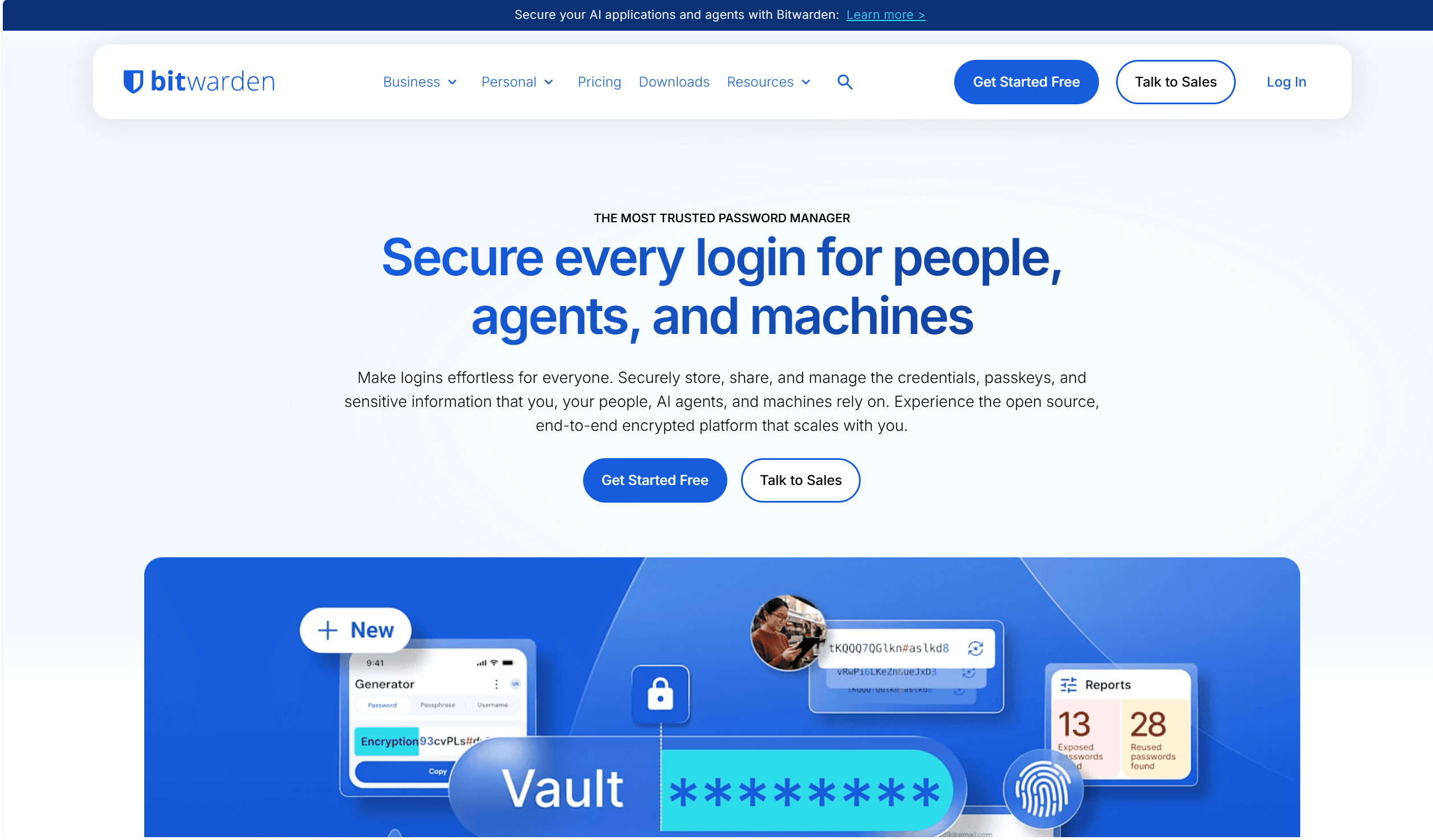
Bitwarden gives most people what they need from a password manager without forcing an expensive plan. The Chrome extension handles password saving, autofill, and generation across your browser.
It is also open source, which many security-conscious users prefer.
What works
- Strong free plan with cross-device sync
- Password generation and vault features
- Open-source foundation many teams trust
Main downside
The UI can feel less guided than premium-only managers. Power users who want maximum polish may still prefer a paid alternative.
Verdict: Choose Bitwarden if you want strong password hygiene without adding another big subscription.
10. Momentum — Best Chrome Extension for a Calmer New Tab Focus Prompt
Price: Free plan; Plus available · Best for: a daily focus prompt and calmer New Tab aesthetic
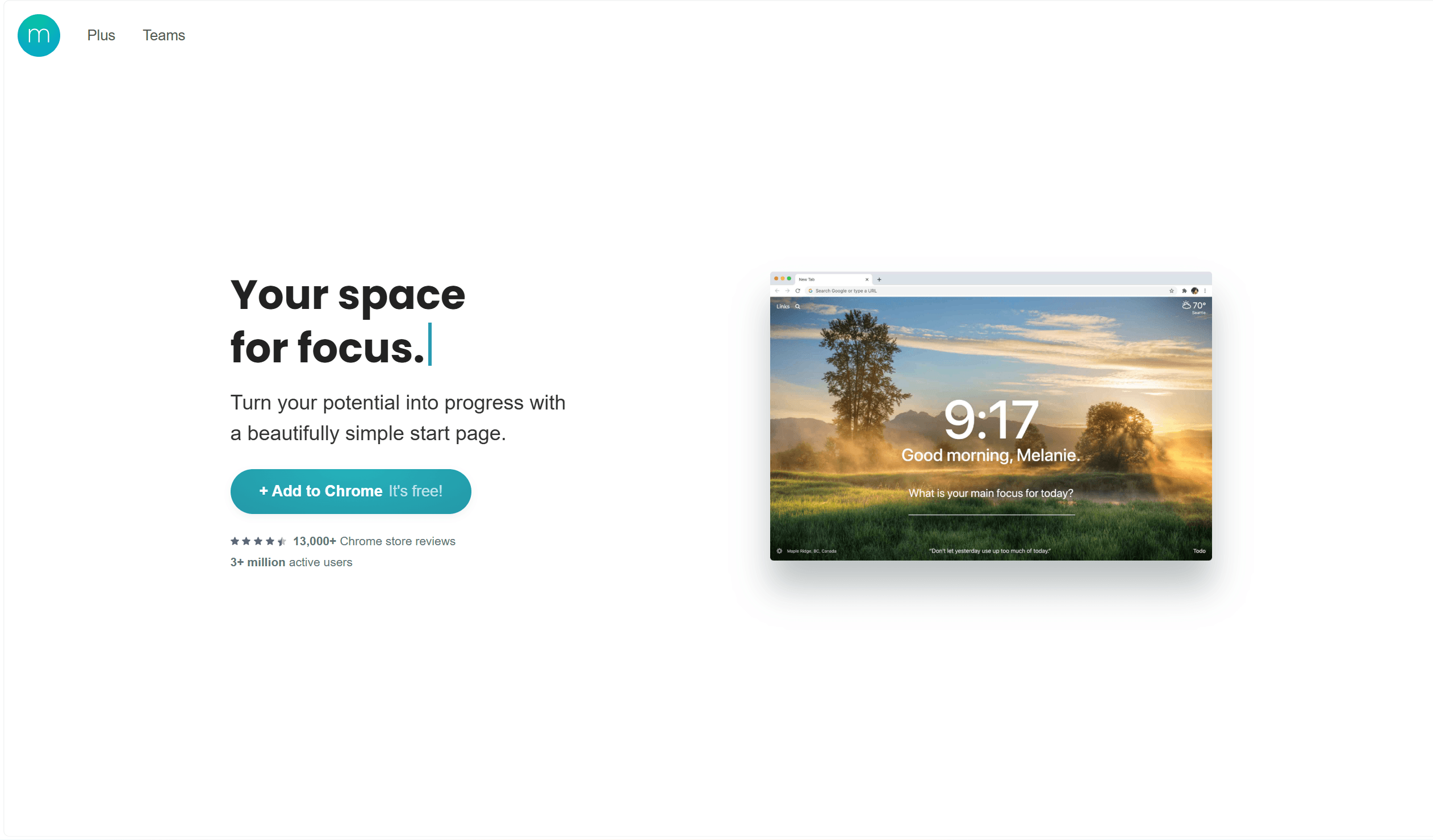
Momentum is a classic New Tab dashboard: a beautiful photo, a greeting, and a single daily focus. It reduces visual noise when you want intention more than a busy toolkit.
Compare with Boardmarks vs Momentum if you need visual bookmark boards and richer productivity tools on the same New Tab.
What works
- Calm New Tab with daily focus
- Simple todos and aesthetic photography
- Good for people who find cluttered dashboards distracting
Main downside
Momentum does not replace a visual bookmark manager. If organizing many Chrome links matters as much as focus, Boardmarks goes deeper on bookmarks and habits.
Verdict: Use Momentum if you want a minimal focus ritual; choose Boardmarks if bookmarks and tasks should live on the New Tab too.
11. Raindrop.io — Best Chrome Extension for Bookmark Libraries
Price: Free plan; Pro available · Best for: organizing bookmarks and research links across devices
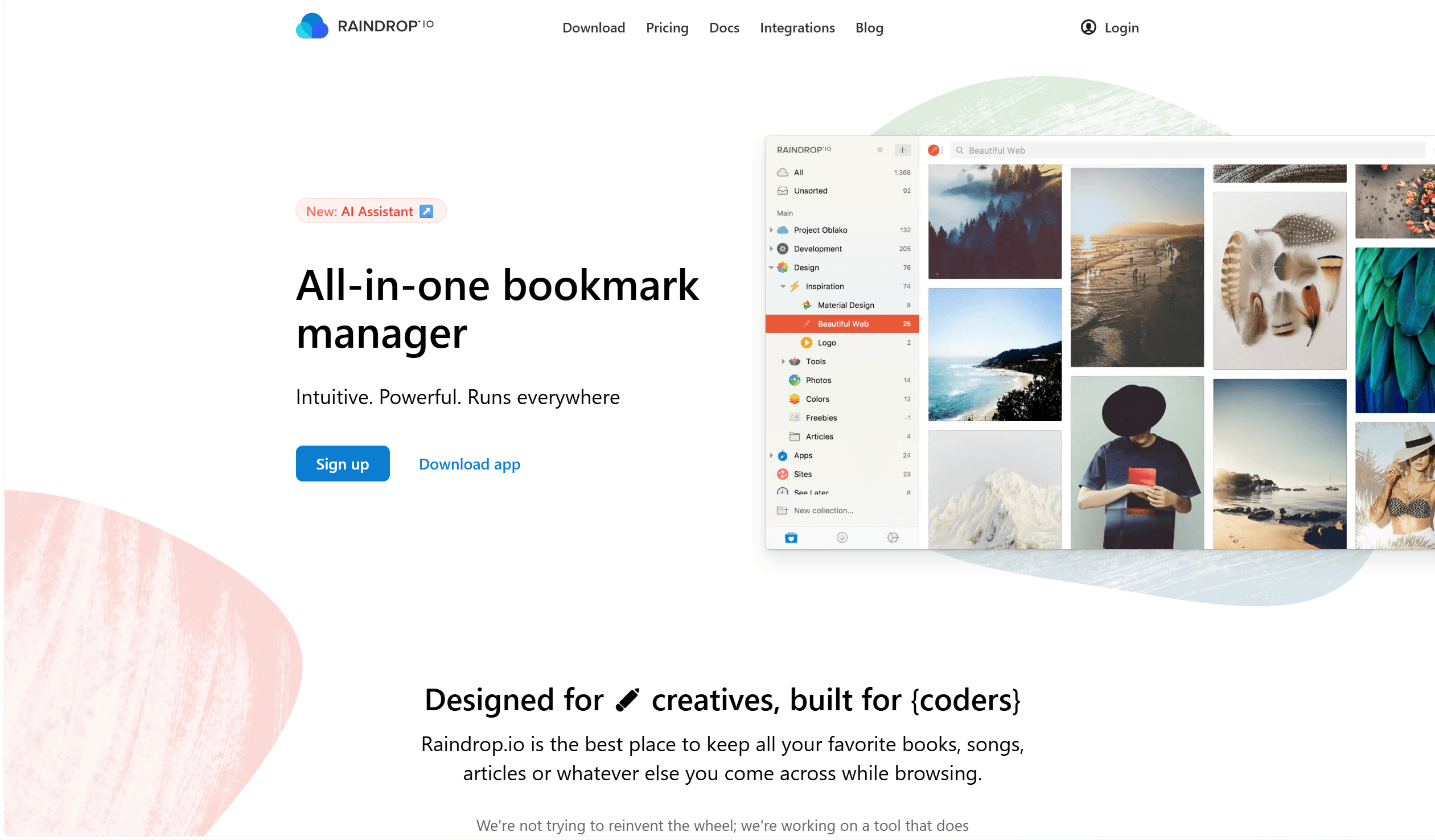
Raindrop.io is a dedicated bookmark library with collections, tags, and strong cross-platform support. The Chrome extension makes it easy to save pages into that library while you browse.
See Boardmarks vs Raindrop — Raindrop shines as an archive; Boardmarks shines as a New Tab workspace with todos and habits.
What works
- Collections and tags for large bookmark libraries
- Works across browsers and devices
- Strong for long-term research archiving
Main downside
It is a library outside your New Tab. If you want bookmarks next to daily tasks on Chrome’s start page, Boardmarks may fit better for the working set.
Verdict: Pick Raindrop for a multi-device archive; pick Boardmarks when the Chrome New Tab is your daily home base.
12. Dark Reader — Best Chrome Extension for Dark Mode and Less Eye Strain
Price: Free (open source); optional support · Best for: dark mode on sites that do not offer it
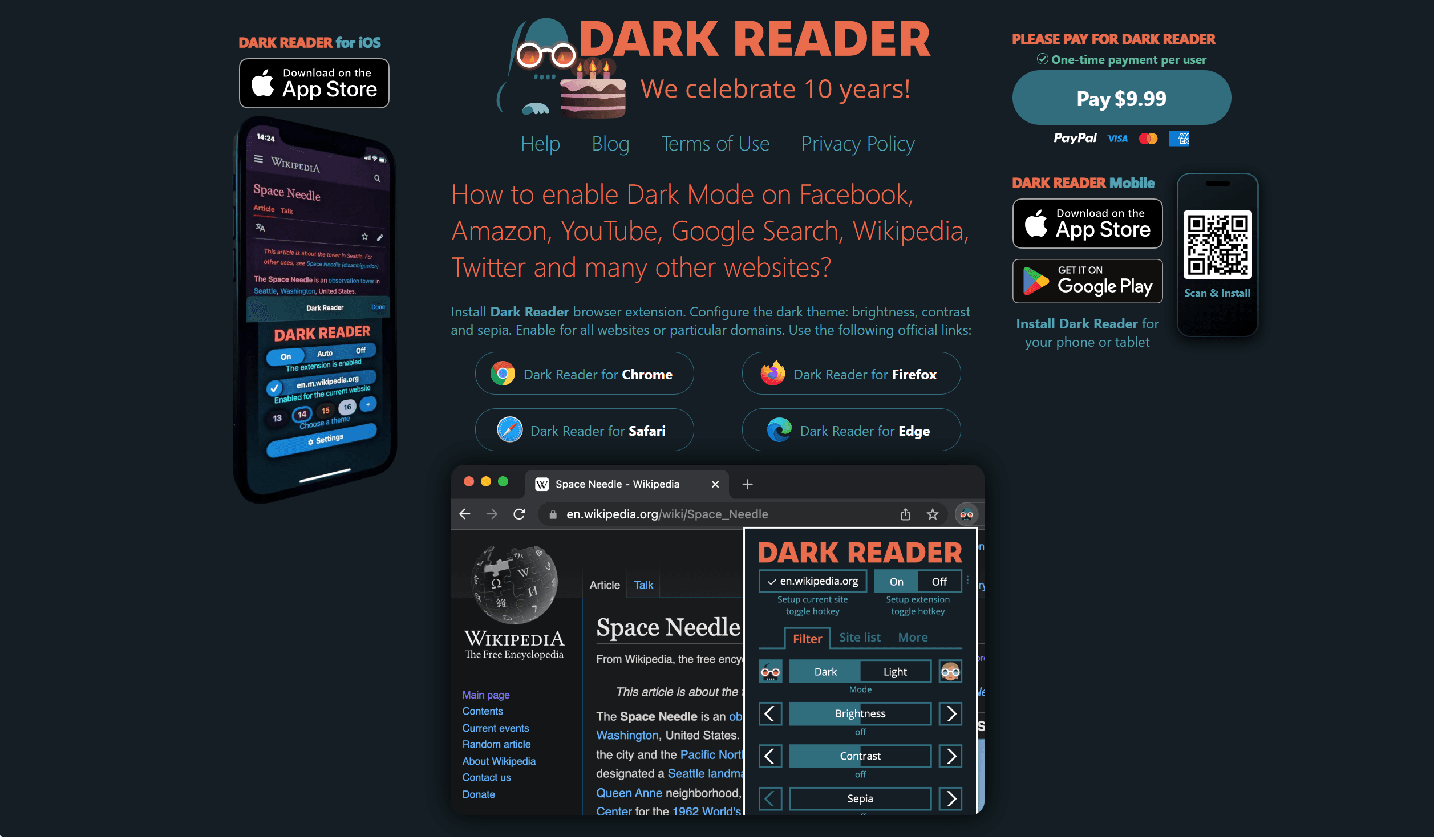
Dark Reader applies a dark theme across websites that only ship light UIs. For late-night browsing or bright office screens, it can reduce eye strain without hunting for per-site settings.
It is open source and widely used as a quiet quality-of-life extension.
What works
- Site-wide dark mode when pages lack a native theme
- Brightness and contrast controls
- Free and open source
Main downside
A few sites look odd until you exclude them or tweak settings. Keep a short allowlist for design-critical pages.
Verdict: Install Dark Reader if bright websites tire your eyes and you want one toggle for the whole web.
13. Vimium — Best Chrome Extension for Keyboard-First Navigation
Price: Free · Best for: browsing and clicking with keyboard shortcuts
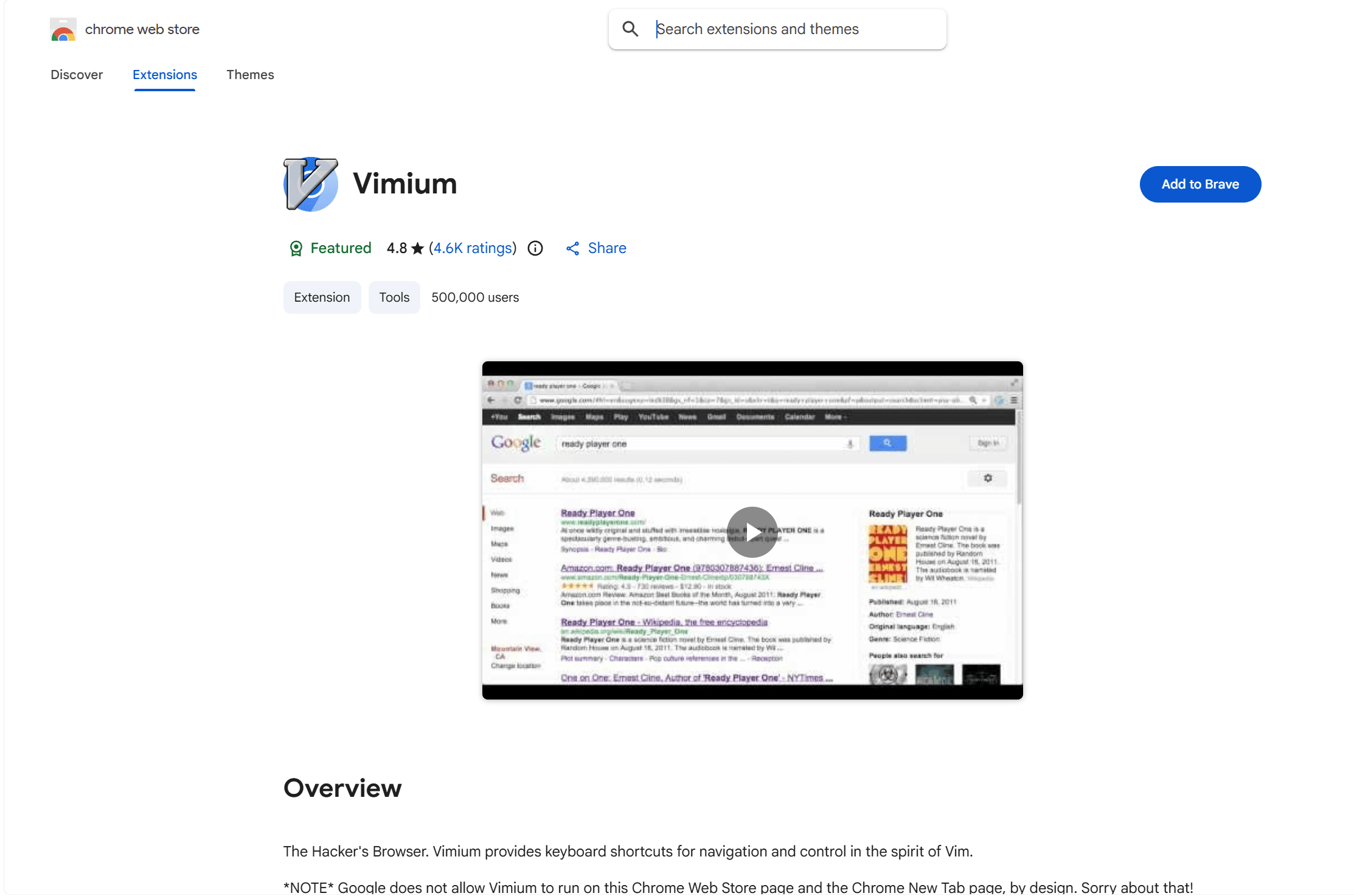
Vimium adds keyboard shortcuts for scrolling, following links, switching tabs, and opening pages — inspired by Vim. Power users who hate reaching for the mouse feel the speedup quickly.
Hint mode overlays letters on links so you can jump without clicking. It is a pure efficiency tool with almost no UI chrome.
What works
- Keyboard link hints and navigation
- Fast scrolling and tab control
- Free and lightweight once learned
Main downside
Shortcuts conflict with site shortcuts until you learn the muscle memory. Not ideal if you rarely stay in the keyboard.
Verdict: Add Vimium if you want to keep your hands on the keyboard for most browsing.
Which Chrome Productivity Extensions Should You Install?
Match the tool to the bottleneck:
- Need bookmarks + todos + habits on New Tab → Boardmarks
- Forget follow-ups while browsing → Todoist
- Write a lot in the browser → Grammarly
- Too many open tabs → OneTab (quick) or Boardmarks save-all-tabs (boards)
- Distracting sites → StayFocusd
- Explain things repeatedly → Loom
- Live in Notion → Notion Web Clipper
- Need timesheets → Clockify
- Password chaos → Bitwarden
- Want a calm focus New Tab → Momentum (or Boardmarks for bookmarks + tools)
- Cross-device bookmark archive → Raindrop.io
- Eye strain on bright sites → Dark Reader
- Keyboard-first browsing → Vimium
Also see the Boardmarks comparison pages if you are weighing Boardmarks against other New Tab and bookmark tools.
Frequently asked questions
- What are the best Chrome extensions for productivity in 2026?
- A strong starter set is Boardmarks for a productivity New Tab, Todoist for tasks, Bitwarden for passwords, Grammarly for writing, OneTab for tab overload, and StayFocusd or Momentum for focus. Add Loom, Clockify, Notion Web Clipper, Raindrop, Dark Reader, or Vimium based on your biggest daily bottleneck.
- Should I install every extension on this list?
- No. Install one tool that fixes your current bottleneck, use it for a week, then decide whether it deserves a permanent spot. Too many extensions can slow Chrome and add toolbar clutter.
- What is the best Chrome extension for organizing bookmarks and daily work?
- If you want visual bookmark boards plus todos, habits, notes, and reminders on every New Tab, Boardmarks is built for that all-in-one workspace. For a dedicated cloud bookmark archive across devices, Raindrop.io is a strong specialized choice.
- What productivity Chrome extensions help students?
- Students often benefit from Grammarly for writing, Notion Web Clipper or Raindrop for research, Todoist for assignments, OneTab for research tabs, StayFocusd for focus, and Boardmarks for keeping links, notes, and tasks on the New Tab.
- Are free Chrome productivity extensions enough?
- Yes for many people. Bitwarden, OneTab, Dark Reader, Vimium, Clockify, and StayFocusd all offer useful free plans. Paid plans usually add polish, sync limits, or team features — not always required for daily personal use.
- Can Chrome extensions actually improve productivity?
- Yes when they remove friction from something you already do every day — capturing tasks, managing tabs, writing cleaner emails, or keeping passwords secure. The worst extensions add dashboards you forget to open. Prefer quiet tools with clear jobs.
Final thoughts
The best Chrome productivity setup in 2026 is usually a small stack you actually use — not a crowded toolbar. Start with the New Tab and task capture layer, secure passwords, then add focus, writing, or research tools only when the pain is real.
If you want visual bookmarks and daily planning on every New Tab, try Boardmarks with a free 7-day trial from the Chrome Web Store.
Add Boardmarks to Chrome — FreeChrome New Tab extension
Organize bookmarks, todos, and habits on every New Tab.
- Visual bookmark boards
- Todos, habits, notes, reminders
- Local-first by default
7-day free trial. No card required.