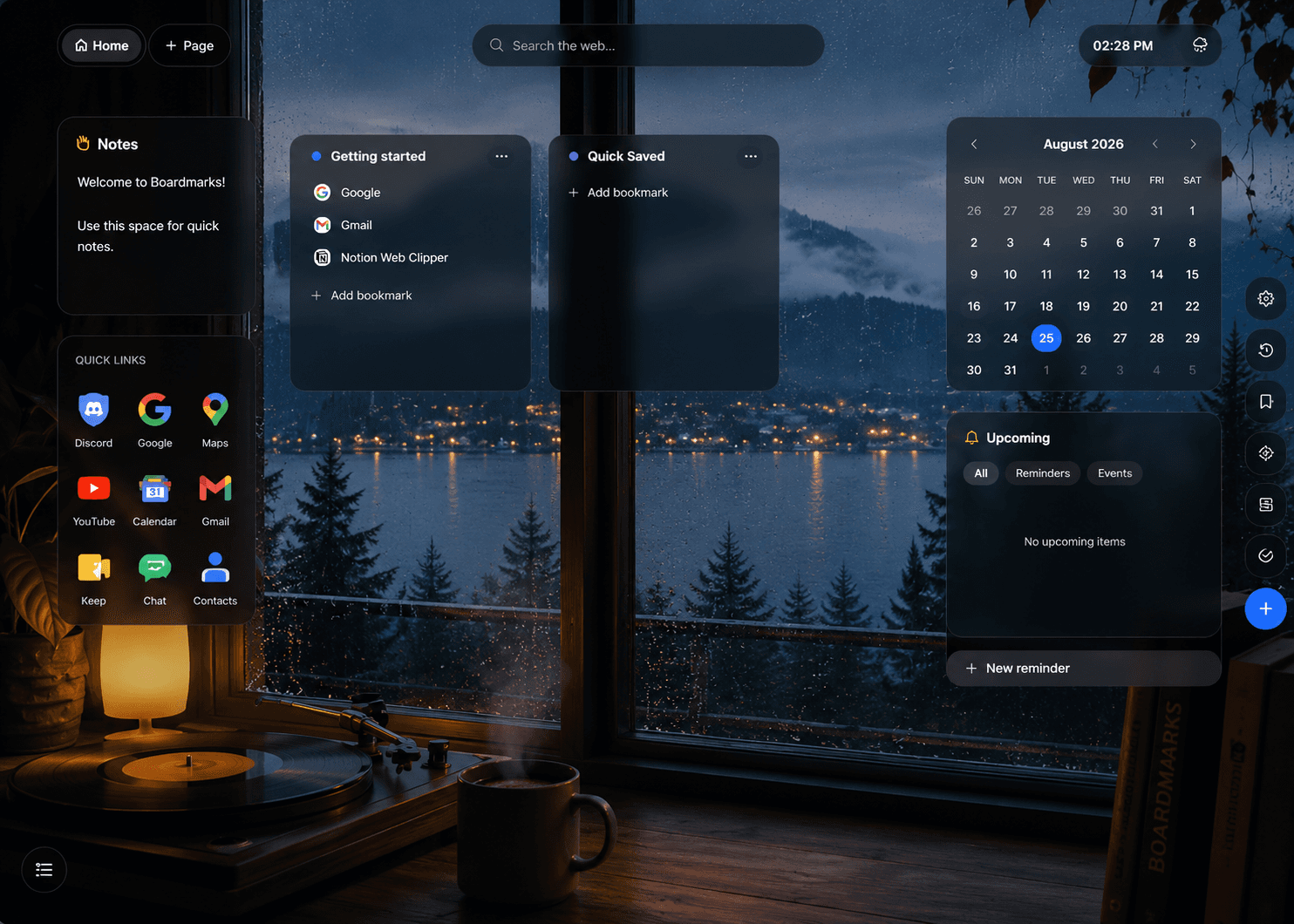
The best Chrome extensions for personal browsing mostly take things away. Ads, trackers, cookie banners, sponsor reads inside videos, and the recommendation feed that turns one video into six. This guide covers nine that address those specific annoyances, plus one that fills the blank page Chrome opens with.
Each section says what the tool does, when it is the right pick, and where it falls short. Start with the annoyance that reaches you most often. You do not need all nine, and two of them do overlapping jobs on purpose so you can choose between them.
Looking for work tools instead? This list is about personal browsing. For task capture, writing help, tab management, time tracking, and screen recording, see our separate guide to the best Chrome extensions for productivity. The two lists share only one tool.
Disclosure: This article is published by Boardmarks and includes our own extension at position nine. Recommendations are based on official developer documentation reviewed in September 2026, rather than comparative hands-on testing. The order follows browsing annoyances, not performance scores.
Best Chrome Extensions: The Short List
Pick from the group that matches your recurring problem and ignore the rest. Most people need two or three of these, not nine.
Ads, trackers, and consent banners
- uBlock Origin: Blocks ads and trackers together. The broadest single fix.
- Privacy Badger: Trackers only, from the Electronic Frontier Foundation. An alternative to the above, not an addition.
- Consent-O-Matic: Answers cookie dialogs from preferences you set once.
- ClearURLs: Strips tracking codes out of links you visit and share.
YouTube and video
- SponsorBlock: Skips sponsor reads recorded inside the video.
- Unhook: Hides recommendations, Shorts, and comments.
- Video Speed Controller: Playback speed on players that have no speed control.
Reading and your start page
- Google Translate: Whole pages or a single highlighted phrase.
- Boardmarks: Saved links and notes on the new tab instead of a blank page.
Chrome Extensions Comparison
| Extension | Main use | What to consider |
|---|---|---|
| uBlock Origin | Wide-spectrum ad and content blocking | Manifest V3 changed how it works on Chrome. Check which version is current |
| Privacy Badger | Block third-party tracking | Does not promise to remove every advertisement |
| Consent-O-Matic | Respond to cookie consent popups automatically | Works on recognised banner formats, not every site |
| ClearURLs | Remove tracking parameters from URLs | A few sites depend on parameters it may strip |
| SponsorBlock | Skip sponsor reads inside YouTube videos | Coverage depends on community submissions |
| Unhook | Hide YouTube recommendations, Shorts, and comments | Hides the interface; it does not change your account settings |
| Google Translate | Translate full pages or selected text | Machine translation, so verify anything important |
| Video Speed Controller | Speed, slow, and skip on HTML5 video anywhere | Only works with standard HTML5 players |
| Boardmarks | Replace the blank new tab with saved links and notes | Seven-day trial, then a paid plan for ongoing write access |
Use the official product links in each section to check current availability and follow the developer's installation route.
1. uBlock Origin: For Removing Ads and Trackers Together
Main use: Wide-spectrum ad and content blocking · Consider: Manifest V3 changed how it works on Chrome. Check which version is current
uBlock Origin is a free, open-source content blocker. It filters ads, trackers, and other unwanted requests using community-maintained filter lists, and it lets you allow or block individual sites from the toolbar.
For most people this is the single extension that changes daily browsing the most. Pages that load a dozen advertising and analytics scripts load fewer of them, which usually means less clutter and, on heavy pages, less waiting.
When it fits
Install this if you want one tool that handles ads and tracking together. If you only want tracker blocking and are content to still see advertisements, Privacy Badger below is the narrower option. Choose one of the two rather than running both.
What to watch for
Chrome's move to the Manifest V3 extension platform changed what content blockers are allowed to do, and it affected the original uBlock Origin on Chrome. The developer publishes uBlock Origin Lite as the Manifest V3 version, which works differently in some respects. This situation has been changing, so check the developer pages for which version applies to your browser today rather than relying on an older article. Firefox still supports the original.
Verdict: The default recommendation if you want ads and trackers handled by one tool. Confirm which version your browser currently supports before installing.
2. Privacy Badger: For Tracker Blocking Without a Full Ad Blocker
Main use: Block third-party tracking · Consider: Does not promise to remove every advertisement
Privacy Badger is an extension from the Electronic Frontier Foundation that blocks third-party tracking. Its documentation explains that privacy protection is the main purpose, so some advertisements may remain visible.
Consider it if you want a tool specifically focused on trackers and are willing to check its controls when a website behaves unexpectedly. Blocking third-party content can affect features that depend on outside services.
When it fits
This is the choice if you are comfortable seeing ads but not comfortable being followed between sites, or if you prefer a tool from a known nonprofit with a narrow, stated purpose. Pick this or uBlock Origin, not both.
What to watch for
Privacy Badger explains why it requests access across websites: it needs that access to identify and act on tracking content. Broad permissions deserve scrutiny, but the wording alone does not tell you whether a request is justified. Compare the permission with the extension's actual function and the developer's explanation.
Verdict: A focused, narrower alternative to a full content blocker. Not worth stacking on top of one you already run.
3. Consent-O-Matic: For Cookie Banners You Answer Every Day
Main use: Respond to cookie consent popups automatically · Consider: Works on recognised banner formats, not every site
Consent-O-Matic comes from researchers at Aarhus University. You set your preferences once, choosing which categories of data use you accept, and the extension fills in recognised cookie consent dialogs on your behalf.
The point is not just convenience. Consent dialogs are frequently designed so that accepting everything takes one click while refusing takes several, which makes the fast choice the one that suits the site rather than you. Answering them from a saved preference removes that pressure.
When it fits
Useful if you read a lot of news sites, forums, or European websites where the banner appears on almost every first visit. It is one of the few extensions where the benefit is obvious within an hour of installing it.
What to watch for
It recognises specific consent management platforms and banner patterns. A site using an unusual or custom dialog may still need a manual answer. Blocking or auto-answering banners also does not remove tracking that happens regardless of the dialog, so pair it with a blocker if that is your concern.
Verdict: A small extension that removes a genuinely daily annoyance. Coverage is good but not universal.
4. ClearURLs: For Stripping Tracking Codes Out of Links
Main use: Remove tracking parameters from URLs · Consider: A few sites depend on parameters it may strip
Links you copy from search results, social posts, and marketing emails often carry a tail of tracking parameters. ClearURLs removes known tracking elements from addresses as you browse and as you copy links.
The practical effect shows up when you share something. Instead of pasting a long address full of campaign and click identifiers into a message, you paste the actual page address.
When it fits
Worth adding if you share links often, or if you dislike the idea that forwarding an article to a friend also forwards an identifier that connects the two of you. It runs quietly and needs no configuration for most people.
What to watch for
Occasionally a site uses a parameter for something functional rather than tracking, and removing it changes the page you land on. This is uncommon, but if a specific link stops working as expected, the extension can be paused for that site.
Verdict: Low effort and quietly useful, especially if you share links. Not something you will notice working.
5. SponsorBlock: For Skipping Community-Marked Sponsor Segments
Main use: Skip sponsor reads inside YouTube videos · Consider: Coverage depends on community submissions
SponsorBlock uses timestamps submitted by viewers to skip sponsorship segments within YouTube videos. It also supports categories such as intros, outros, and subscription reminders, each of which you can enable separately.
This solves a problem no ad blocker can touch. A sponsor read is part of the video file itself rather than an ad served by the platform, so there is no request to block. Only timestamps can identify it.
When it fits
Start with the categories you actually want to skip. If you value a creator's introductions or closing explanations, keep those sections. The aim is to choose what you watch, rather than assume every part outside the main demonstration is unnecessary.
What to watch for
The community model is both its strength and its limit. The extension can act on segments that have been identified, but a new or less-watched video may not yet have useful submissions. Treat coverage as variable.
Verdict: Useful if you watch a lot of YouTube and sponsor reads interrupt you. Expect patchy coverage on newer videos.
6. Unhook: For Watching One Video Without the Next Ten
Main use: Hide YouTube recommendations, Shorts, and comments · Consider: Hides the interface; it does not change your account settings
Unhook hides parts of the YouTube interface using a list of toggles. You can remove the recommended sidebar, the home feed, Shorts, comments, end-screen suggestions, and more, keeping only the parts you want.
It addresses the common situation where you open YouTube to watch one specific thing and leave forty minutes later having watched five other things. Removing the suggestions removes the mechanism.
When it fits
Good if you use YouTube deliberately, for tutorials or a subscription list, and want the discovery surface out of the way. Turn off the home feed first and see how the week feels before hiding anything else.
What to watch for
This changes what the page displays in your browser. It does not alter your account, your watch history, or what YouTube shows you on a phone or television. If you want the change everywhere, this is only part of it.
Verdict: Effective at what it claims. Best paired with a clear reason for opening YouTube in the first place.
7. Google Translate: For Reading Pages in Another Language
Main use: Translate full pages or selected text · Consider: Machine translation, so verify anything important
The official Google Translate extension adds a toolbar button for translating the current page and lets you translate a highlighted phrase without leaving the page you are reading.
Chrome already offers page translation for some sites, but the extension gives you a consistent control rather than waiting for a prompt that may not appear, and the selection translation is faster than copying text into a separate tab.
When it fits
Useful if you regularly land on documentation, forums, product pages, or news in a language you do not read. It is also handy for checking a single unfamiliar phrase without losing your place on the page.
What to watch for
This is machine translation. It is generally serviceable for understanding the gist and unreliable for anything where precision matters, such as legal terms, medical information, contracts, or safety instructions. Get those checked by a person.
Verdict: Worth having if foreign-language pages come up even occasionally. Do not rely on it for anything consequential.
8. Video Speed Controller: For Playback Speed on Any Video Player
Main use: Speed, slow, and skip on HTML5 video anywhere · Consider: Only works with standard HTML5 players
YouTube has a speed setting. Most other video players on the web do not. Video Speed Controller adds keyboard shortcuts for speeding up, slowing down, and skipping on standard HTML5 video across sites.
The usual case is a course platform, a conference recording, or an embedded player with no speed control of its own, where a 50-minute talk at 1.5 times speed is a 33-minute talk.
When it fits
Most valuable if you watch recorded lectures, training material, or long interviews. Slowing down matters too, for following a demonstration or transcribing something accurately.
What to watch for
It works with standard HTML5 players. Sites using custom or protected players may not respond to it. The on-screen controller can also sit over part of the video, though it can be hidden or repositioned in the settings.
Verdict: Small utility with a clear payoff if long videos are part of your week. Irrelevant if they are not.
9. Boardmarks: For a Start Page With Your Own Links On It
Main use: Replace the blank new tab with saved links and notes · Consider: Seven-day trial, then a paid plan for ongoing write access
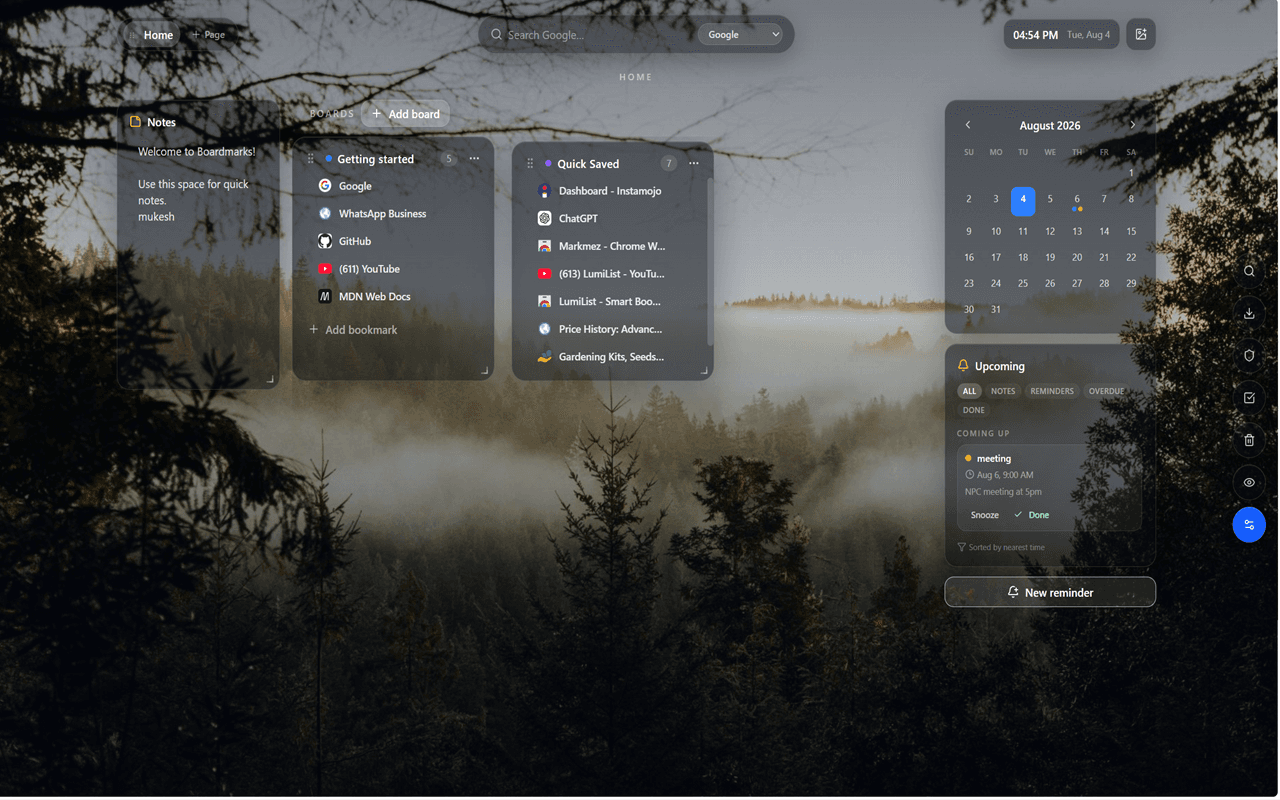
Everything above removes something from the page. This one adds something to a page that is currently empty. Boardmarks replaces Chrome's new tab with a workspace holding bookmark boards, notes, and reminders, so the links you actually revisit are visible instead of buried in a folder menu.
For personal browsing that might be a board for recipes you cook again, one for a trip you are planning, and one for the handful of sites you check most mornings. You can save the current tab, or every tab in the window, from the toolbar popup.
When it fits
Choose it if your bookmarks bar stopped being useful once it filled up, and you would rather see your links than search for them. You can review the full feature list first. If you only keep a few URLs, Chrome's built-in bookmarks are enough.
What to watch for
Google sign-in is required to start the seven-day trial, and continued write access requires a paid plan, so include that cost in your decision. It also replaces your new tab page, which conflicts with any other new tab extension you may already be running. See the trial and plan details.
Verdict: A fit if a blank new tab is wasted space for you. Not needed if you rarely return to the same sites.
Install One Blocker, Not Three
The most common mistake with privacy extensions is stacking them. Two content blockers plus a tracker blocker plus an anti-fingerprinting tool feels safer, and mostly it is not. The lists overlap heavily, so the second tool blocks what the first already blocked, and you pay for it in broken pages you cannot diagnose.
When a checkout fails or a video will not embed, the fix is disabling extensions one at a time until the page works. That takes a minute with one blocker installed and a frustrating ten with four. Pick either uBlock Origin or Privacy Badger, add Consent-O-Matic and ClearURLs if banners and link tracking bother you, and stop there.
Also be realistic about what these tools reach. Blocking third-party scripts and stripping parameters removes common tracking methods. It does not cover what a site learns from an account you are signed into, or from analysis that happens on its own servers where no extension can see it. These are a useful layer, not a shield.
Choose a Small Setup That Fits Your Day
Begin with one recurring annoyance. If ads are what you notice, start with a blocker. If it is cookie dialogs, start with Consent-O-Matic. If you mainly want YouTube to behave, the two YouTube tools will do more for you than any privacy extension will.
After a week, ask whether the extension earned its place, and whether it changed anything you depend on. Remove anything that added setup work without solving the original problem.
Before installing, follow the developer's official link to the store rather than searching for the name, since popular blockers attract copycat listings. Check the publisher and read the requested permissions. Chrome lets you manage extensions and restrict site access from chrome://extensions, although restricting access will stop some of these from working at all.
Frequently Asked Questions
- What are the best Chrome extensions for everyday browsing?
- For blocking ads and trackers, uBlock Origin or Privacy Badger. For cookie banners, Consent-O-Matic. For tracking parameters in shared links, ClearURLs. For YouTube, SponsorBlock and Unhook. For reading pages in other languages, Google Translate. For playback speed on any video, Video Speed Controller. Boardmarks covers the start page if you want your own links there instead of a blank tab.
- Is uBlock Origin still available on Chrome?
- Chrome moved to the Manifest V3 extension platform, which changed how content blockers can work and affected the original uBlock Origin on Chrome. The developer publishes uBlock Origin Lite as the Manifest V3 version, and it works differently from the original in some respects. Availability and behaviour have been changing, so check the developer pages before assuming which version you can install today.
- Should I use uBlock Origin and Privacy Badger together?
- Generally no. Running two blockers usually adds little and makes troubleshooting harder, because when a page breaks you cannot tell which extension caused it. Pick the one that matches what you want. A wide-spectrum content blocker removes far more, including ads. Privacy Badger is narrower and focuses on third-party tracking, so some ads remain visible.
- Do ad blockers stop YouTube sponsor segments?
- No. A sponsor read is part of the video file itself, not a separate ad served by the platform, so a content blocker has nothing to block. SponsorBlock handles that case using timestamps submitted by other viewers. The two tools solve different problems and do not replace each other.
- Are privacy extensions enough to stop tracking?
- They reduce some tracking, not all of it. Blocking third-party scripts and stripping tracking parameters removes common methods, but sites can still track you through accounts you are signed into, first-party analytics, and server-side techniques that an extension cannot see. Treat these tools as one layer rather than complete protection.
- Will these extensions break websites?
- Sometimes. Blocking third-party content can stop embedded videos, comment widgets, login flows, and checkout steps that rely on outside services. Every blocker on this list has a way to pause it or allow a single site. When a page misbehaves, disable one extension at a time rather than several at once, which is another reason to avoid stacking overlapping blockers.
- Do Chrome extensions slow down the browser?
- Each installed extension uses some memory and, depending on what it does, may run scripts on the pages you visit. Content blockers can also reduce load time on heavy pages by preventing requests. Chrome has a built-in Task Manager (Shift and Esc on Windows, or Window then Task Manager on Mac) that shows memory and CPU per extension, so you can measure the real cost on your own machine.
- Are these Chrome extensions safe to install?
- Open the developer official website and follow their link to the Chrome Web Store rather than searching the store and picking the first result, since copycat listings of popular blockers are common. Check the publisher name and read the requested permissions. Blockers and translators legitimately need broad site access to function, so compare the request against what the tool actually does.
- Do these extensions work on Edge, Brave, and Firefox?
- Most install on Chromium browsers such as Edge, Brave, Opera, and Vivaldi. Several also have Firefox versions, and Firefox still supports the original uBlock Origin. Brave includes its own built-in blocking, so an additional content blocker there is often unnecessary. Check the developer pages for the browser you use.
- What is the difference between this list and your productivity extensions list?
- This list covers personal browsing: ads, trackers, cookie banners, YouTube, and reading pages in other languages. Our separate guide to the best Chrome extensions for productivity covers work tools instead, including task capture, writing assistance, tab management, time tracking, and screen recording. There is almost no overlap between the two.
Final Thoughts
A good browsing setup is mostly subtraction. One content blocker removes the majority of what makes pages feel heavy. Consent-O-Matic removes a dialog you answer several times a day. SponsorBlock and Unhook remove the parts of YouTube that were designed to keep you there longer than you meant to stay.
Add one, live with it for a week, and keep it only if you would notice it missing. That test will leave you with a shorter list than any roundup, including this one.
If the blank new tab is the thing that bothers you, Boardmarks puts your own links and notes there instead. Start with one board and the sites you already open every morning.
Add Boardmarks to ChromeRelated
Chrome New Tab extension
Organize bookmarks, todos, and habits on every New Tab.
- Visual bookmark boards
- Todos, habits, notes, reminders
- Local-first by default
7-day free trial. No card required.