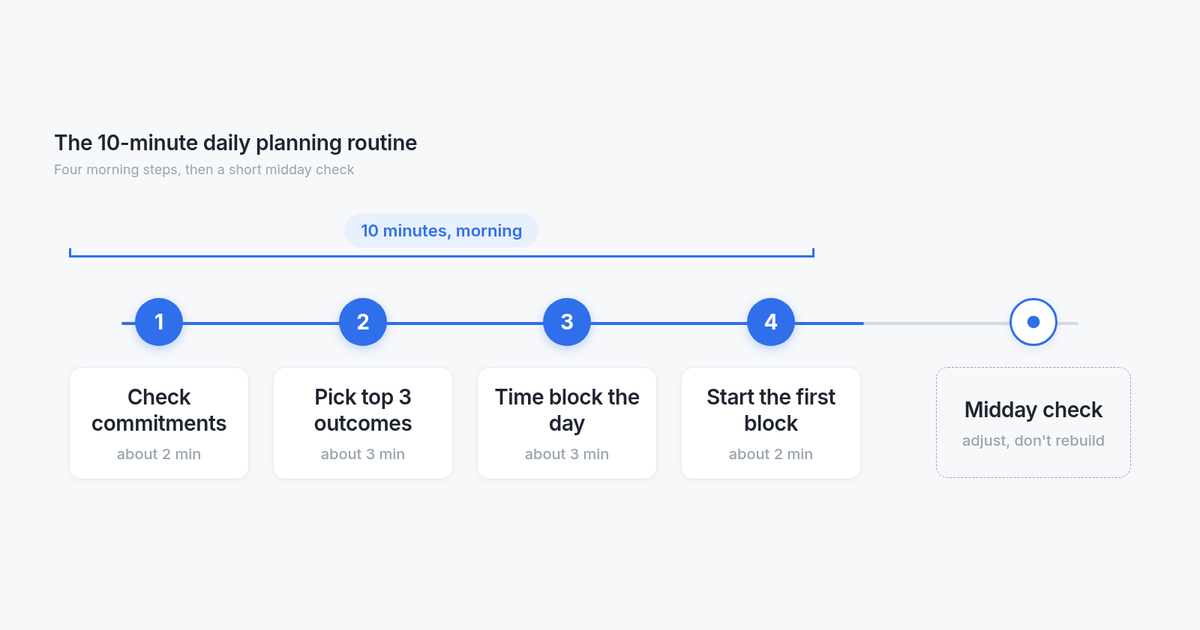
A workable way to plan your day takes about 10 minutes: check fixed commitments, pick three outcomes, give each a time block, then do a short midday check that adjusts the plan instead of rebuilding it. This daily planning routine is for anyone who works at a computer, including remote workers, freelancers, and students. You need only your calendar and a place to write three lines.
How to plan your day in 4 steps
Check meetings and fixed commitments.
Choose your three most important outcomes.
Give each task a realistic time block.
Review the plan around midday and adjust it.
Why a 10-minute plan works better than a long to-do list
A to-do list holds everything you might do someday. A daily plan answers two narrower questions: what you will finish today, and when you will work on it.
The usual failure is planning for a day that does not exist: no meetings, no messages, no tiredness. When reality shows up, the list feels like proof you are behind.
A short morning planning routine for work trades length for honesty. You make a few decisions that fit the calendar you actually have. The goal is clarity and capacity, not a perfect schedule.
Should you plan your day the night before or in the morning?
Morning works if your schedule still changes overnight. Night-before planning works if you want to start working as soon as you sit down.
A good compromise is to choose your top three outcomes the night before, then spend one or two minutes in the morning checking the calendar before you time block.
Either timing is fine. The midday check still matters if the day shifts.
The 10-minute daily planning routine, step by step
Here is the full sequence before the detail. The times below are a suggested split, not a measured result. Do this at the start of the workday by default; the night before works too if mornings are rushed (see the FAQ).
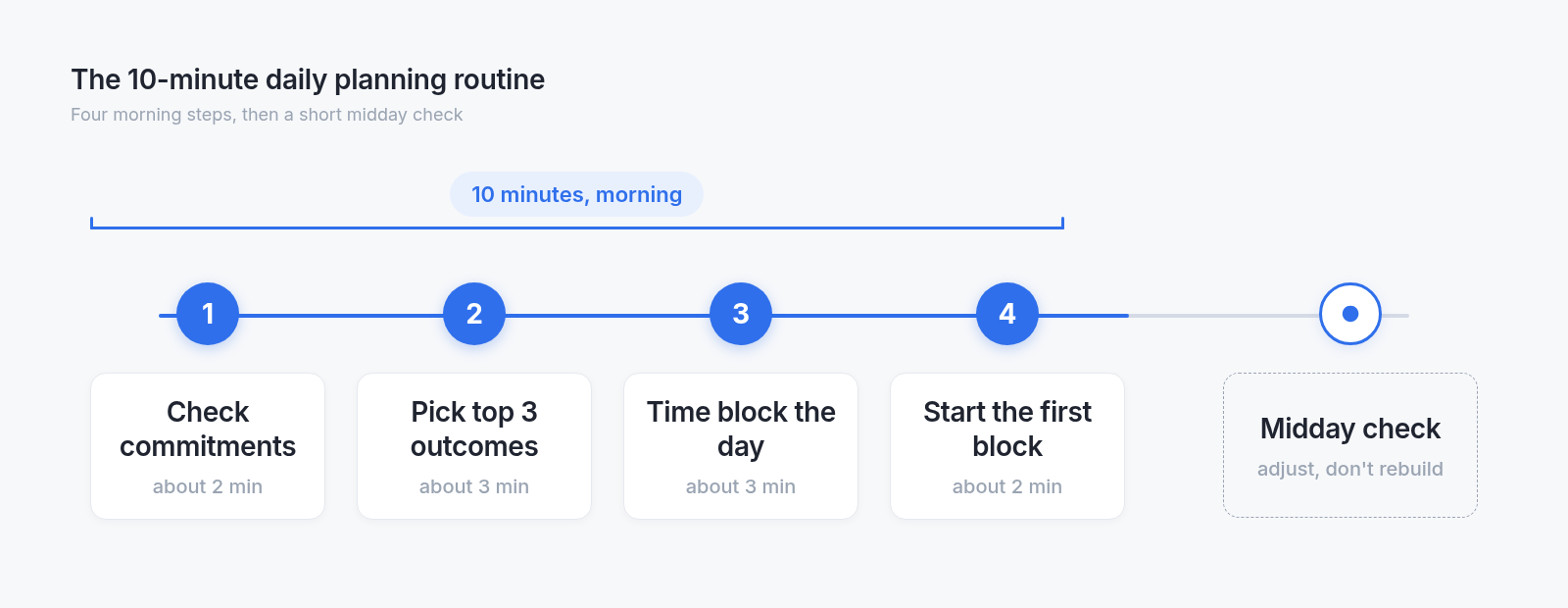
The 10-minute routine
| Step | Time | What you do |
|---|---|---|
| 1. Check commitments | About 2 minutes | List meetings, classes, and fixed duties |
| 2. Pick top 3 outcomes | About 3 minutes | Write three finishable results; park the rest |
| 3. Time block | About 3 minutes | Give each outcome a slot with buffer |
| 4. Start | About 2 minutes | Open the first task and begin |
| Midday check | 2 to 3 minutes | Adjust one or two things; do not rebuild |
You need only your calendar and a place to write three lines: paper, a sticky note, or a short note in whatever app you already use.
Step 1: Check your calendar commitments (2 minutes)
Open today’s calendar and list what is already fixed. Include meetings, classes, client calls, commute, school pickup, care duties, and lunch if it is a real block.
Count the open time honestly. A day with five hours of meetings has little room for deep work. That is not a motivation problem; it is the day you have.
Also scan for deadlines due today or tomorrow. Those shape which outcomes you can honestly choose next. Plan around commitments first, then fill the gaps.
Step 2: Pick your top 3 tasks as outcomes (3 minutes)
Choose three finishable results for today. One of them should be the task that still matters if the day goes badly. On a meeting-heavy day, fewer than three is fine.
Limiting yourself to a few priorities is a common approach; you do not need a named framework to use it.
Write outcomes, not topics
Write a finished state you can check off. “Send the revised proposal to Priya” beats “proposal.” “Finish problem set 4, questions 1–6” beats “study.” Vague topics stay open forever because you never know when they are done.
Park everything else
Move other tasks to a later list. They are not part of today’s plan unless the three outcomes are done. Parking stops the rest of the list from competing with the work in front of you.
Step 3: Time block your day around real gaps (3 minutes)
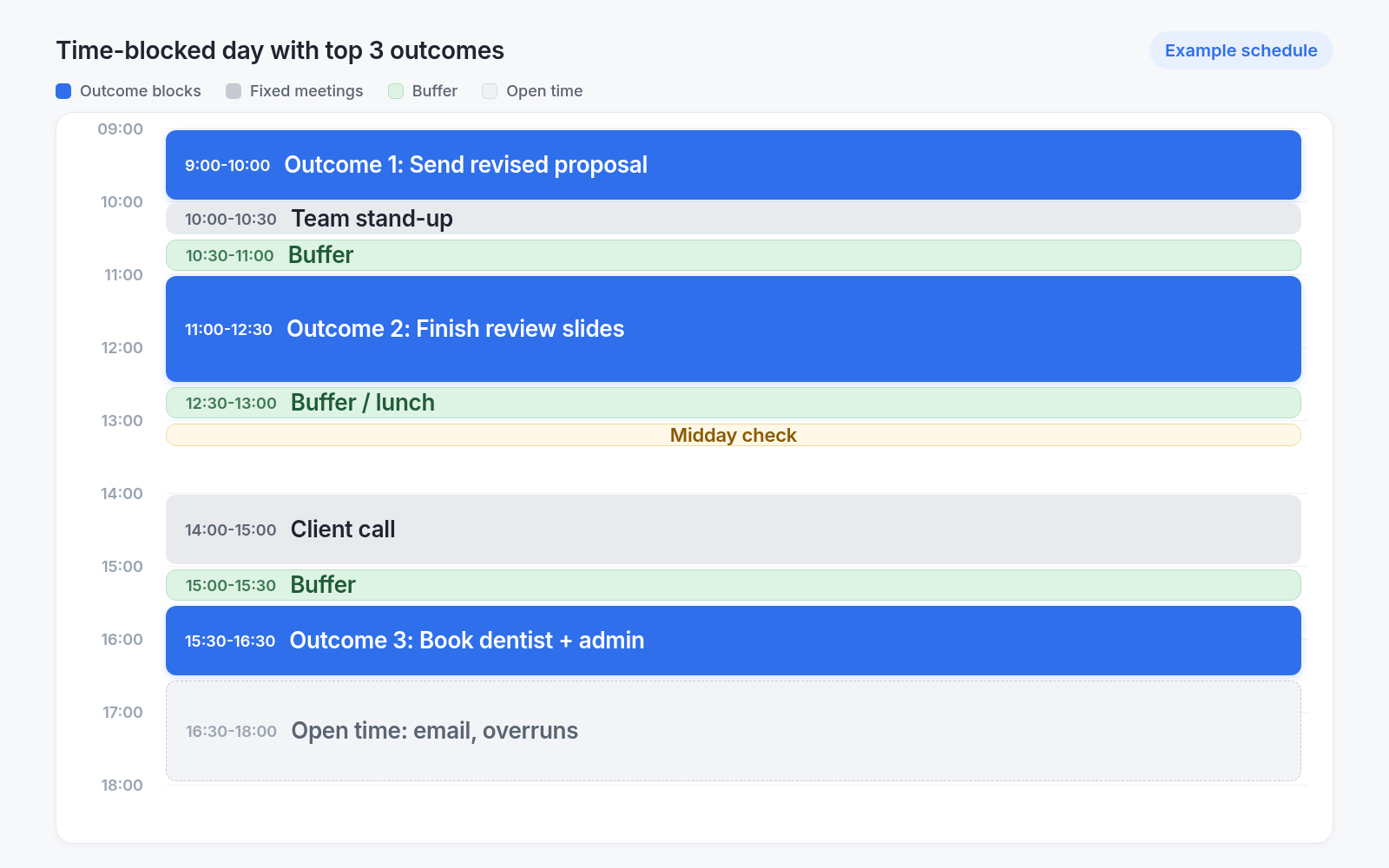
Give each outcome a start and end that fits open calendar space. Put the hardest outcome in your best focus time if the calendar allows. Blocks can live on your calendar or as times next to the three items.
If an outcome does not fit anywhere, the day is overbooked. Cut it or move it now instead of pretending you will squeeze it in.
Leave buffer between blocks
Leave unplanned space for messages, overruns, and breaks. Do not schedule every minute. A day with no buffer is a schedule for a person who never gets interrupted.
Start the first block before you open email
The last part of the 10 minutes is starting, not polishing the plan. Open the first outcome and begin. If a crowded tab strip keeps you from starting, clear too many Chrome tabs open separately before the first block.
Step 4: Midday check-in: adjust the plan, do not rebuild it
Around lunch, spend two or three minutes on a course correction. This is not a second planning session; it is a short pass so the afternoon matches reality. Set a reminder for the check so it happens without thinking about it.
Three questions to ask at midday
What is done?
What still matters today?
What moves to tomorrow or a later block?
Allowed changes: move a block, drop or swap one outcome, or shrink an outcome to a smaller finished state. Example: a standup overran, so “finish the deck” becomes “send draft slides to Arjun,” and a third outcome moves to tomorrow.
Why not re-plan from scratch
A full rebuild at noon eats the afternoon and resets priorities to whatever is loudest. Make one or two changes and get back to work.
Keep your daily plan visible on every Chrome New Tab
A plan you cannot see gets forgotten. Put today’s three outcomes where you look many times a day. If Chrome still reopens yesterday’s window instead of a New Tab, set Chrome startup tabs first so the plan can show on launch.
Use what you already have
Paper, a sticky note, a calendar, or a notes app works. The method does not need a new tool. If you want a wider stack of planning and workspace apps later, see our guide to work from home productivity tools.
Boardmarks: Today list and reminders on New Tab
Boardmarks is our Chrome extension. For people who live in Chrome, it can keep the daily plan on every New Tab: a Today task list for the top 3, reminders for time blocks and the midday check, and notes for context, all in a New Tab workspace. Local-first by default. See Boardmarks features for the full set.
Keep your Top 3 tasks, reminders, notes and daily plan visible whenever you open a new Chrome tab.
A copyable daily planning template
Paste this into a note or Today list and fill it in during the 10-minute pass.
Date:
Fixed commitments:
-
Top 3 outcomes (with time blocks):
1. ___ (____–____)
2. ___ (____–____)
3. ___ (____–____)
Parked for later:
-
Midday check time: ____
Midday changes:
-
Example (remote worker day):
Date: Monday
Fixed commitments:
- Standup 10:00–10:20
- Client call 14:00–14:45
- Lunch 13:00–13:30
Top 3 outcomes (with time blocks):
1. Send revised proposal to Priya (10:30–12:00)
2. Draft Q3 summary for Arjun (13:30–14:00)
3. Close two support tickets (15:00–16:00)
Parked for later:
- Update personal wiki
- Book dentist
Midday check time: 12:45
Midday changes:
- (filled at midday)
FAQ
- How long should it take to plan your day?
- About 10 minutes for the morning plan and two or three for the midday check. If it takes much longer, the plan is too detailed.
- How many tasks should I plan for one day?
- Three main outcomes is a good limit. Fewer on a heavy meeting day. Small tasks can fill gaps but do not count as the plan.
- Should I plan my day in the morning or the night before?
- Either works. The night before helps if mornings are rushed; check commitments again in the morning before you start.
- What do I do when my daily plan falls apart by noon?
- Use the midday check: keep what still matters, move or drop one item, and continue. Do not rebuild the whole day.
- What is the difference between a to-do list and a daily plan?
- A to-do list holds everything you might do. A daily plan picks a few outcomes for today and gives them time.
- Do I need an app to plan my day?
- No. Paper or a note is enough. A tool helps only if it keeps the plan in front of you.
Chrome New Tab extension
Organize bookmarks, todos, and habits on every New Tab.
- Visual bookmark boards
- Todos, habits, notes, reminders
- Local-first by default
Free trial · no card required