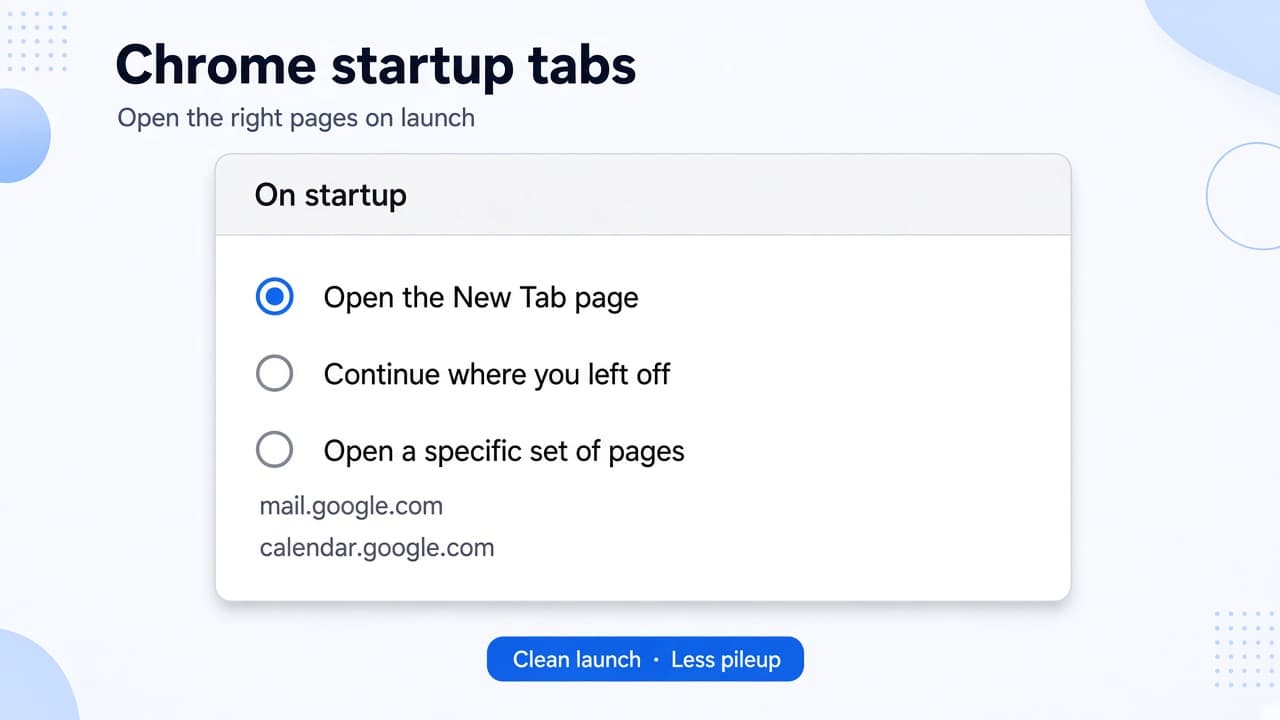
Chrome startup tabs are controlled by Settings → On startup (or paste chrome://settings/onStartup). Pick Open the New Tab page for a clean daily launch, Open a specific page or set of pages for a short fixed list, or Continue where you left off only when you want yesterdays session back and accept the pileup risk. The Home button page under Appearance is separate from On startup. Set launch once, then open mail, calendar, or a dashboard when you need them.
What Chrome startup tabs control (and what they do not)
Chrome startup tabs decide what opens when you launch Chrome on your computer. They do not decide how you recover a tab you closed by mistake, how you dump every open tab into storage, or how you triage a crowded strip mid-day.
Those are different jobs: restoring closed tabs at /blog/how-to-restore-closed-tabs-in-chrome, saving all open tabs in Chrome at /blog/save-all-open-tabs-in-chrome, and cleaning up too many Chrome tabs open at /blog/too-many-chrome-tabs-open mid-day. This page stays on daily launch settings.
To open the controls: three-dot menu → Settings On startup, or paste chrome://settings/onStartup. Google documents the path in Chrome Help at https://support.google.com/chrome/answer/95314.
Chrome homepage vs startup page
People often say home pages when they mean what opens at launch. In Chrome those are two settings.
Startup page: what appears when you first launch Chrome. Controlled under On startup.
Homepage: the page you open when you click the Home button. Controlled under Appearance. Turn on Show Home button, then choose New Tab or a custom page.
You can set both. Changing the Home button does not change On startup. Chrome Help states that the two pages are not the same unless you set them to be.
Chrome On startup settings: pick one mode
Chrome offers three On startup modes. Pick one before you edit a URL list.
Open the New Tab page: Chrome opens a New Tab when you launch. Nothing from yesterday’s window loads automatically. Best daily start when morning pileup is the problem.
Continue where you left off: Chrome re-opens the same pages you had when you quit. Useful if you quit mid-task, but risky if last night’s research window becomes every morning’s default.
Open a specific page or set of pages: Chrome opens only the URLs you listed. Keep the list small so startup does not recreate pileup.

- Open Chrome
- Open Settings from the three-dot menu, or go to chrome://settings/onStartup
- Under On startup, select Open the New Tab page
- For a fixed list, select Open a specific page or set of pages
- Use Add a new page for each URL, or Use current pages only after opening the tabs you want
| Mode | What opens on launch | Best when | Watch out |
|---|---|---|---|
| Open the New Tab page | A New Tab | Clean daily start | Open sites yourself |
| Continue where you left off | Previous session | Quit mid-task | Restores old clutter |
Open the New Tab page on Chrome startup
Chrome opens a New Tab when you launch. Nothing from yesterday’s window loads automatically. Best daily start when morning pileup is the problem.
On the next launch you should see one New Tab, not yesterday’s full window. Open Gmail or a work dashboard when you are ready. For appearance detail, see /blog/customize-chrome-new-tab.
Open specific pages on Chrome startup

Use this mode when the same few sites should open every time Chrome starts, without restoring the whole previous session.
Open Settings → On startup, or chrome://settings/onStartup.
2. Select Open a specific page or set of pages.
3. Build or edit the list with Add a new page or Use current pages.
Select Add a new page, enter a web address, then Add. Repeat for each URL you always need on launch. Aim for a few pages, not a research pile: Gmail, Google Calendar, and one project dashboard.
Add a new page is for typing each URL. Use current pages copies every tab in the current window into the startup list, so open only the tabs you want first. For a planned dump, see /blog/save-all-open-tabs-in-chrome. Beside each URL, choose Edit or Delete to remove stale entries.
When Continue where you left off helps (and when it creates pileup)
Continue where you left off is for picking up the same window after a normal quit. That is continuity, not the same job as crash restore after an unexpected close. If yesterday’s mess returns every morning, switch On startup away from Continue. Choose Open the New Tab page or a short specific-pages list instead.
If you closed a tab by accident after launch, restore closed Chrome tabs at /blog/how-to-restore-closed-tabs-in-chrome. If Continue already left a huge strip mid-day, triage too many Chrome tabs open at /blog/too-many-chrome-tabs-open separately.
Stop Chrome reopening tabs on startup
Confirm On startup is Open the New Tab page or Open a specific page or set of pages, not Continue where you left off. If you use a specific-pages list, delete stale URLs. If a page keeps returning, check extensions or Safety Check at https://support.google.com/chrome/answer/95314. On a work or school Chromebook, managed policy may lock startup. Native On startup stores one fixed page set per Chrome profile. If you need two lists, use a second profile.
After Settings: Boardmarks as a cleaner daily launch pad
Boardmarks is our Chrome extension. It does not replace On startup Settings. After Open the New Tab page or a short specific list, it can turn New Tab into a daily launch pad when one rigid startup set per profile is not enough.
Land on visual boards instead of auto-loading many tabs

Chrome New Tab extension
Organize bookmarks, todos, and habits on every New Tab.
- Visual bookmark boards
- Todos, habits, notes, reminders
- Local-first by default
Free trial · no card required
- How do I set Chrome startup tabs?
- Open Settings → On startup (or chrome://settings/onStartup). Choose Open the New Tab page, Continue where you left off, or Open a specific page or set of pages.
- What is the difference between Chrome homepage and startup page?
- Startup pages open when Chrome launches under On startup. The homepage is what the Home button opens under Appearance.
- How do I open specific pages when Chrome starts?
- Select Open a specific page or set of pages, then Add a new page for each URL, or Use current pages after opening only the tabs you want.
- How do I stop Chrome from reopening tabs on startup?
- Switch On startup away from Continue where you left off to New Tab or a short specific-pages list. Then check for a stale list, extensions, or managed policy.
- Can Chrome open different startup tabs for different projects?
- Native On startup is one set per profile. Use another profile for a second fixed list, or open New Tab and pull what you need from boards when you need it.
Chrome New Tab extension
Organize bookmarks, todos, and habits on every New Tab.
- Visual bookmark boards
- Todos, habits, notes, reminders
- Local-first by default
Free trial · no card required