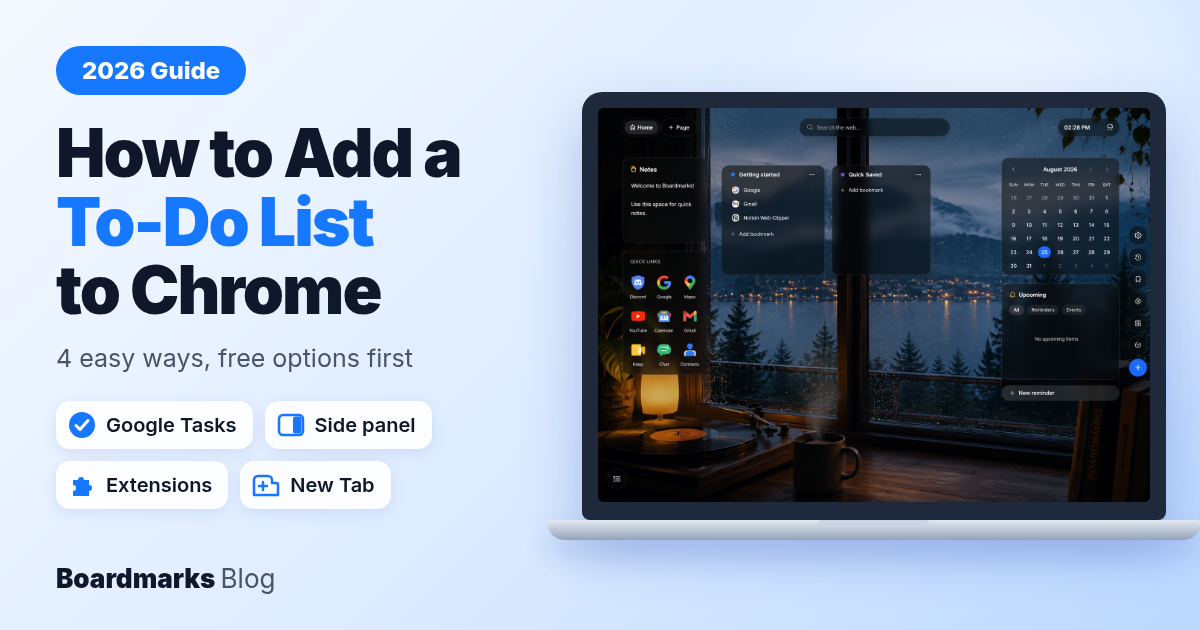
Chrome does not come with a to-do list, so here is how to add a to-do list to Chrome using tools that already work with it. The free route is Google Tasks: open it in Google Calendar in a Chrome tab, or use the Tasks side panel in Gmail, Calendar, and Docs. If you want a Chrome to do list that lives in the browser itself, add a to-do extension, or use a New Tab extension that shows your tasks every time you open a tab. The free Google options come first below.
Table of contents
Does Chrome Have a Built-In To-Do List?
Which Method Fits You
Method 1: Use Google Tasks in Chrome on the Web (Free)
Method 2: Use the Tasks Side Panel in Gmail, Calendar and Docs (Free)
Method 3: Add a To-Do List Chrome Extension
Method 4: Keep a To-Do List on the Chrome New Tab Page
Tips to Keep Your Chrome To-Do List Useful
FAQ
Does Chrome Have a Built-In To-Do List?
No. Chrome on a computer has no task list of its own. According to Google's side panel help page, the side panel holds your Reading list, Bookmarks, History, Google Lens, and Reading mode. None of these is built for tasks.
The Reading list comes closest, but it saves pages to read later. You can't add a due date, a note, or a checkbox for something that isn't a web page. The New Tab page can show shortcuts to sites you pick, which helps you reach a to-do app faster, but it has no task card. So to get a real list, you bring in Google Tasks or an extension.
Which Method Fits You
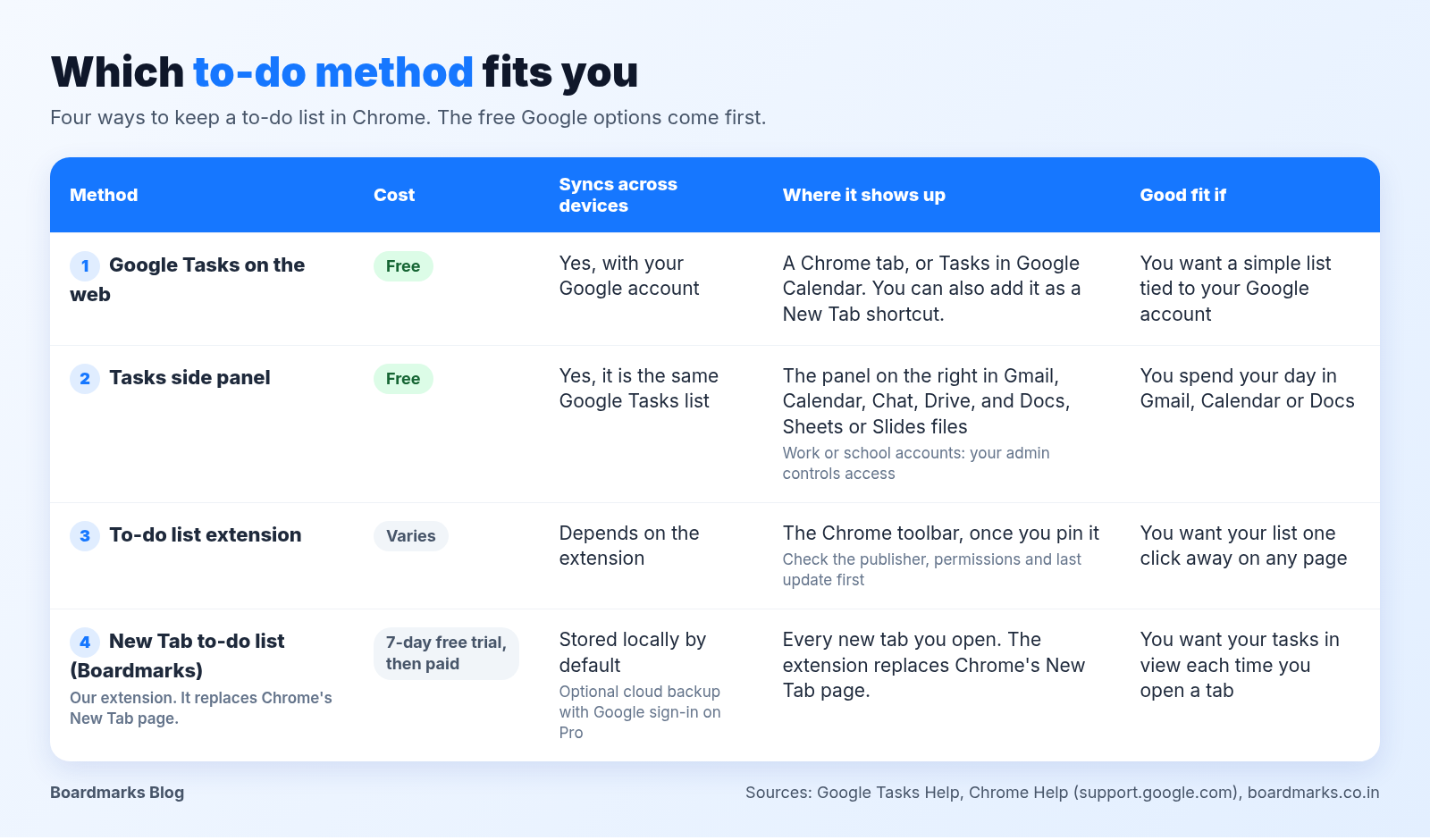
| Method | Cost | Syncs across devices | Where your list shows up |
|---|---|---|---|
| 1. Google Tasks on the web | Free with a Google Account | Yes, with the same Google Account | A Chrome tab, or an app window if Chrome offers to install it |
| 2. Tasks side panel | Free with a Google Account | Yes, with the same Google Account | The right side of Gmail, Calendar, Chat, Drive, Docs, Sheets, and Slides |
| 3. To-do list extension | Depends on the extension | Depends on the extension | The Chrome toolbar, usually as a pop-up |
| 4. New Tab to-do list (Boardmarks) | 7-day free trial, then a paid plan | Stored locally by default; optional cloud backup with Google sign-in on Pro | Every new tab you open |
If you already use Gmail or Google Calendar, start with Method 1 or 2. If you want your list in front of you without opening anything, Method 4 does that.
Method 1: Use Google Tasks in Chrome on the Web (Free)
Google Tasks is Google's free to-do app. Google's Tasks overview says your to-dos sync across all your devices, and you can add details, subtasks, due dates, and notifications. On a computer, Google points you to Tasks inside Google Calendar.
Open Google Tasks in a Chrome tab
In Chrome, open Google Calendar and sign in.
At the top right, click Tasks.
Click Create, type your task, and click Save.
Google's help page on adding or editing a task lists what each task can hold: details, a date and time, a deadline, a repeat schedule, and subtasks. Tasks with a date also appear on your calendar. You can sort tasks into lists, and to move one, click Task options and choose a list.
If you use a work or school account, your administrator controls access to Tasks. If you can't find it, ask them.
Install Tasks as an app or add it as a New Tab shortcut
Chrome can install many websites as apps so they open in their own window. Menu labels change between Chrome versions, so if yours looks different, check Chrome's web apps help page. The current path is:
Open the page you want to install.
At the top right, select More (three dots) > Cast, save, and share > Install page as app. On some sites, you can also select Install at the right of the address bar.
Follow the on-screen steps.
If Chrome offers this option on the Tasks page, Tasks will open in its own window. Once an app is installed, you can open chrome://apps, right-click it, and choose Launch at startup so it opens when you sign in to your computer.
If you don't see the install option, save the page another way. Bookmark it, or add it to your New Tab shortcuts: on a New Tab page, click Customize Chrome at the bottom right, and under Shortcuts select My shortcuts. Per Google's New Tab help page, this works when you are signed in and Google is your default search engine.
Method 2: Use the Tasks Side Panel in Gmail, Calendar and Docs (Free)
If you spend your day in Google apps, you don't need a separate tab at all. Google's Tasks help says you can open Tasks in a side panel on the right of Gmail, Calendar, Chat, Drive, and any file in Google Docs, Sheets, or Slides.
Open one of those apps in Chrome.
On the right, click Tasks.
At the top, click Add a task and type it in.
If you don't see the side panel, click Show side panel at the bottom right of the screen. Tasks with a date and time also appear in Calendar, so the panel and your calendar stay in step.
Add a task from an email in Gmail
Emails are often where to-dos start. To turn one into a task:
Open the email in Gmail.
At the top, click Add to Tasks. If you can't find it, click More > Add to Tasks.
You can also open the Tasks side panel and drag the email into it.
Method 3: Add a To-Do List Chrome Extension
A to do list Chrome extension puts your list one click away on the toolbar, on any site. There are many in the Chrome Web Store, and they differ a lot in features, pricing, and how they handle your data, so we won't rank them here.
How to choose a to-do extension
Before you install one, check its Chrome Web Store listing for:
Who publishes it. Look at the developer name and contact details. A listing called "Google Tasks" exists in the Web Store, but it is a third-party extension: its listed developer is not Google, and we found no official Google Tasks extension.
What permissions it asks for. A simple list rarely needs to read and change data on every site you visit.
When it was last updated. A recent update suggests someone still maintains it.
Where it keeps your tasks. Some store tasks only in your browser, others sync through an account. Pick the one that matches how many devices you use.
For more ideas, see our list of more Chrome productivity extensions.
How to install and pin it
Chrome Web Store Help gives these steps:
Open the Chrome Web Store and select the extension.
Select Add to Chrome.
If it asks for permissions, select Add extension to approve. Only approve extensions you trust.
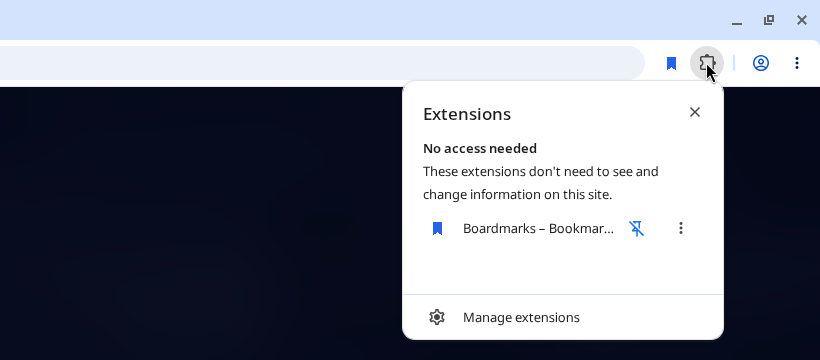
To keep it on your toolbar, select the Extensions icon to the right of the address bar, find the extension, and select Pin. You can't add extensions in Incognito mode or as a guest, and a work or school computer may block some.
Method 4: Keep a To-Do List on the Chrome New Tab Page
Chrome's own New Tab page can't show tasks, so this method needs an extension that replaces your New Tab page. The benefit is that your list is there each time you open a tab, with no extra click. If you later want to know which extension is running your New Tab, Chrome can list it in the New Tab page footer.
Boardmarks is our Chrome extension, so we are not neutral here. It replaces the New Tab page with a workspace that includes a to-do list next to your bookmark boards. Our new tab todo list page covers the details: tasks support due dates and are sorted into Today, Upcoming, and Completed views. Tasks are stored in Chrome local storage by default, and optional cloud backup is available with Google sign-in on a Pro plan. You sign in with Google to start a 7-day free trial (no card required), then need a paid plan.
If you need a list you can share with others or open on your phone, Google Tasks (Methods 1 and 2) is the better fit. For other ways to change what a new tab shows, see other ways to customize your Chrome New Tab.
Tips to Keep Your Chrome To-Do List Useful
Any of these methods works better with a few habits:
Use one list as your main list. Tasks split across Gmail, an extension, and sticky notes are easy to lose.
Write tasks as actions. "Email Priya the invoice" is easier to start than "invoice."
Give dates only to real deadlines. If every task has a date, the dates stop meaning anything.
Review the list once a day. Pick the few tasks that matter and move the rest.
If you want a routine to go with your list, try a simple daily planning routine.
FAQ
- Does Chrome have a built-in to-do list?
- No. Chrome's side panel includes Reading list, Bookmarks, History, Google Lens, and Reading mode, but no task list. To add one, use Google Tasks, a to-do extension, or a New Tab extension.
- Is there an official Google Tasks Chrome extension?
- We found no Google-made Tasks extension. The Chrome Web Store has a listing named "Google Tasks," but it is a third-party extension, and its listed developer is not Google. Google's own help points you to Tasks in Calendar and the side panel in Gmail, Calendar, and Docs.
- Can I see my to-do list every time I open Chrome?
- Yes. A New Tab extension with a to-do list shows your tasks on every new tab. If you installed Tasks as an app, you can set it to launch at startup from chrome://apps. You can also open a specific page when Chrome starts.
- Do to-do list extensions sync across computers?
- It depends on the extension. Google Tasks syncs across your devices when you use the same Google Account. Other extensions may sync through their own account or keep tasks only on one computer, so check the listing before you rely on it.
- Are to-do list Chrome extensions safe?
- It depends on the extension, so check before you install. Look at the publisher, the permissions requested, and the last update date. Chrome Web Store Help says Chrome's Enhanced protection mode warns you when an extension you want to install isn't trusted.
Chrome New Tab extension
Organize bookmarks, todos, and habits on every New Tab.
- Visual bookmark boards
- Todos, habits, notes, reminders
- Local-first by default
Free trial · no card required